Help and user guide
Club Manager
As Club Manager you run your club in the club workspace. You are a player too: the "Player" chapter applies to you as well. Every club has exactly one Club Manager; the Super Admin names them.
1 Getting started: into the club workspace
After signing in you land on "Play Skat" like every player. Your club is one click away.
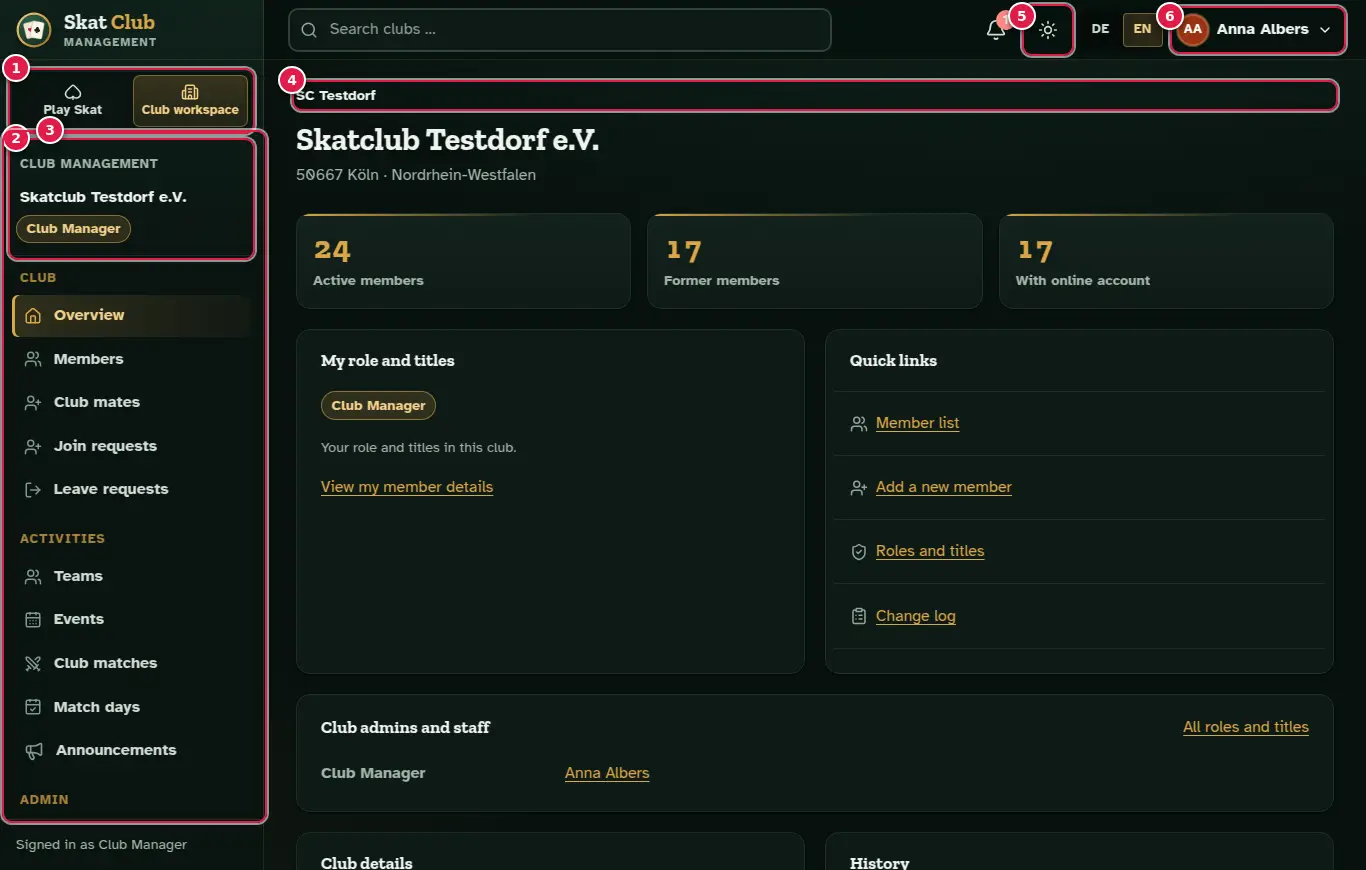
Click the picture for full size.
- 1. Switch area: "Play Skat" or "Club workspace".
- 2. Your club and your role.
- 3. The club menu: club, activities and administration.
- 4. Where you are. Tap a part to go back.
- 5. Sun/moon: light or dark view.
- 6. Name at the top right: menu with profile and "Sign out".
How to open the club workspace
- Sign in. You see the game full screen.
- Tap "Club workspace" in the bar at the top right.
- The club workspace opens with the menu on the left (on phones at the bottom and under "More").
- Go back to the game with the "Play Skat" area at the top of the menu.
Buttons and statuses
- Play Skat / Club workspace
- The two areas at the top of the menu. Switch between the game and your club.
- Menu groups
- "Club" (members, requests), "Activities" (teams, events, club matches, match days, announcements) and "Admin" (roles, activity log, settings).
- Club selector
- If you run several clubs, choose the club at the top of the menu.
If something goes wrong
- "No access to the club workspace"
- You hold no club role in this club. Check the club under "My clubs" or contact support.
- "This club is deactivated"
- You can view everything but change nothing. The club must be reactivated first (Settings).
2 Overview
Your club at a glance: club details, numbers, your role and quick links.
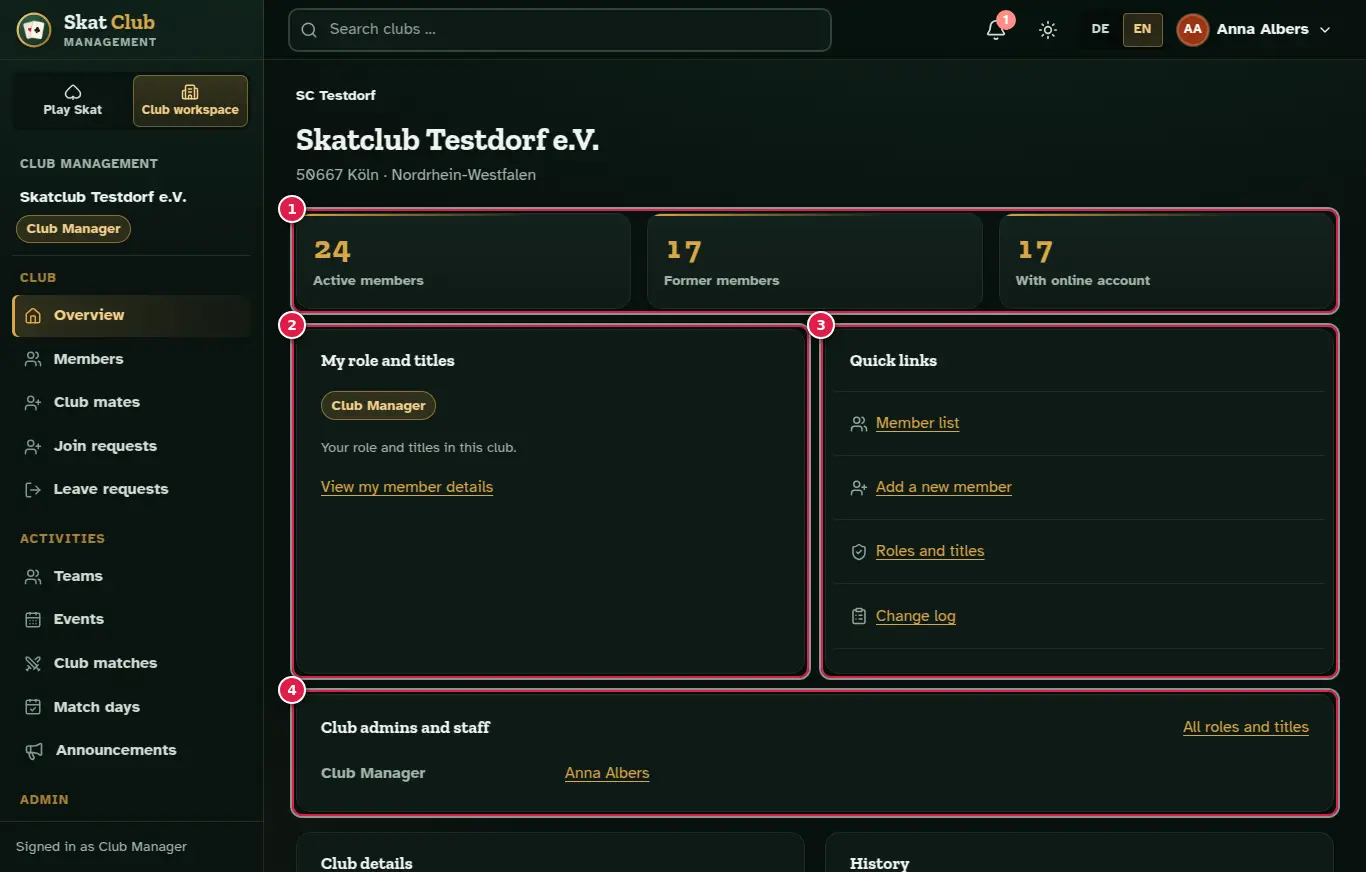
Click the picture for full size.
- 1. Active and former members and how many have an online account.
- 2. Your role and titles in the club.
- 3. Shortcuts: members, new member, roles, settings.
- 4. Club admins and staff. "All roles and titles" to change them.
Buttons and statuses
- Club details
- Name, short name, federal state, contact, website and whether the club is public in the club directory.
- Active members / Former members / With online account
- The key numbers of your club.
- Quick links
- "Member list", "Add a new member", "Roles and titles" and "Change log".
- Active / Deactivated
- The status of the club.
3 Members
All members of your club, including people without an online account.
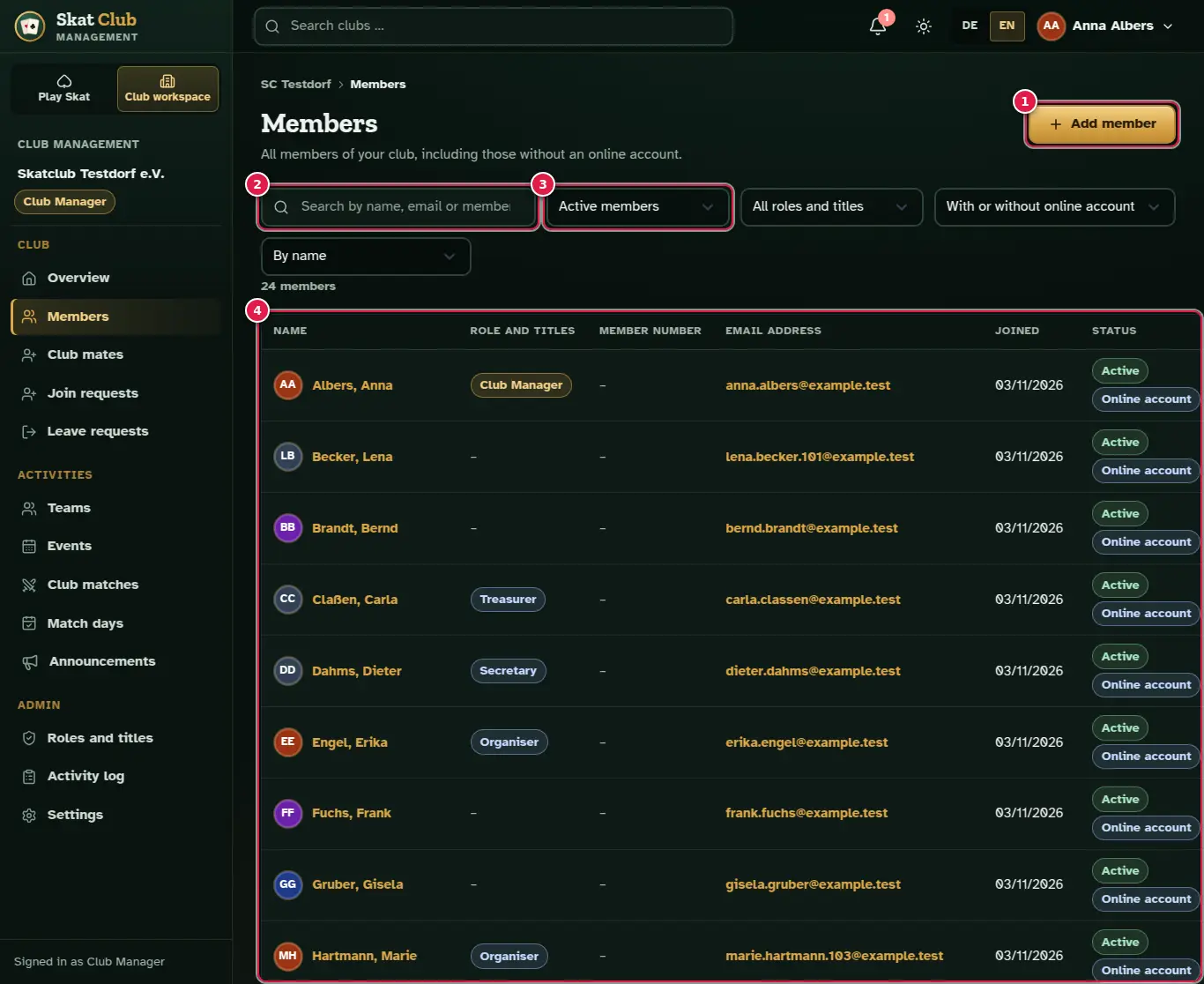
Click the picture for full size.
- 1. "Add member" creates a new member.
- 2. Search by name, email or member number.
- 3. Filters: status, role/title, online account and sort order.
- 4. The member list. Tap a name to open the member.
How to find a member
- Open "Members".
- Search by name, email or member number.
- Filter by "Active members", "Former members" or "All members", by role or title and by online account.
- Tap a member to open the details.
How to add a member
- Tap "Add member".
- Enter first and last name. Everything else is optional (member number, player pass number, email, phone, joined, notes).
- Tap "Add member".
- If you see "Does this member already exist?", check the existing member or choose "Save anyway".
How to record that a member left
- Open the member.
- Under "Membership" tap "Record leaving".
- Choose the date and add a reason if needed.
- Confirm. Titles are removed and open invitations revoked. "Take back" starts a new membership later.
Buttons and statuses
- Edit / Save
- Changes the member details.
- Unlink account
- Separates the online account from the member. The member data stays.
- Fair play
- Reliability, fair-play score, online games and penalties of the member. You can lift penalties from club games with "Lift".
- Club strikes
- Strikes from match days (see the section "Club strikes").
- Active / Left
- Status of the membership.
If something goes wrong
- "Another member already has this member number."
- Choose another number or check the other member.
- "The details were changed in the meantime"
- Tap "Load current details" and make your change again.
- "The date cannot be in the future."
- Choose a date up to today.
4 Club strikes
At match days a strike is given automatically for "Cancelled after the line-up lock" or "Did not check in". Strikes count for 90 days. From the 2nd strike: no line-ups for 2 weeks. From the 3rd you may remove the member from the club.
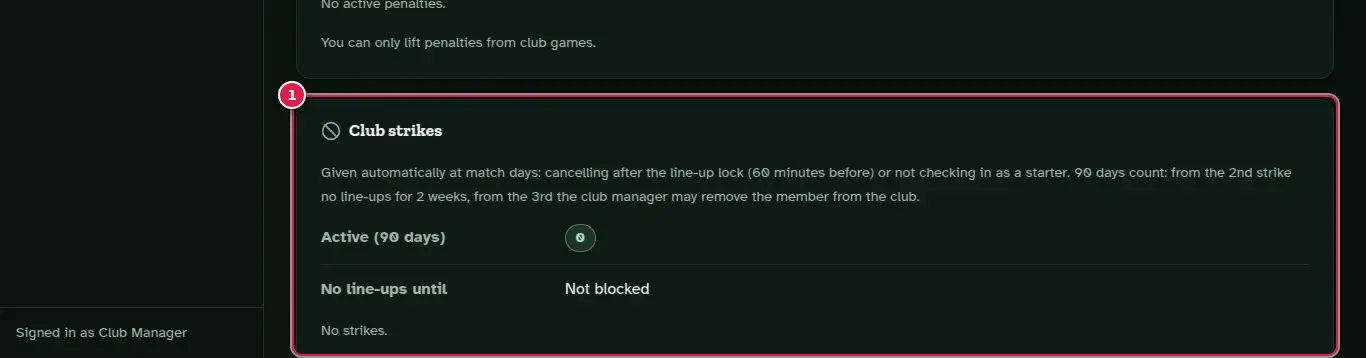
Click the picture for full size.
- 1. This member's strikes: active count, blocked until, list with "Lift".
How to lift a strike
- Open the member under "Members".
- Under "Club strikes" tap "Lift" next to the strike.
- Add a reason if needed and confirm. The member gets a notice.
How to remove a member for strikes
- The member has at least 3 active strikes.
- Tap "Remove from the club".
- Check the reason and confirm. The person cannot join or found a club for 30 days.
Buttons and statuses
- Active / Expired / Lifted
- Status of a strike.
- Blocked until …
- Until this day the member cannot be in a line-up.
If something goes wrong
- "A member can be removed for strikes only from the 3rd active strike."
- The member does not have enough active strikes yet.
5 Club mates
Active members with a game account and their game numbers: level, rating, games, wins, win rate.
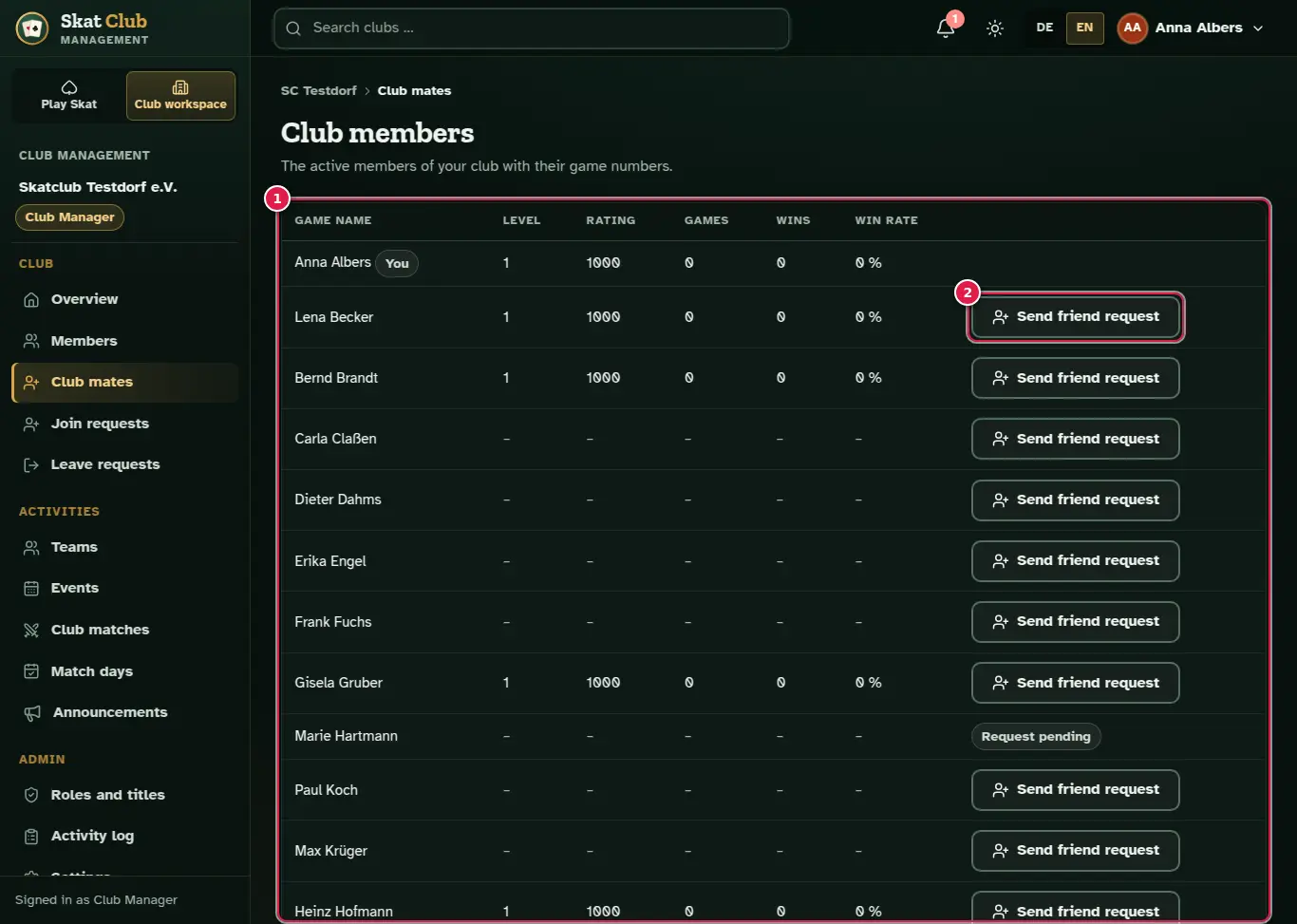
Click the picture for full size.
- 1. Your club mates with level, rating and games.
- 2. "Send friend request".
Buttons and statuses
- Send friend request
- Sends the member a request. Then it shows "Request pending" or "Friend".
6 Join requests
People who would like to become members. The number in the menu shows open requests. Requests expire after 7 days without an answer.
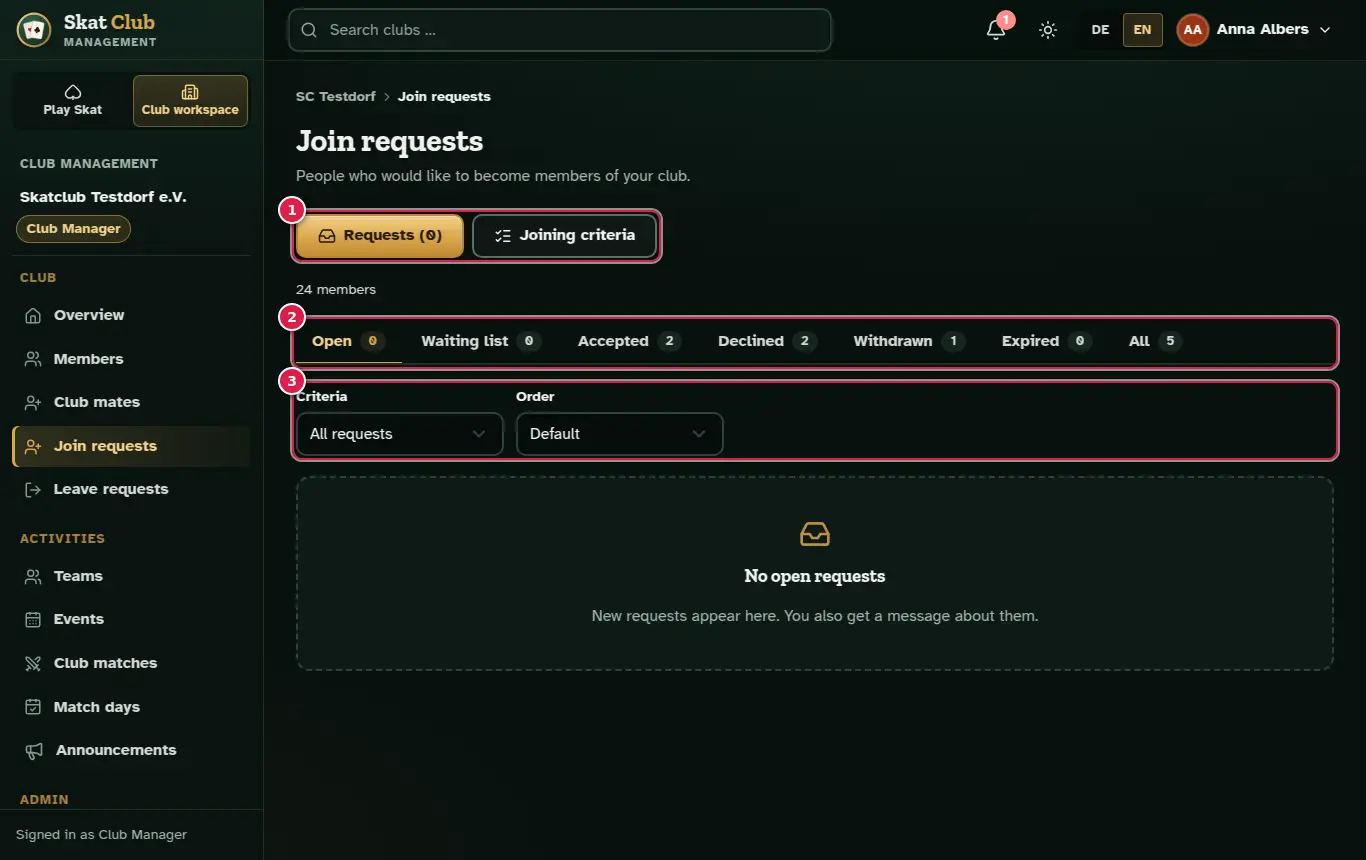
Click the picture for full size.
- 1. "Requests" or edit the "Joining criteria".
- 2. Requests by state: open, waiting list, accepted, declined …
- 3. Filter by criteria and sort order.
How to answer a request
- Open "Join requests", view "Requests".
- Filter by state or "Meets all criteria" if needed.
- Use "View profile" to look at the person.
- Tap "Accept" (with an optional message) or "Decline" (a reason is needed).
How to set joining criteria
- Switch to the view "Joining criteria".
- Set e.g. "Minimum division", "Minimum reliability (%)" or "Lessons in the game finished".
- Turn on "Accept automatically" if you like: anyone who meets all criteria becomes a member at once.
- Tap "Save criteria".
Buttons and statuses
- Open / Waiting list / Accepted / Declined / Withdrawn / Expired
- State of a request. When the club is full, new requests go on the waiting list.
- Was a member before
- Accepting reactivates the old membership.
If something goes wrong
- "Is already a member"
- Decline the request.
7 Leave requests
Members who want to leave: "At season end" (takes effect automatically) or "Now (during the season)".
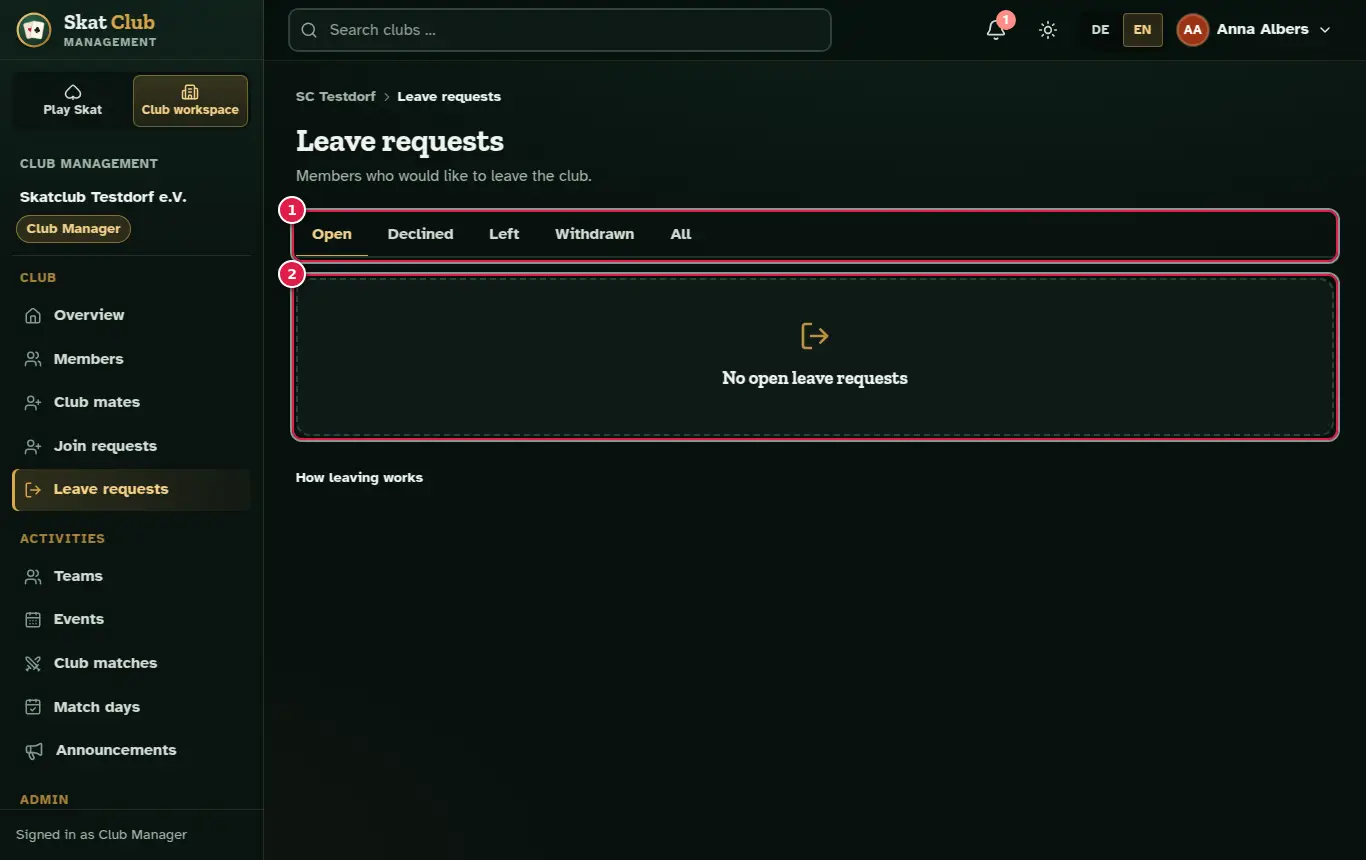
Click the picture for full size.
- 1. Leave requests by state.
- 2. The requests. Confirm or decline them here.
How to answer a leave request
- Open "Leave requests".
- Tap "Release now": the person leaves at once and can join another club after 7 days.
- Or tap "Decline" and write a reason. The person can appeal to the platform.
- Answer "now" requests by the date shown, otherwise the person leaves at season end.
Buttons and statuses
- Leave requested / Leave declined / Withdrawn / Left
- State of a leave request.
- Appeal open / upheld / rejected
- State of an appeal to the platform.
If something goes wrong
- "This leave request is no longer open."
- Reload the page; someone already answered or the person withdrew.
8 Teams: line-ups and substitutes
Each team has 3 starters, up to 4 substitutes and one level.
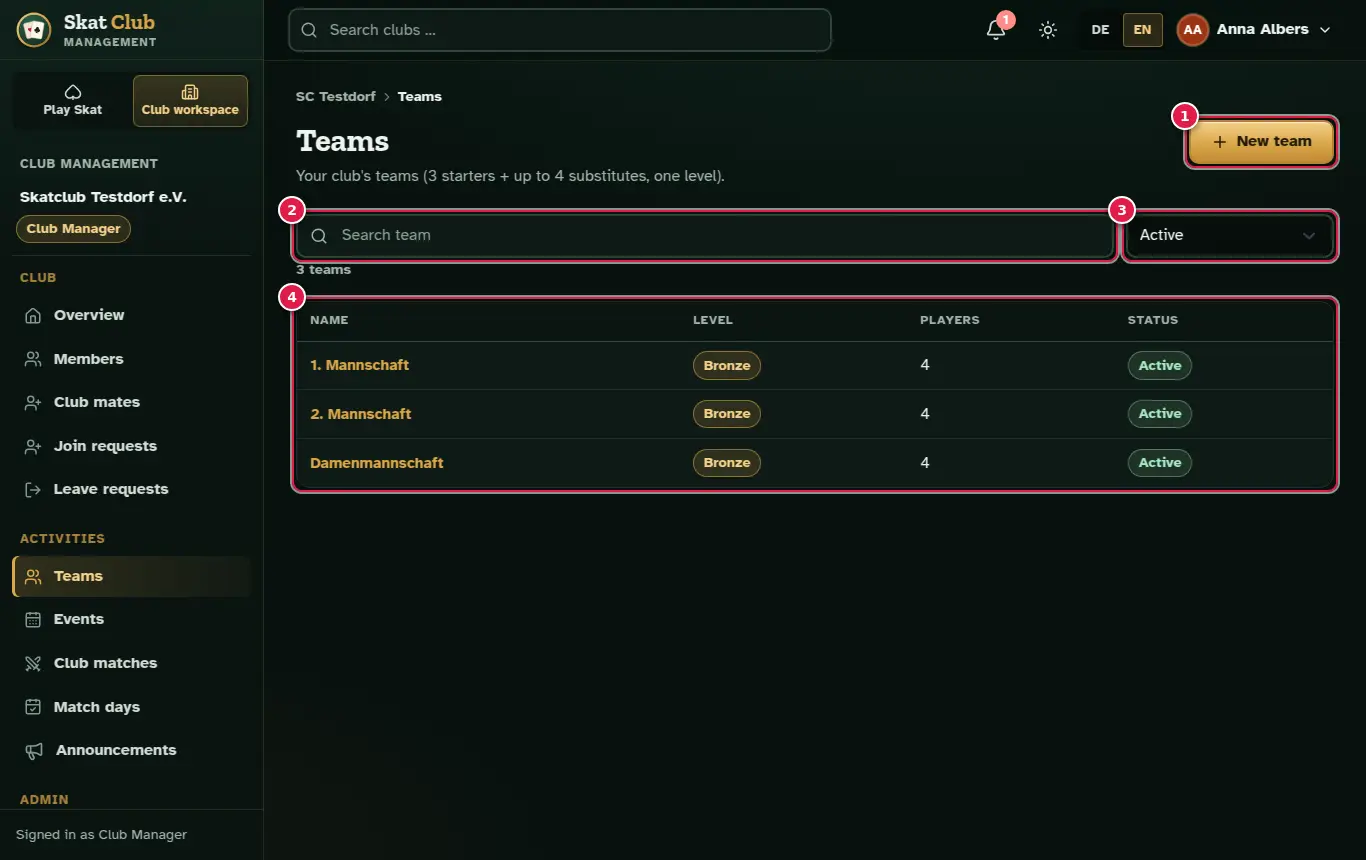
Click the picture for full size.
- 1. "New team".
- 2. Search a team.
- 3. Active, inactive or all teams.
- 4. The teams. Tap one to change its players.
How to create a team
- Tap "New team".
- Enter name and level (Bronze to Master).
- Under "Players" tap "Starter" or "Substitute" for each member.
- Tap "Save". This works only with exactly 3 starters.
Buttons and statuses
- Edit
- Changes name, level, players and "Team is active".
- Delete team
- Deletes the team. The members stay in the club.
- Active / Inactive
- Only active teams can play club matches.
If something goes wrong
- "A team with this name already exists for this season."
- Choose another name.
9 Match days: availability, line-up, check-in
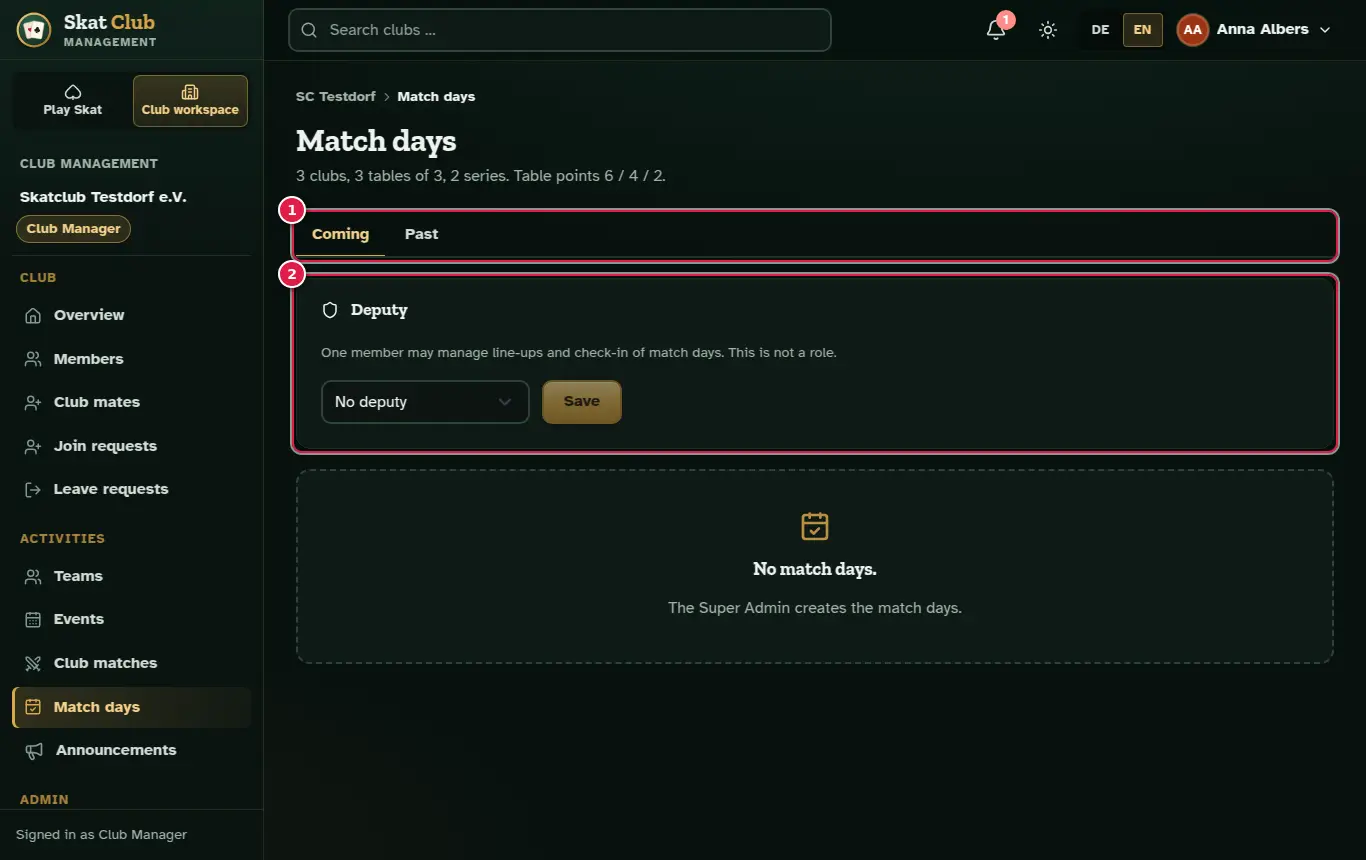
The official league match day: 3 clubs, 3 tables of 3, 2 series. The Super Admin creates match days; you take care of line-up and check-in.
Click the picture for full size.
- 1. "Coming" or "Past" match days.
- 2. Deputy: one member may manage line-ups and check-in.
How to set the line-up
- Open "Match days" and the coming match day.
- See in the column "Can play?" who is free (Yes, No, Maybe, No answer).
- Tap "Edit line-up".
- Choose exactly 3 starters and up to 4 substitutes. The order counts: substitute 1 moves up first.
- Save at the latest 60 minutes before the start. Then the line-up is locked.
How check-in works
- Check-in is open from 30 to 10 minutes before the start.
- Players check in themselves. You can also tap "Check in" for a player.
- Then the tables are ordered and played.
How to substitute for series 2
- Wait for the phase "Break before series 2".
- Under "Substitution for series 2" choose "Out" and "In".
- Tap "Substitute". Only a checked-in substitute can come in.
How to name a deputy
- Open "Match days".
- In the card "Deputy" choose a member with an account (or "No deputy").
- Tap "Save". The deputy manages line-up and check-in. It is not a role.
Buttons and statuses
- Line-up open / Line-up locked / Check-in open / Ordering tables / Break before series 2 / Finished / Cancelled
- The phases of a match day.
- checked in / not checked in
- Check-in state of a player.
- Series points / Table points
- The result; "(live)" means: not finished yet.
If something goes wrong
- "The line-up is locked 60 minutes before the start."
- Set the line-up earlier. Now only the substitution for series 2 is possible.
- "Check-in is open from 30 to 10 minutes before the start."
- Come back within this window.
- "A player is already in a line-up at the same time …"
- Clash with another match day or club match (3 hours apart). Choose another player.
- "A player has a 2nd club strike …"
- Choose another player or lift the strike on the member page.
- "A player said no …"
- Someone who answered "No" cannot be named.
10 Club matches
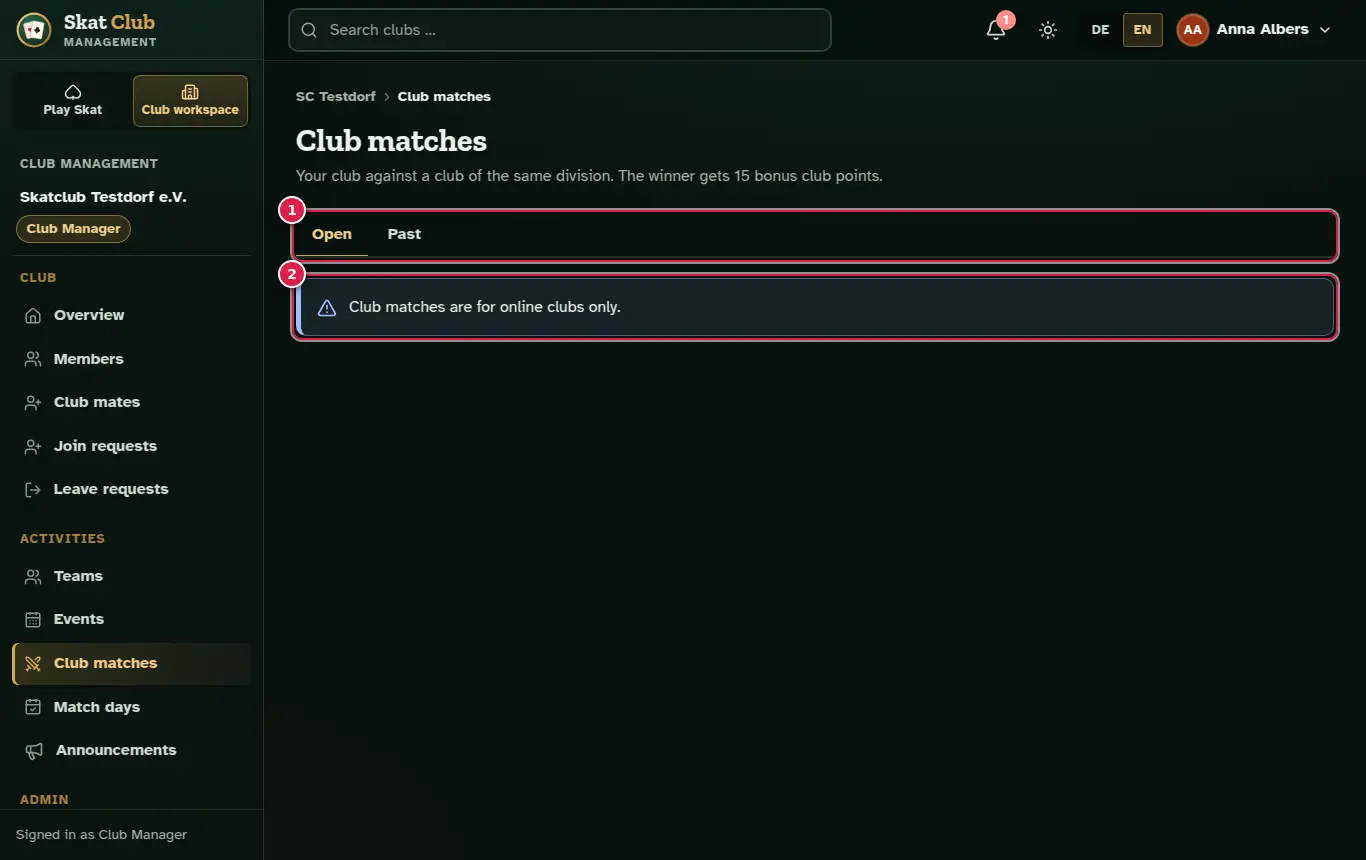
Challenge a club of your division. Each side names 3 or 6 players; play is at mixed tables of three.
Click the picture for full size.
- 1. "Open" or "Past".
- 2. Club matches are for online clubs only. The demo club is a local association; online clubs see "Challenge a club" here.
How to challenge a club
- Tap "Challenge a club".
- Find the opponent under "Search club".
- Choose date and time (at most 90 days ahead) and "Length of club tables".
- Add a message if you like and tap "Send".
How to answer a challenge
- Open the club match marked "Your turn".
- Tap "Accept", "Propose another time" or "Decline".
How to name your players
- Open the accepted club match.
- Tap "Name players" and choose an active team of the right level.
- Line-ups stay hidden until both clubs have named theirs.
- Tables are ordered automatically at the start time. Otherwise use "Order tables now" or "Order tables again".
Buttons and statuses
- Proposed / Accepted / Declined / Cancelled / Running / Tables failed / Finished
- State of a club match.
- Cancel club match
- Cancels the match.
If something goes wrong
- "A club already has a match at this time …"
- Clash with a match day or club match (3 hours apart). Choose another time.
- "You can only challenge a club of your division."
- Choose a club of your division.
- "No active team of level …"
- Create a team of this level under "Teams".
- "Both clubs must name 3 or 6 players …"
- Both sides need the same number of players.
11 Events: club evenings with check-in and draw
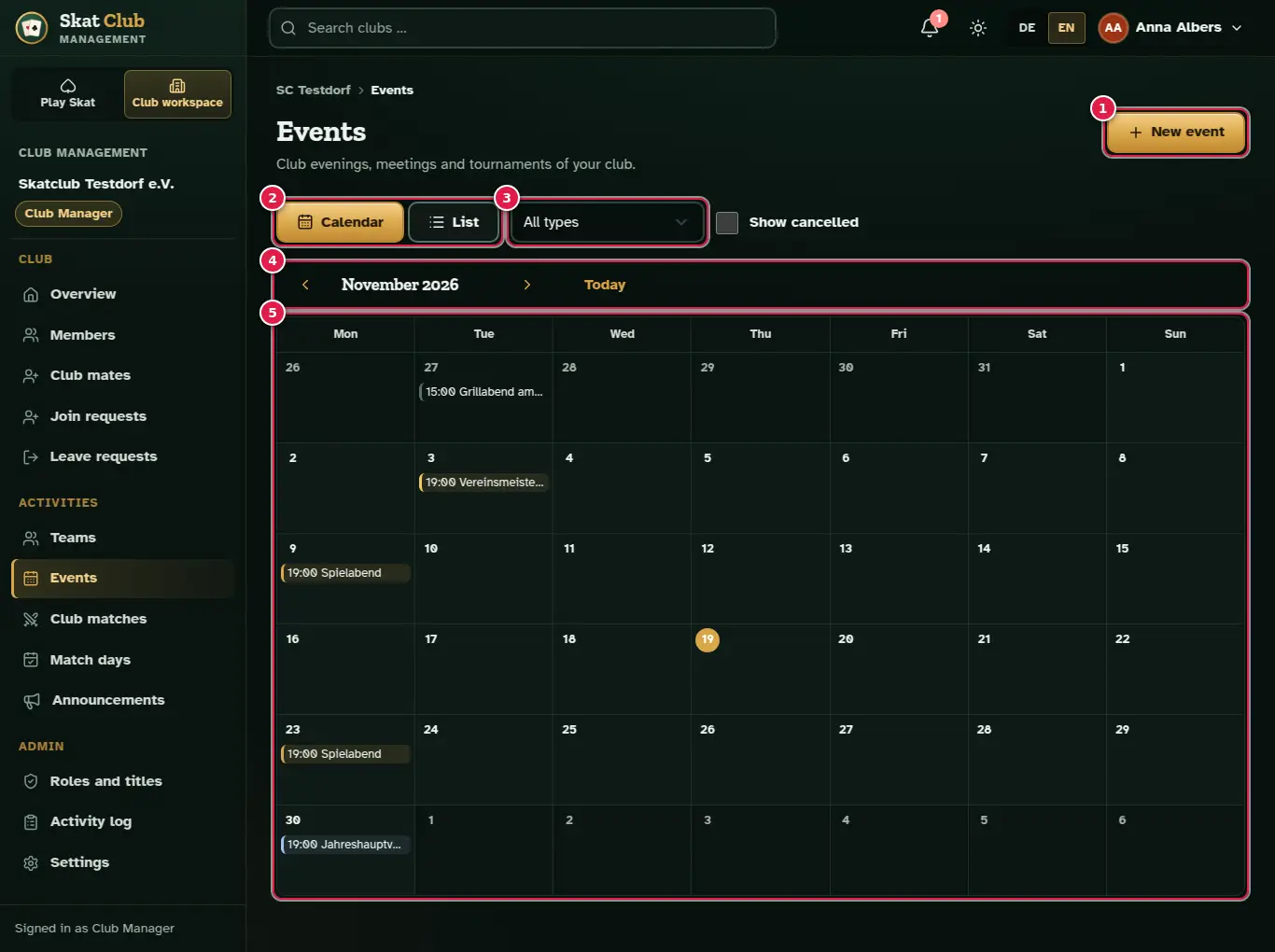
Club evenings, meetings and club tournaments, with online tables if you like.
Click the picture for full size.
- 1. "New event".
- 2. View: calendar or list.
- 3. Filter by kind of event.
- 4. Month back and forward, "Today".
- 5. The calendar. Tap an event for details and replies.
How to create an event
- Tap "New event".
- Choose the type (Club evening, Meeting, Tournament, Other) and the visibility (Members only or Public).
- Enter title, start, end, location and description.
- For online tables set "Length of club tables". Then choose places and "Who may play?": "By criteria" or "Invitation only".
- Save. Use "Invite members" to invite people.
How check-in and the draw work
- Members sign up with "Sign up".
- Check-in is open from 30 to 10 minutes before the start ("Check in now"). You can tap "Check in" for a member.
- 5 minutes before the start the draw takes place: tables of 4 first, tables of 3 only to fill.
- After check-in you can draw earlier with "Draw now".
- Results are shown in the event. "(provisional)" means: not final yet.
Buttons and statuses
- Edit event / Cancel event
- Changes or cancels the event. A cancellation cannot be undone.
- Registered / Checked in / At the table / No seat / Not checked in
- State of a player.
- Finished / Did not start / Disqualified / Dropped out
- Result state of a player.
- Tables failed
- Tap "Order tables again".
- Minimum reliability (%)
- Share of online games played to the end. Players with fewer than 20 online games always meet it.
If something goes wrong
- "The draw is possible once check-in has closed …"
- Wait until check-in is over (10 minutes before the start).
- "At least 3 players must be … checked in."
- Too few players. Remind your members to check in.
- "The club's criteria are not met."
- The member does not meet the criteria (e.g. reliability). Invite them or change the criteria.
- "… have no seat this time"
- The number does not fit on tables. These members do not play this time.
12 Announcements
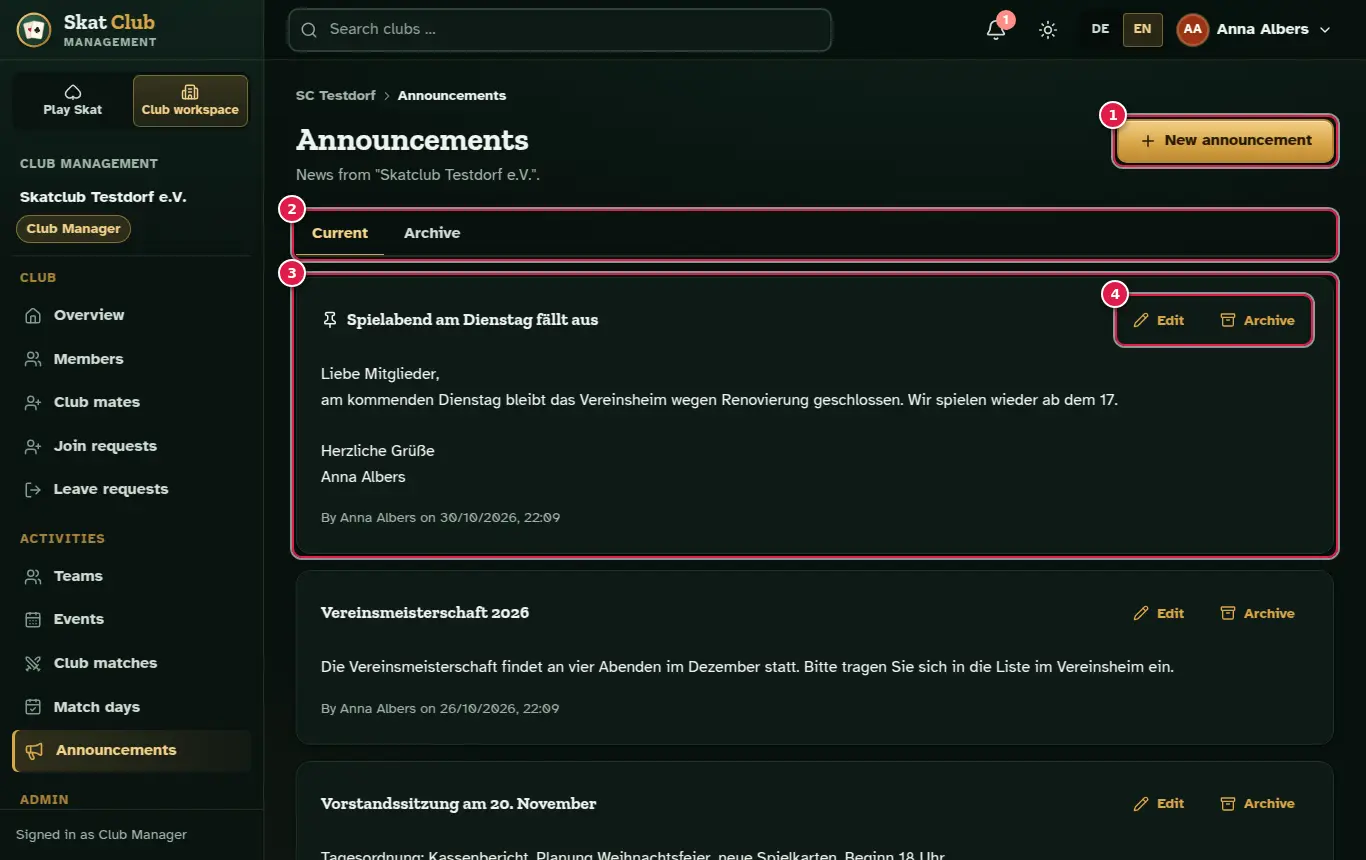
News for your members. Recipients get a notification.
Click the picture for full size.
- 1. "New announcement" to all members.
- 2. "Current" or "Archive".
- 3. An announcement. Pinned ones are at the top.
- 4. "Edit" or "Archive".
How to publish an announcement
- Tap "New announcement".
- Enter title and text.
- Choose "For whom?": "All members" or "Office holders only".
- Tick "Pin to top" if needed and tap "Publish".
Buttons and statuses
- Current / Archive
- Current and archived announcements.
- Edit / Archive
- Changes the announcement or hides it from members.
13 Roles and titles
Who runs the club and who holds a title. Titles (Treasurer, Secretary, Organiser) are labels only and give no rights.
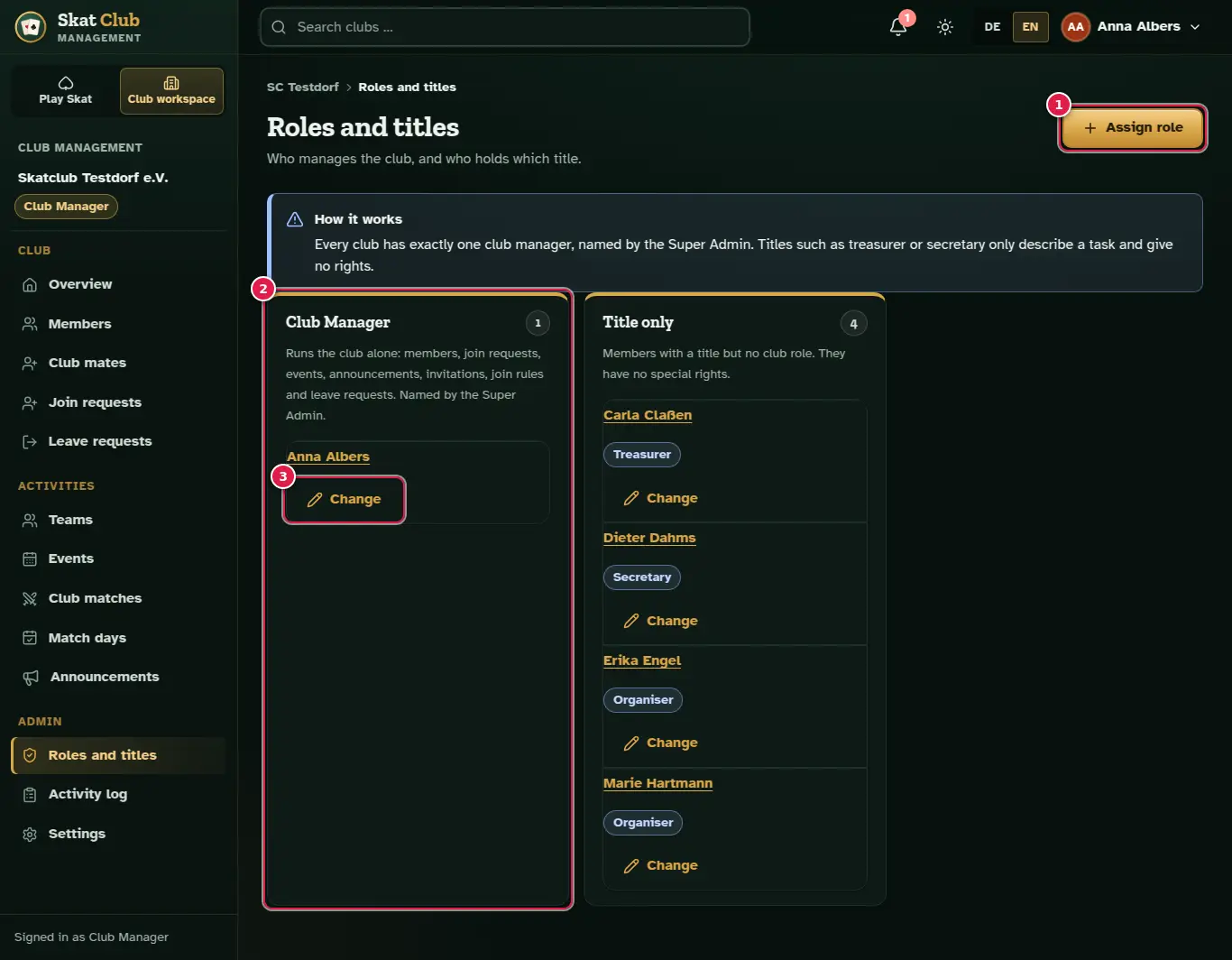
Click the picture for full size.
- 1. "Assign role" to a member.
- 2. Who holds which role.
- 3. "Change": edit this member's role and titles.
How to give a title
- Tap "Assign role".
- Choose the member and tap "Next".
- Choose the titles and tap "Save". Use "Change" to adjust it later.
If something goes wrong
- "Only the Super Admin can name another club manager."
- A new Club Manager is named by the Super Admin. Write to support.
14 Activity log
Who changed what in the club, and when. Filter by area.
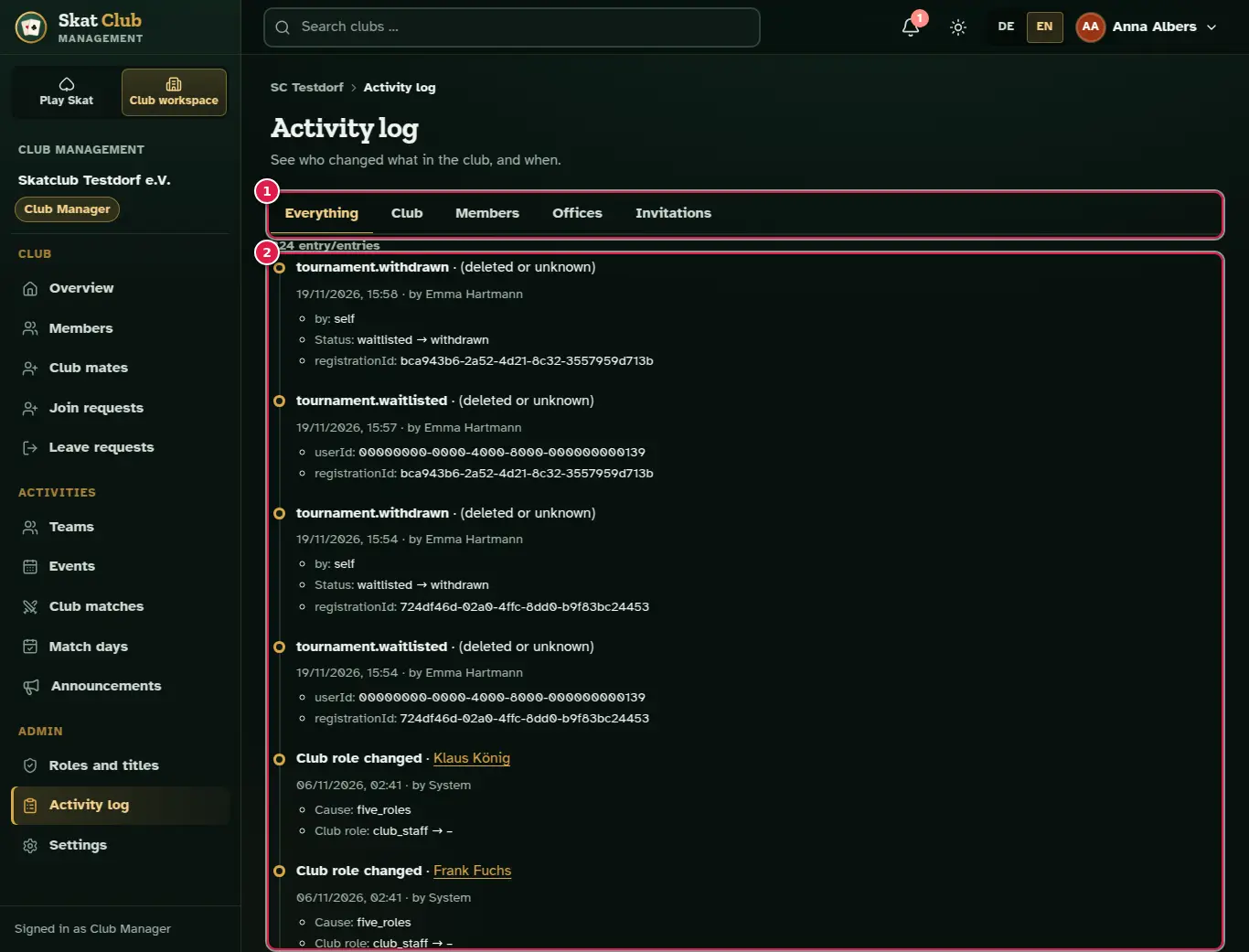
Click the picture for full size.
- 1. Filter by area.
- 2. Who changed what and when.
15 Settings: club details
Change the name, address and contact details of the club.
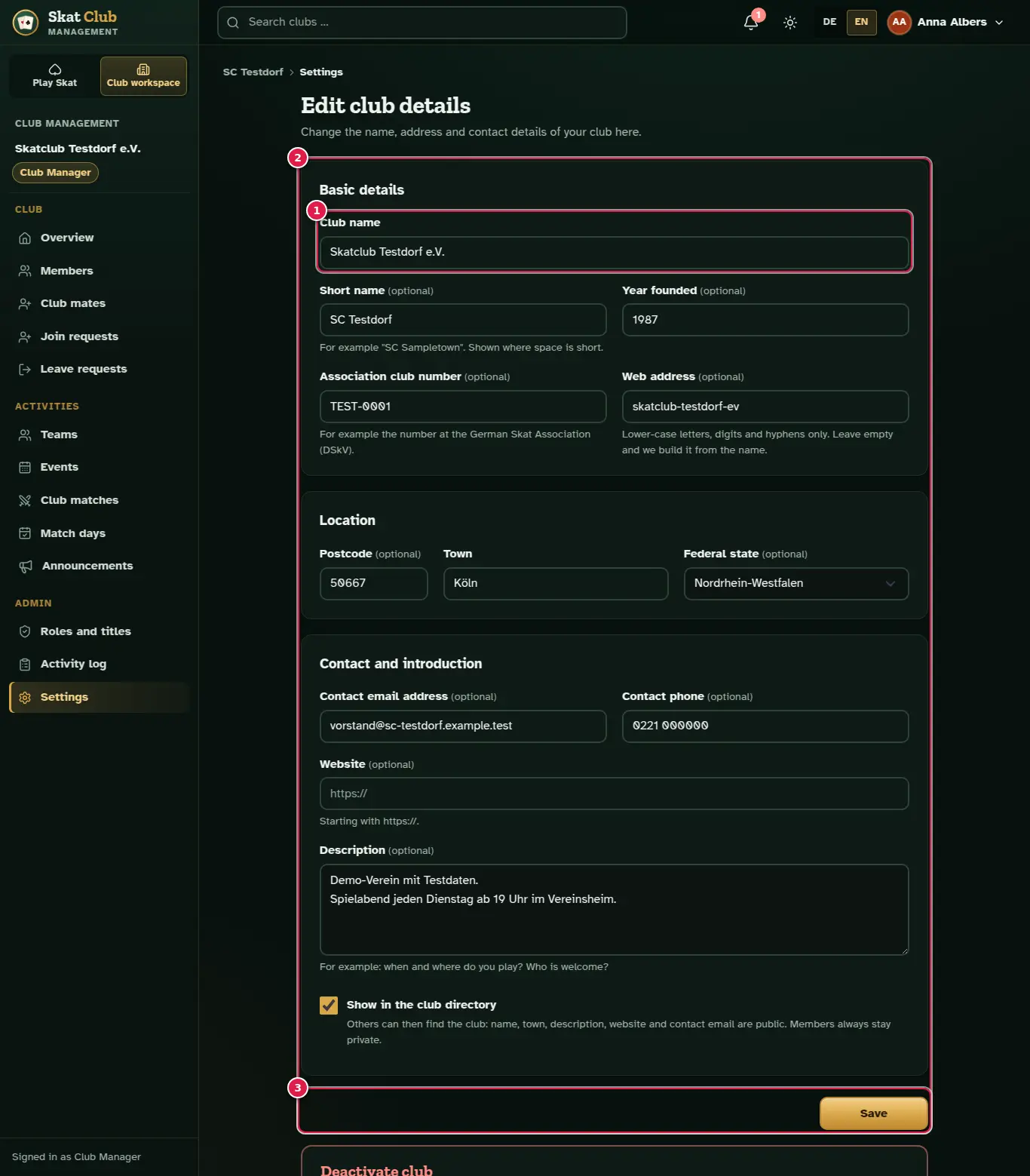
Click the picture for full size.
- 1. Club name.
- 2. All club details: short name, contact, address, website and description.
- 3. "Save" stores the changes.
How to change the club details
- Open "Settings".
- Change the fields.
- Tap "Save".
Buttons and statuses
- Deactivate club / Reactivate club
- Deactivates the club with a reason (then nothing can be changed) or reactivates it.
If something goes wrong
- "The details were changed in the meantime"
- Tap "Load current details" and change it again.