Help and user guide
Player
This chapter shows you everything from your first sign-in to a tournament: playing, clubs, friends, match days and help.
1 Getting started: account and sign-in
One login for everything: the game, your club and tournaments.
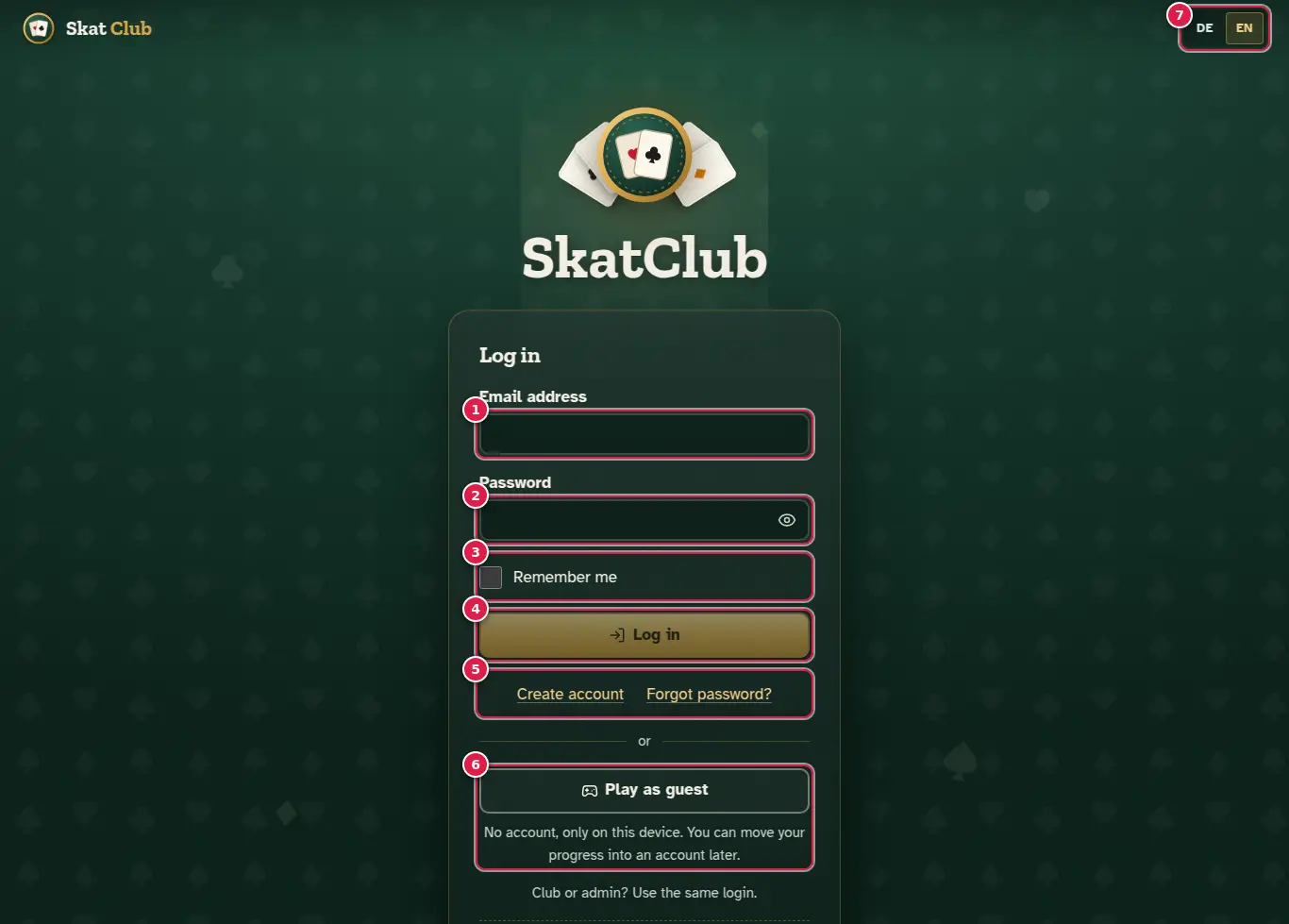
Click the picture for full size.
- 1. The email address of your account.
- 2. Password. The eye shows it in plain text for a moment.
- 3. "Remember me": the device keeps you signed in and remembers your email.
- 4. "Log in" – you land on "Play Skat".
- 5. "Create account" for a new account, "Forgot password?" for a link by email.
- 6. "Play as guest": no account, only on this device.
- 7. Switch the language: DE or EN.
How to create an account
- On the sign-in page tap "Create account".
- Choose a character name (3 to 20 characters). "This name is available." shows it is fine.
- Enter email address and password (at least 8 characters).
- Choose your experience under "How well do you know Skat?".
- Tap "Create account".
How to sign in
- Enter email address and password.
- Tick "Remember me" if you like. The device then also remembers your email.
- Tap "Log in". You land on "Play Skat".
How to reset your password
- Tap "Forgot password?".
- Enter your email address and tap "Send link".
- Open the link in the email (check the spam folder too).
- Enter the new password twice and tap "Save password".
Buttons and statuses
- Play as guest
- Play without an account, only on this device. You can move your progress into an account later.
- DE / EN
- Switch the language at the top right.
- Not you? Use a different email address
- Shown with "Remember me"; lets someone else sign in.
If something goes wrong
- "Email address or password is wrong."
- Check what you typed or use "Forgot password?".
- "Too many attempts in a short time …"
- Wait a few minutes and try again.
- "Your account is blocked."
- Contact support.
- "This link is no longer valid …"
- Request a new link under "Forgot password?".
2 Getting started: menu, notifications, sign out
After signing in you see the game full screen. "‹ Overview" at the top left takes you to your space with the menu.
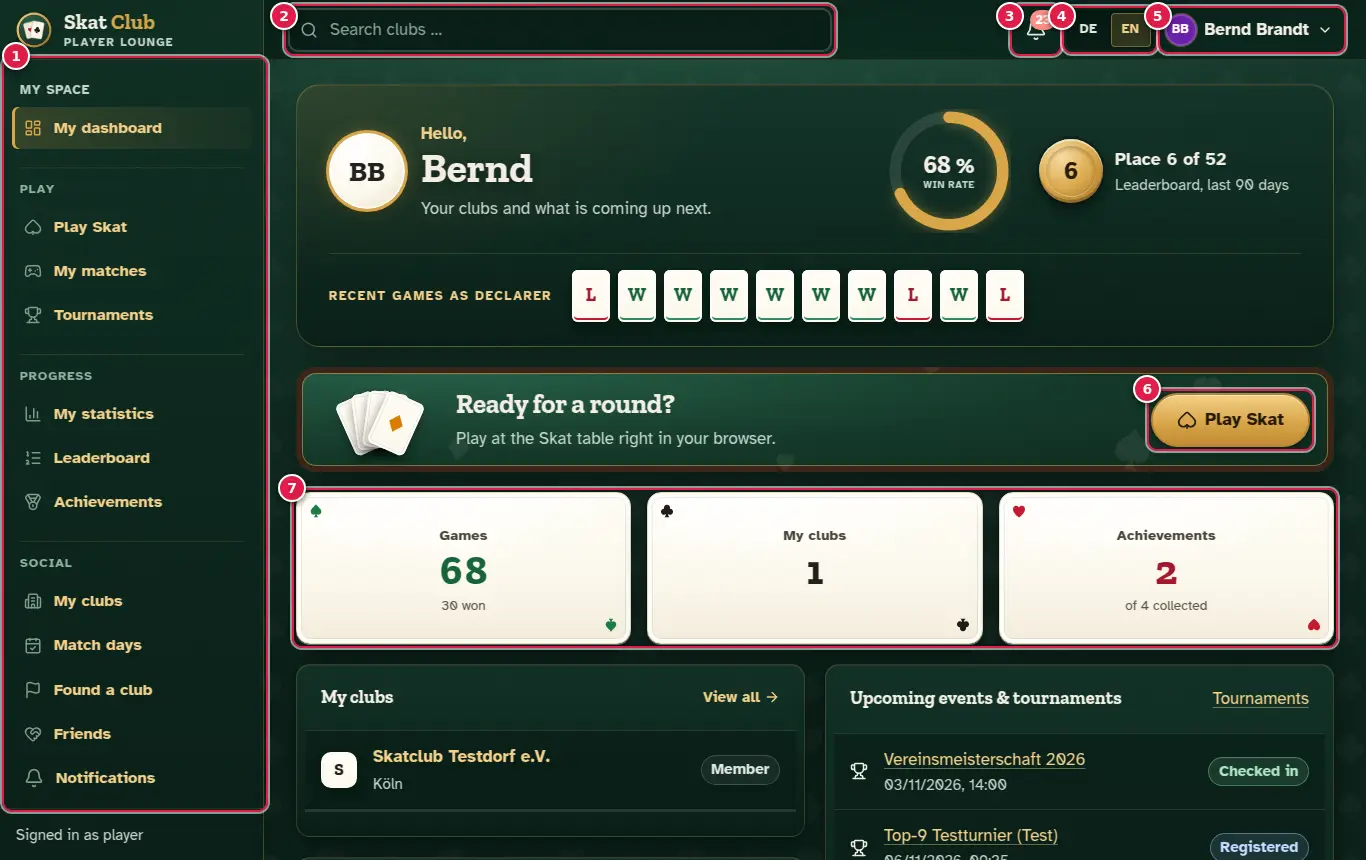
Click the picture for full size.
- 1. The menu with the groups "Play", "Progress", "Social" and "Account".
- 2. Search: find clubs by name or town.
- 3. Bell: new notifications. The number shows how many are unread; tap to open the list.
- 4. Switch the language: DE or EN.
- 5. Name at the top right: menu with profile and "Sign out".
- 6. "Play Skat" opens the Skat table.
- 7. Your numbers: games, clubs, achievements. Tap one to open its page.
How to find your way in the menu
- In the game tap "‹ Overview" at the top left.
- The menu on the left has the groups "Play", "Progress", "Social" and "Account". On phones it is at the bottom and under "More".
- The bell at the top shows new notifications.
- Switch the language with "DE" and "EN" at the top right.
How to sign out
- Tap your name at the top right.
- Choose "Sign out".
Buttons and statuses
- My profile / My clubs / Sign out
- The entries in the menu under your name.
- My dashboard
- Your start page with win rate, rank, clubs, events and recent matches.
If something goes wrong
- "No access"
- You lack a permission for this page. Tap "Go to start page" or ask support.
3 Play Skat
The game full screen. It stays open while you look at other pages.

Click the picture for full size.
- 1. "‹ Overview": back to your area with the menu.
- 2. "Club workspace": straight into club management (Club Managers only).
- 3. Your picture: opens your profile.
How to play
- Tap "Play Skat" in the menu, or "Play Skat" on the dashboard under "Ready for a round?".
- Choose a table in the game.
- Use "‹ Overview" to come back at any time; the game keeps running.
Buttons and statuses
- Avatar at the top right
- Opens your profile.
If something goes wrong
- "The game service is not connected yet"
- The game is not switched on yet. Try again later.
- "The game server cannot be reached right now …"
- You play without a server sign-in for now. Try again later.
4 Tournaments
Find tournaments, register, check in and follow the results. New tournaments: qualifying at tables of 4, then the best 9 in the final stage.
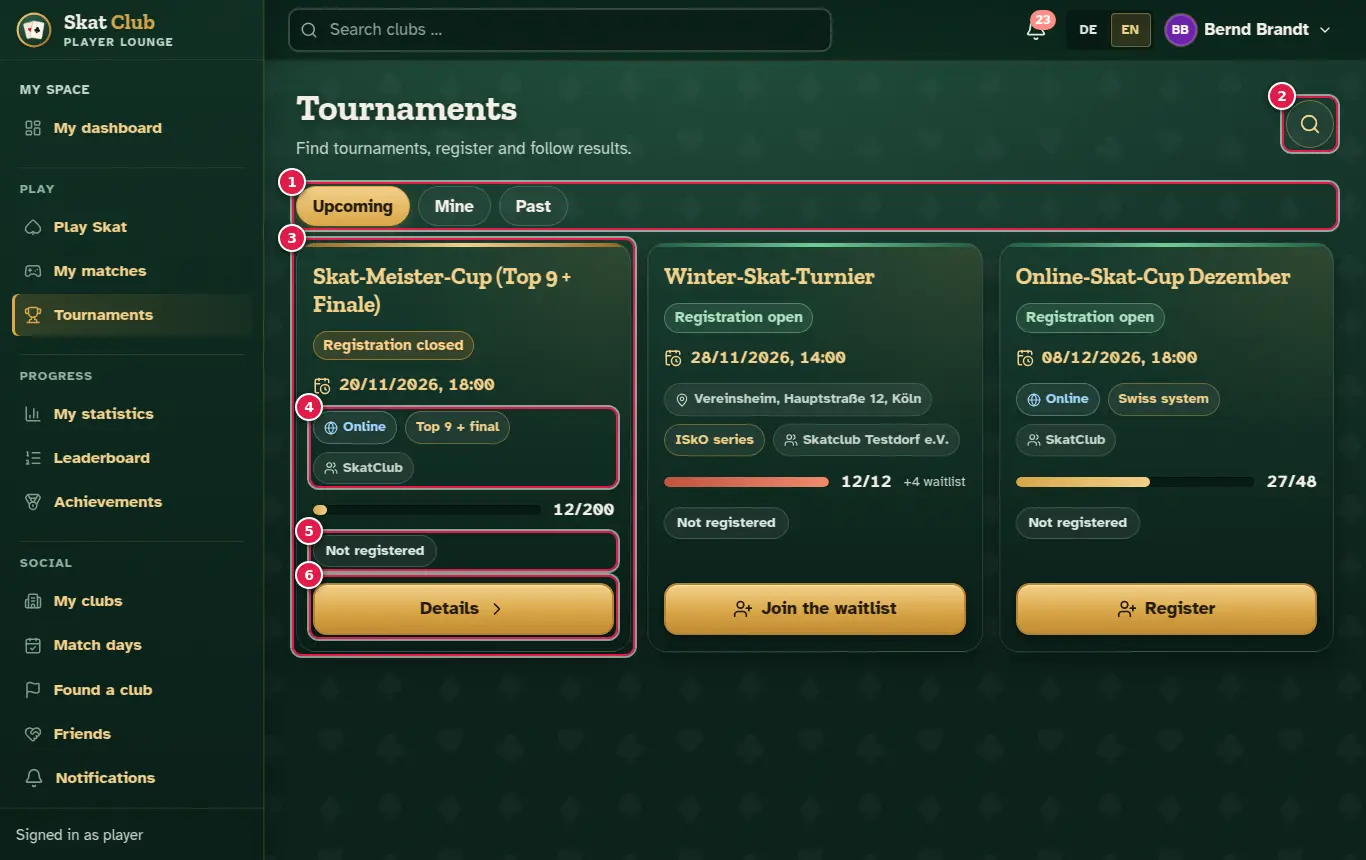
Click the picture for full size.
- 1. Filter: "Upcoming", "Mine" or "Past" tournaments.
- 2. Magnifier: search a tournament by name or place.
- 3. A tournament card with name, status, date and places.
- 4. Online or on site, format and organiser.
- 5. Your state: registered, waitlist, checked in or not registered.
- 6. Main button: "Register", "Join the waitlist" or "Details".
How to take part in a tournament
- Open "Tournaments" and choose a tournament under "Upcoming".
- Tap "Register". When it is full the button says "Join the waitlist".
- Check in 30 to 10 minutes before the start with "Check in now".
- The draw is 5 minutes before the start. Tap "Go to my table".
- If you reach the final stage, confirm with "I'm playing" (or "Decline").
How to withdraw
- Open the tournament.
- Tap "Withdraw" and confirm. Your place goes to the waitlist.
Buttons and statuses
- Upcoming / Mine / Past
- Filters of the tournament list.
- Registration open / Registration closed / Running / Completed / Cancelled
- State of a tournament.
- Registered / Checked in / Waitlist / Withdrawn / Disqualified
- State of your registration.
- At the table / No seat / Not checked in
- Your state after the draw.
- Qualified for the final stage / Reserve / In the semifinal / In the final / Winner / Eliminated
- Your state in the final stage.
If something goes wrong
- "Entry criteria not met: …"
- The list shows what is missing (e.g. games or reliability). Keep playing and try another tournament.
- "Registration is not open."
- Wait until registration opens.
- "Check-in is open from 30 to 10 minutes before the start."
- Come back within this window. Without check-in you get no seat.
- Deadline missed
- You did not confirm the final stage in time; a reserve plays instead.
5 My matches
Your finished games as reported by the game service, and upcoming games.
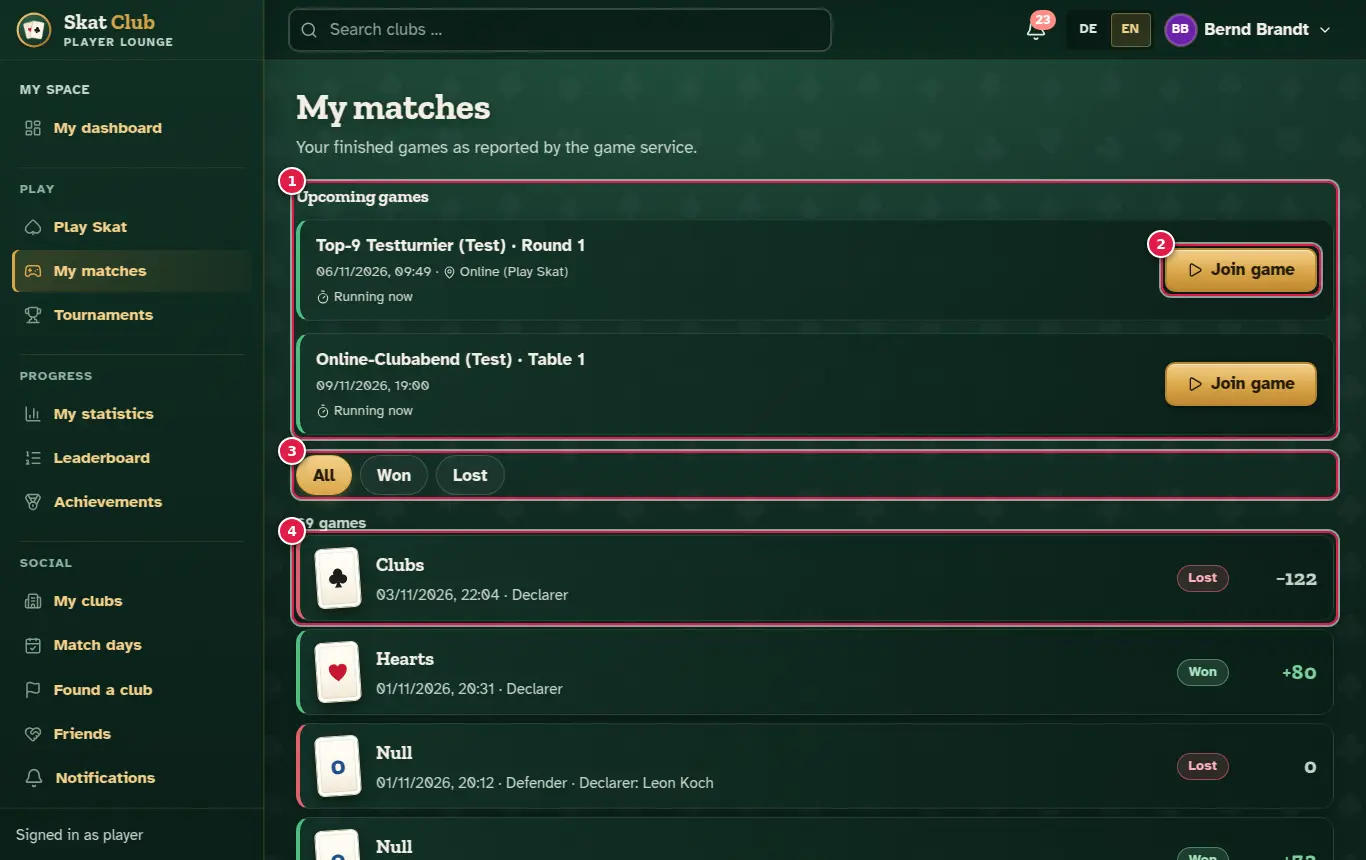
Click the picture for full size.
- 1. Your next games (tournaments, match days, club evenings).
- 2. The game button takes you to your table as soon as it is open.
- 3. Filter: all, won or lost games.
- 4. A played game. Tap it for all details.
How to report a problem with a match
- Open the match in the list ("Match report").
- Tap "Report a problem".
- Describe the problem (at least 10 characters) and tap "Send report".
- The answer appears under "Your reports".
Buttons and statuses
- All / Won / Lost
- Filter by outcome.
- Join game
- Takes you to an upcoming game.
- Completed / Aborted / Disputed
- State of a match.
- Open / Upheld / Rejected
- State of your report. "Upheld": the match no longer counts for statistics, rankings and achievements.
6 Your club's match days
League match days of your online club: say whether you can play and check in on time.
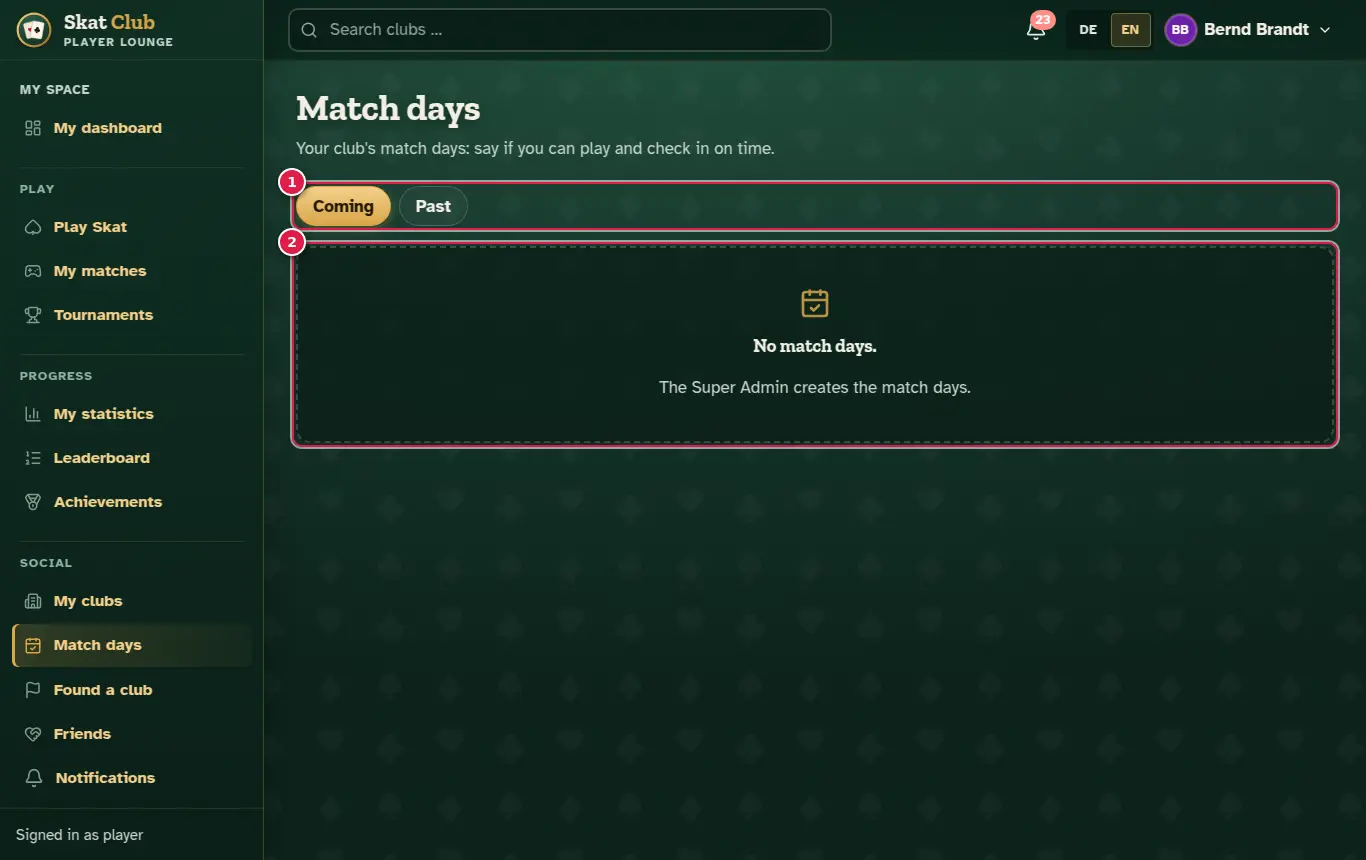
Click the picture for full size.
- 1. "Coming" or "Past" match days.
- 2. Your club's match days. Here you say if you can play and check in. (The demo club has none right now.)
How to take part in a match day
- Open "Match days" and the coming match day.
- Answer "Can you play?" with "Yes", "Maybe" or "No" (reason optional).
- Check whether you are a starter, a substitute or not in the line-up.
- Check in 30 to 10 minutes before the start with "Check in now".
If you are the deputy
- The Club Manager can make you the deputy.
- You then see the card "Line-up and check-in" with "Edit line-up", "Check in" and "Substitution for series 2".
- Follow the chapter "Club Manager", section "Match days".
Buttons and statuses
- Line-up open / Line-up locked / Check-in open / Series 1 running / Break before series 2 / Series 2 running / Finished / Cancelled
- The phases of a match day.
If something goes wrong
- You are in the line-up and cancel after the lock or do not check in
- You get a club strike. From the 2nd you cannot be in a line-up for 2 weeks.
- "You are not in a club."
- Match days are only for members of an online club.
7 My clubs
Your club, your join requests and former memberships. You can be in one club only.
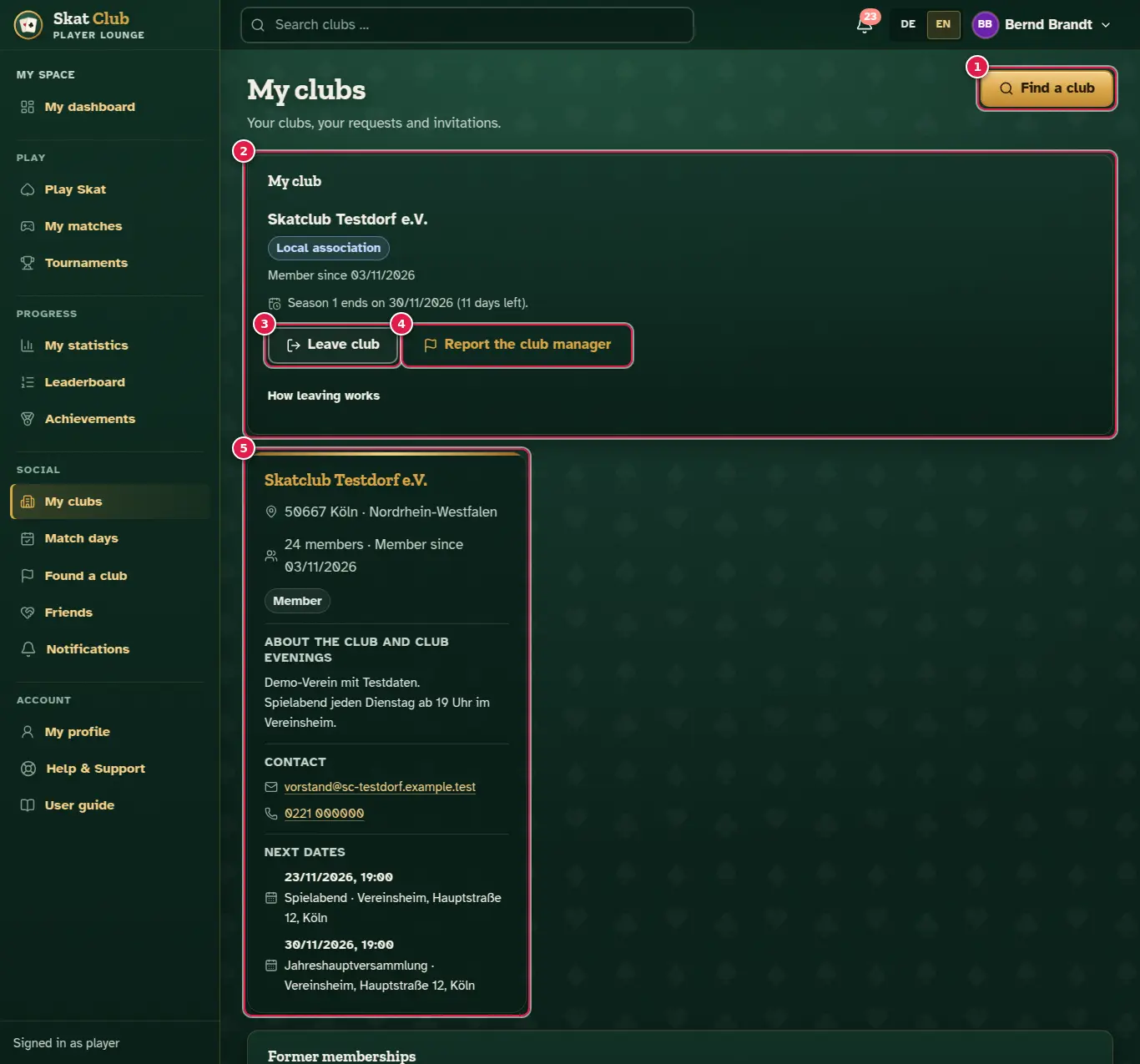
Click the picture for full size.
- 1. "Find a club": browse all clubs.
- 2. Your club with kind, division and your role.
- 3. "Leave club" sends a leave request.
- 4. Report the Club Manager if something is wrong. The platform looks into it.
- 5. The club profile: description, contact and next dates.
How to leave your club
- In the card "My club" tap "Leave club".
- Choose "At season end" (takes effect automatically) or "Now (during the season)" (the Club Manager must agree).
- Tap "Request to leave".
- If your request is declined, use "Appeal" to let the platform decide.
Buttons and statuses
- Withdraw leave request
- Takes your leave request back.
- Report the club manager
- Reports a problem with the Club Manager to the platform.
- Withdraw request
- Takes back an open join request.
- Open / Waiting list / Accepted / Declined / Expired / Withdrawn
- State of your join request. Without an answer it expires after 7 days.
If something goes wrong
- "From … you can join a new club."
- After leaving a club there is a 7-day waiting time.
8 Find and join a club
Search public clubs and send a join request. The game checks the criteria for you.
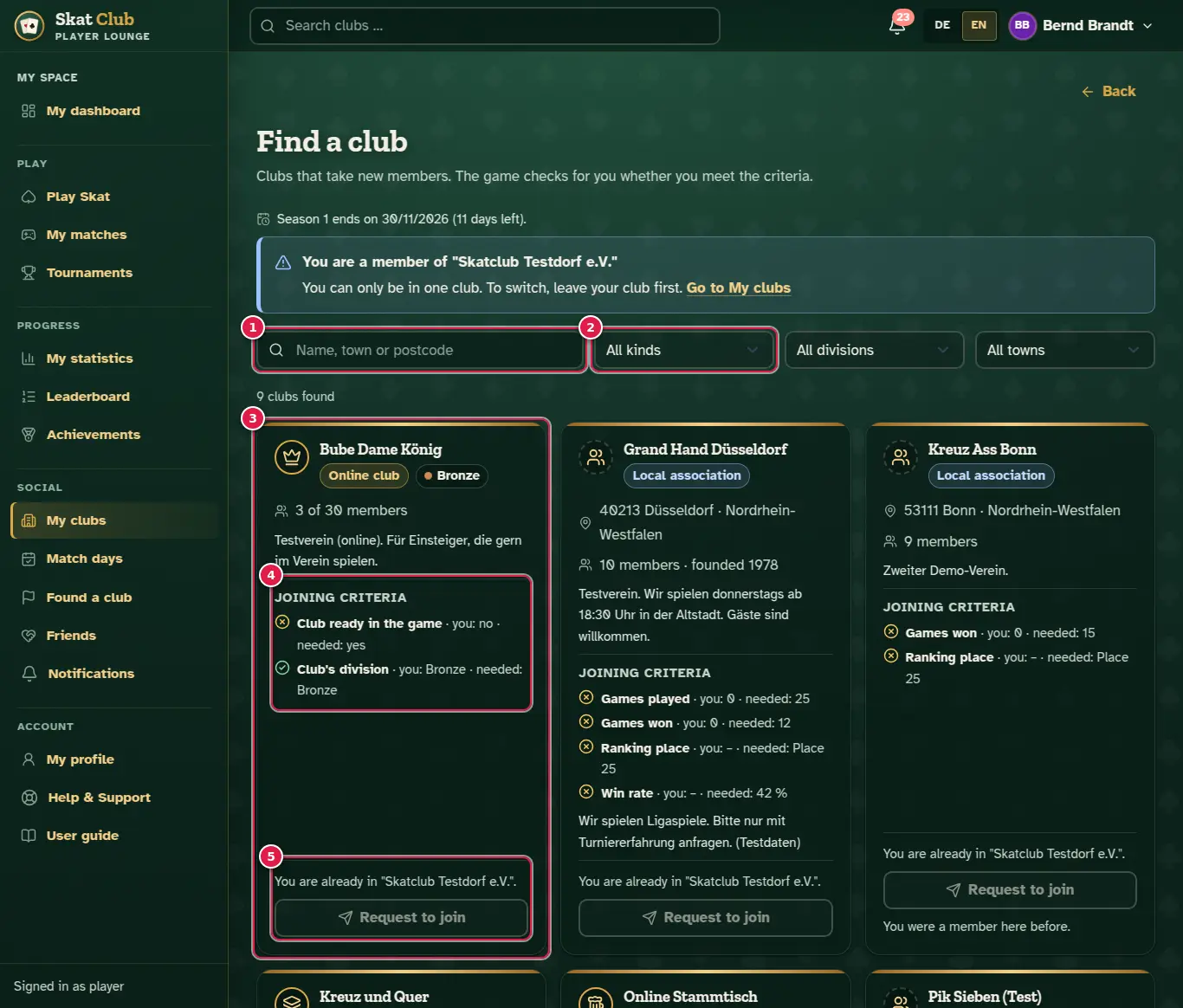
Click the picture for full size.
- 1. Search by name, town or postcode.
- 2. Filters: kind of club, division and town.
- 3. A club card with town, division and members.
- 4. Joining criteria: what the club expects from new members.
- 5. "Request to join" sends your request to the Club Manager.
How to join a club
- Open "My clubs" and tap "Find a club".
- Search by name, town or postcode; filter by kind, division and town.
- Tap "Request to join" (or "Join the waiting list") on the club.
- Check the criteria, add a message if you like and agree that the club may see your game card.
- Tap "Send request". With "Instant join" you are a member at once.
Buttons and statuses
- Full
- The club has no room; you go on the waiting list.
- … criteria still open
- This many criteria you do not meet yet.
- Reset filters
- Shows all clubs again.
If something goes wrong
- "You are a member of …"
- You can be in one club only. Leave your club first.
- "The criteria cannot be checked at the moment."
- The game cannot be reached right now. Try again later.
9 Found a club
Found a new club with two co-founders. The platform decides on the request.
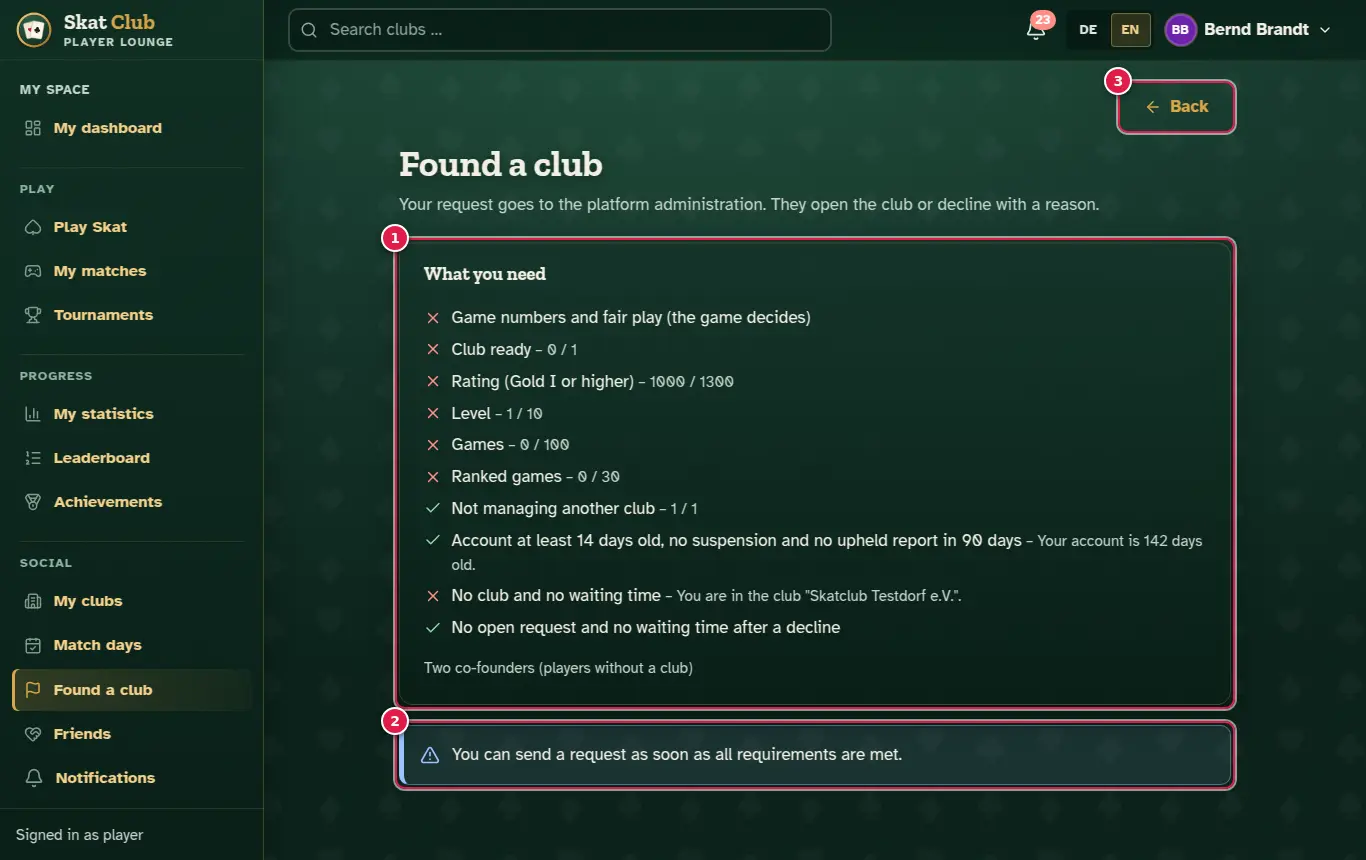
Click the picture for full size.
- 1. What you need to found a club. A tick means: met.
- 2. When everything is met, you can send the request here.
- 3. "Back" returns to the previous page.
How to request a new club
- Open "Found a club" and check "What you need" (everything must be "Done").
- Choose the kind: online club or local club.
- Enter name (3 to 24 characters), town and a short description.
- Add two co-founders (players without a club) with "Add".
- Tap "Send request". Both co-founders must confirm.
If you are invited as a co-founder
- Open "Found a club".
- Under "Co-founding requests" tap "Confirm" or "Decline". Declining ends the request.
Buttons and statuses
- Waiting for co-founders / Waiting for a decision / Approved / Declined / Withdrawn / Ended
- State of your request. When approved, the link leads to your club; you are then its Club Manager.
- Withdraw request
- Takes your request back.
If something goes wrong
- "You can send a request as soon as all requirements are met."
- Check the list to see what is missing.
10 Friends
Find fellow players, answer requests and invite friends to your table.
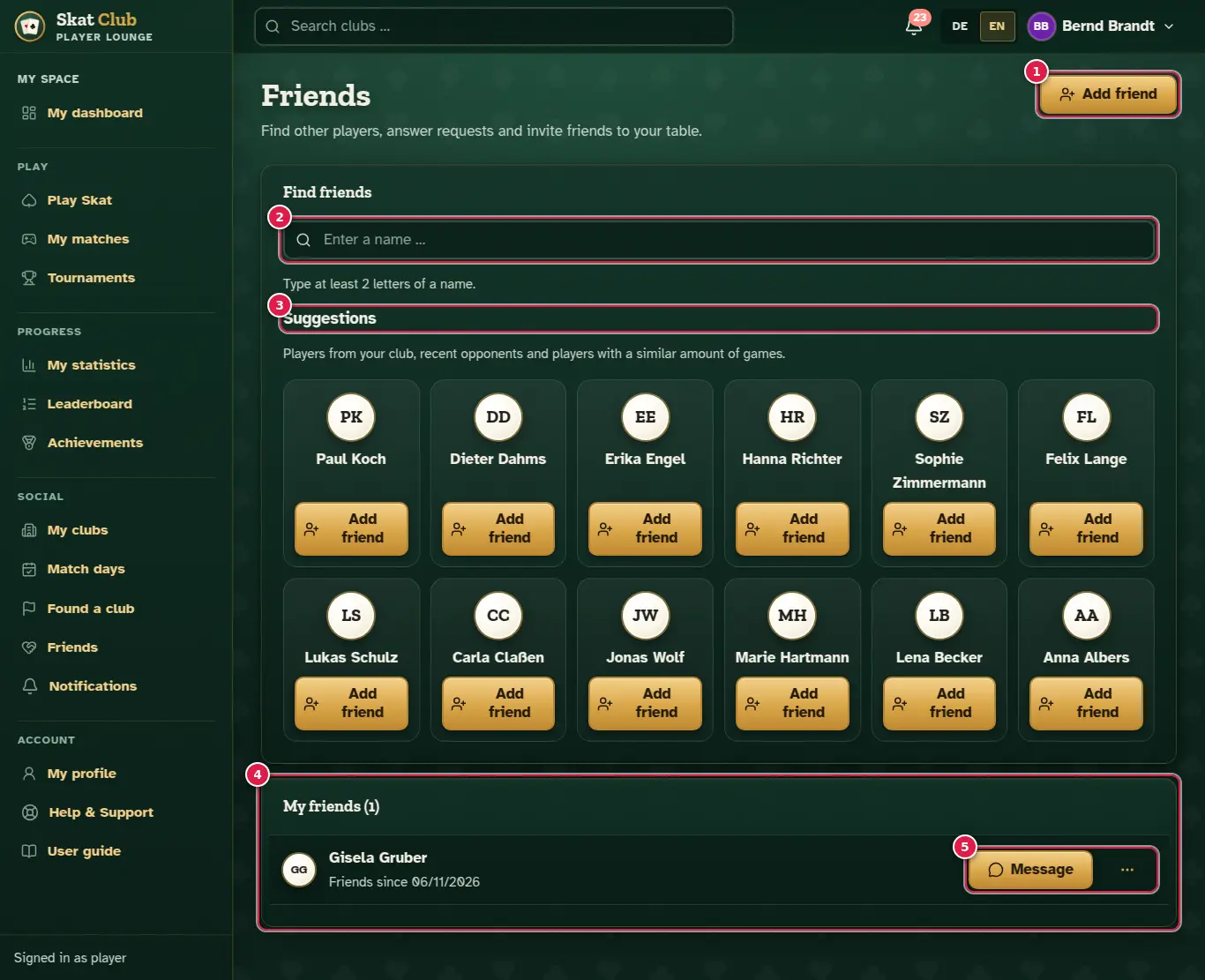
Click the picture for full size.
- 1. "Add friend" jumps to the search.
- 2. Search players by name (at least 2 letters).
- 3. Suggestions, e.g. from your club. "Add friend" sends a request.
- 4. Your friends with online status.
- 5. Write a "Message"; "More actions" to remove or block.
How to add a friend
- Under "Find friends" type at least 2 letters of a name.
- Tap "Add friend".
- The request is listed under "Sent requests" until it is accepted.
How to play with friends
- Open a table in the game.
- Under "Play with friends" tap "Invite" next to the friend.
- Your friend gets a message with a link to the game.
Buttons and statuses
- Accept / Decline
- Answers a new request.
- Message
- Writes to the friend.
- More actions: Remove / Block
- Ends the friendship or blocks the player.
- Withdraw / Unblock
- Takes back a request or lifts a block.
11 Notifications
News from your clubs, tournaments and from support.
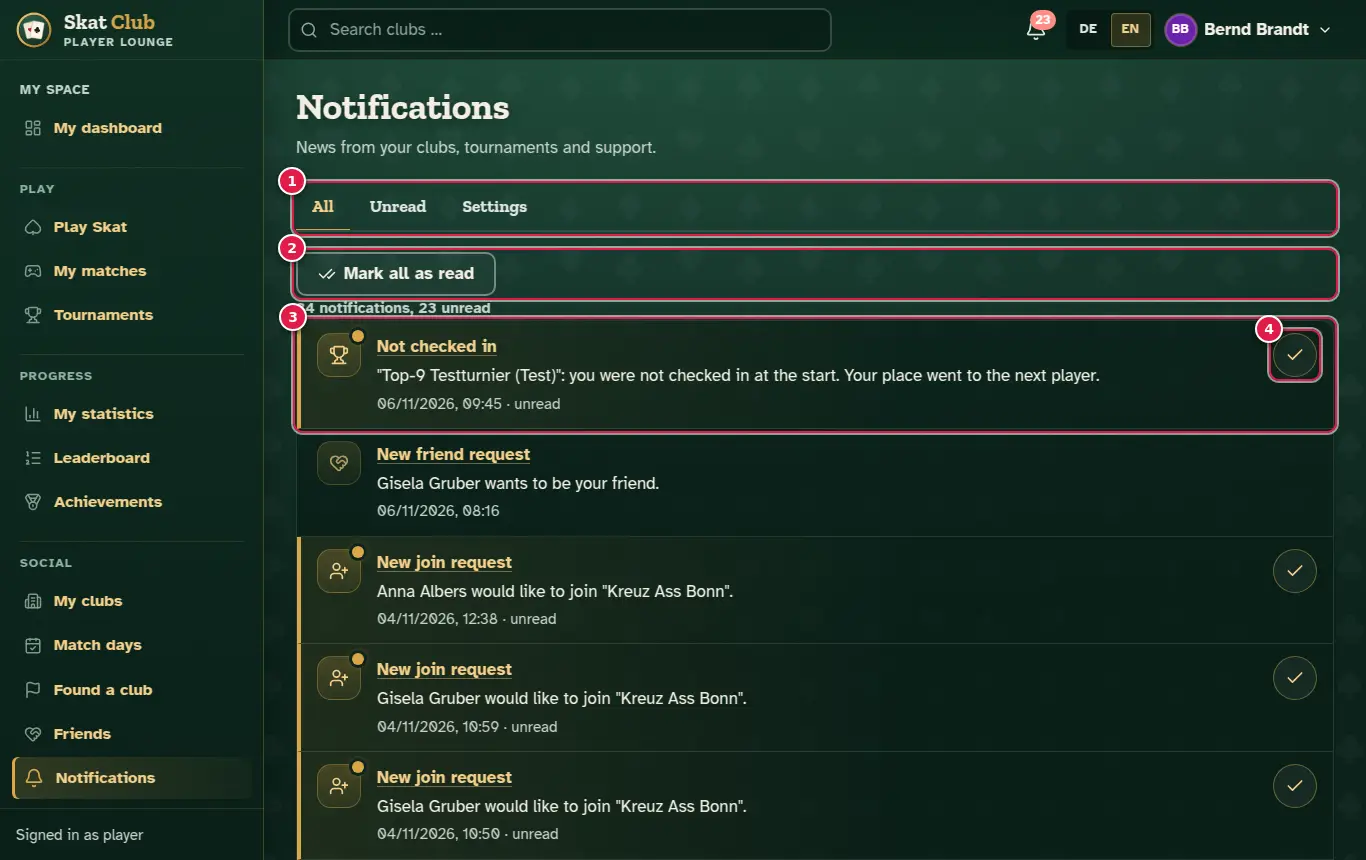
Click the picture for full size.
- 1. Tabs: "All", "Unread" and "Settings" (which messages you also get by email).
- 2. "Mark all as read".
- 3. A notification. Unread ones are highlighted; tap to open the page it is about.
- 4. Tick: mark this notification as read.
How to choose how you are informed
- Open "Notifications", tab "Settings".
- Choose "In the app" and/or "By email" per kind, and the email language.
- Tap "Save".
Buttons and statuses
- All / Unread
- Shows all or only unread messages.
- Mark all as read / Mark as read
- Marks messages as read.
12 Leaderboard
Your rating compared worldwide, in your country, among friends or in your league.
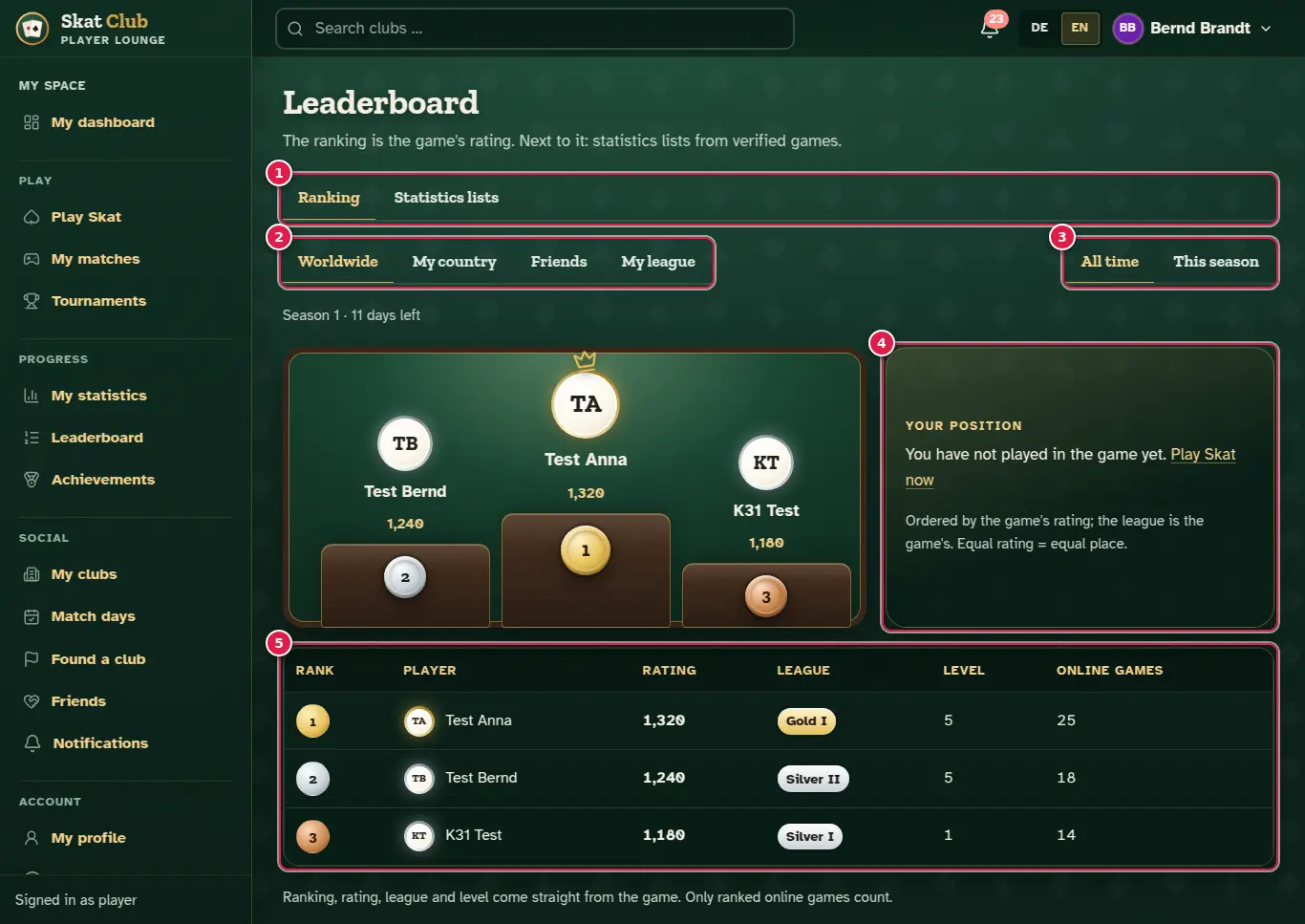
Click the picture for full size.
- 1. "Ranking" or "Statistics lists".
- 2. Who is compared: worldwide, your country, your friends or your league.
- 3. Period: all time or this season.
- 4. Your position and rating.
- 5. The ranking. Tap a name for the profile.
Buttons and statuses
- Ranking / Statistics lists
- The two tabs of the page.
- Worldwide / My country / Friends / My league
- Chooses whom you are compared with.
- All time / This season
- The period.
- Unreliable
- This player often leaves games early.
If something goes wrong
- You are not in the list
- You still need ranked games, your last one is older than 30 days, or you hid your statistics in "My profile".
13 Achievements
Achievements from the game, plus your tournament and club achievements.
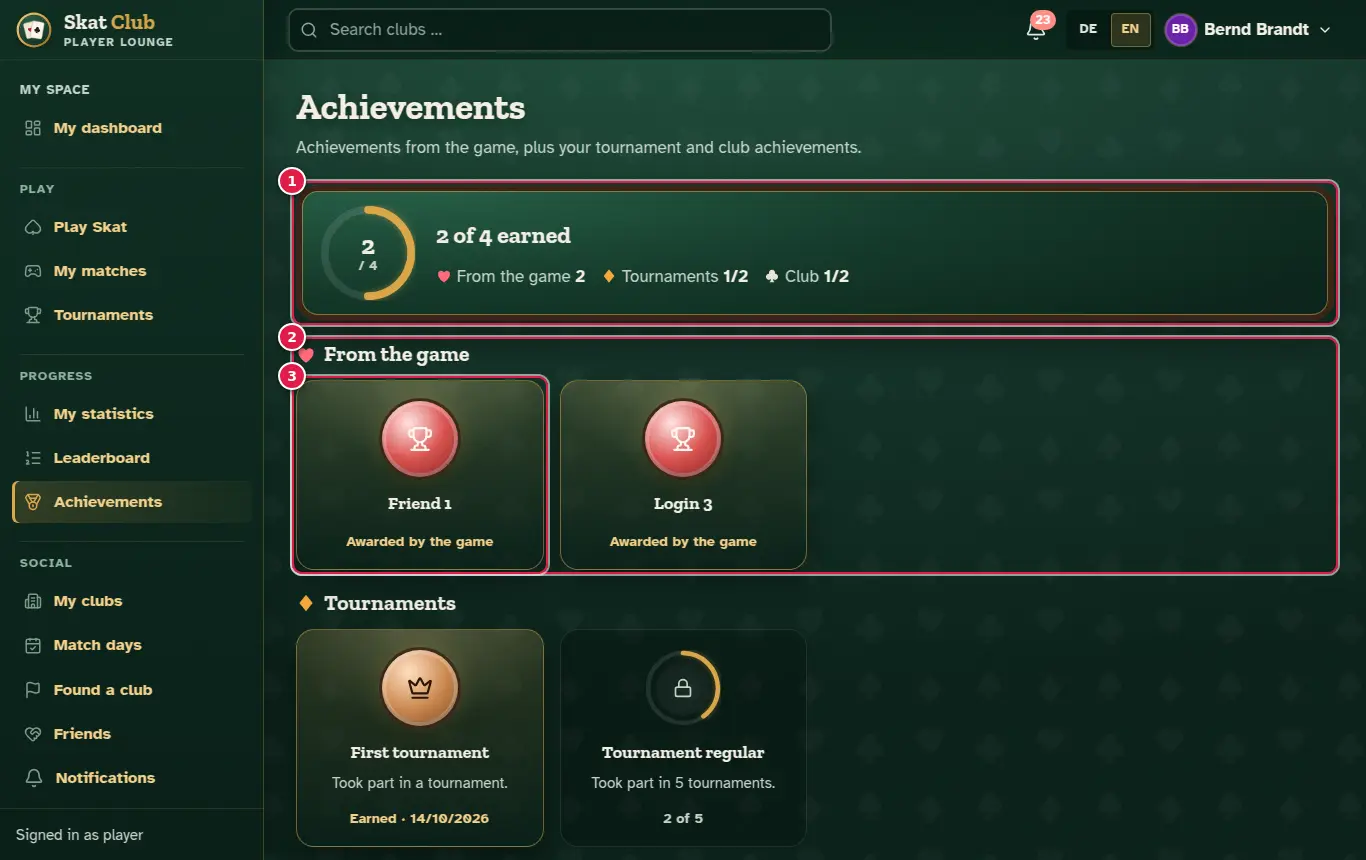
Click the picture for full size.
- 1. How many achievements you have collected.
- 2. Achievements by area: from the game, tournaments and the club.
- 3. An achievement. In colour = earned, grey = still open.
Buttons and statuses
- From the game / Tournaments / Club
- The groups of achievements.
- Earned / … of …
- Earned with a date, otherwise your progress.
14 My statistics
Your numbers from finished games: win rate, online games, game types and recent games.
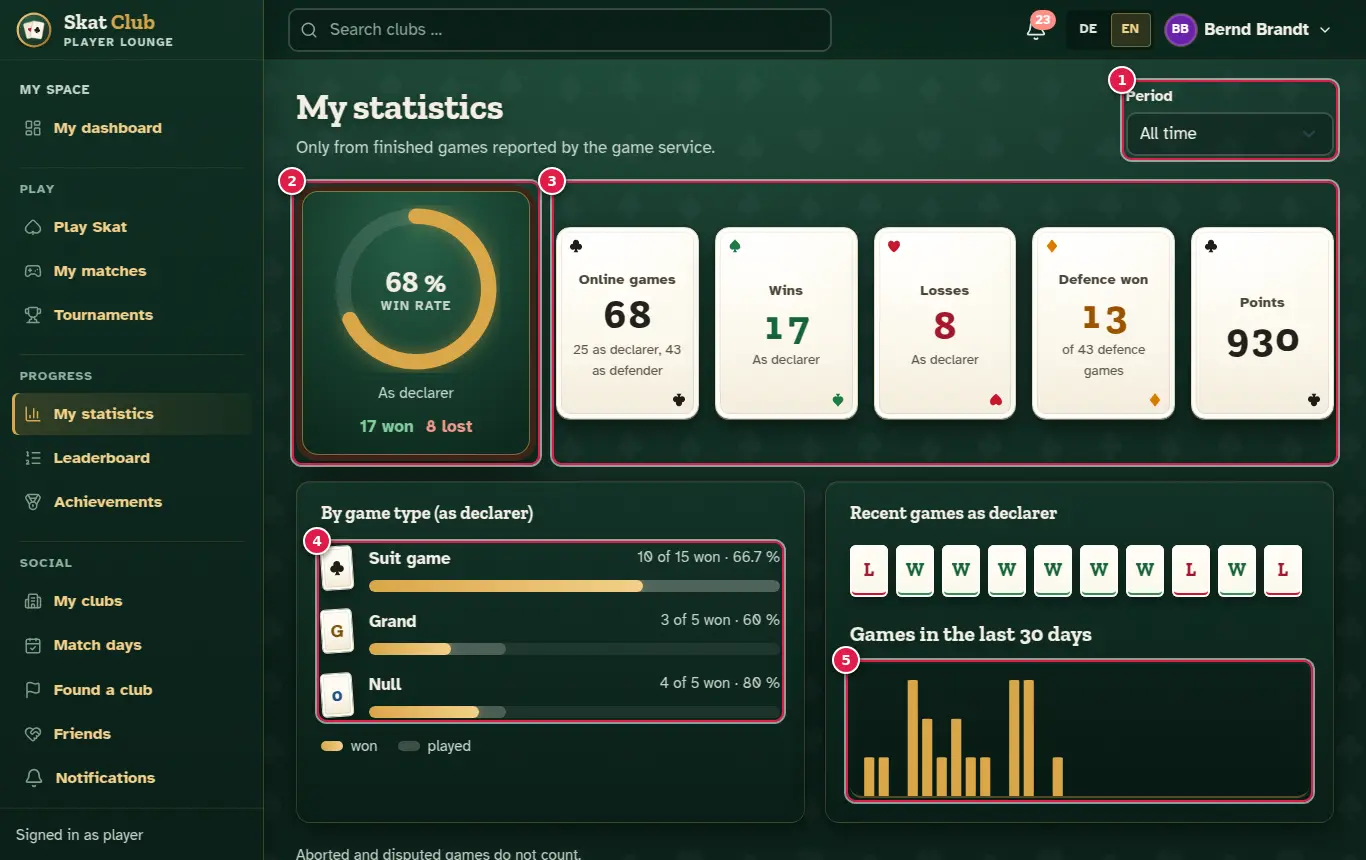
Click the picture for full size.
- 1. Choose the period of the statistics.
- 2. Your win rate as declarer.
- 3. Online games, wins, losses, defence won and points.
- 4. Results by game type: suit, grand, null.
- 5. Your games per day.
Buttons and statuses
- Period
- "All time", "Last 30 days", "Last 90 days" or "Last year".
15 My profile
Your details, settings and game profile.
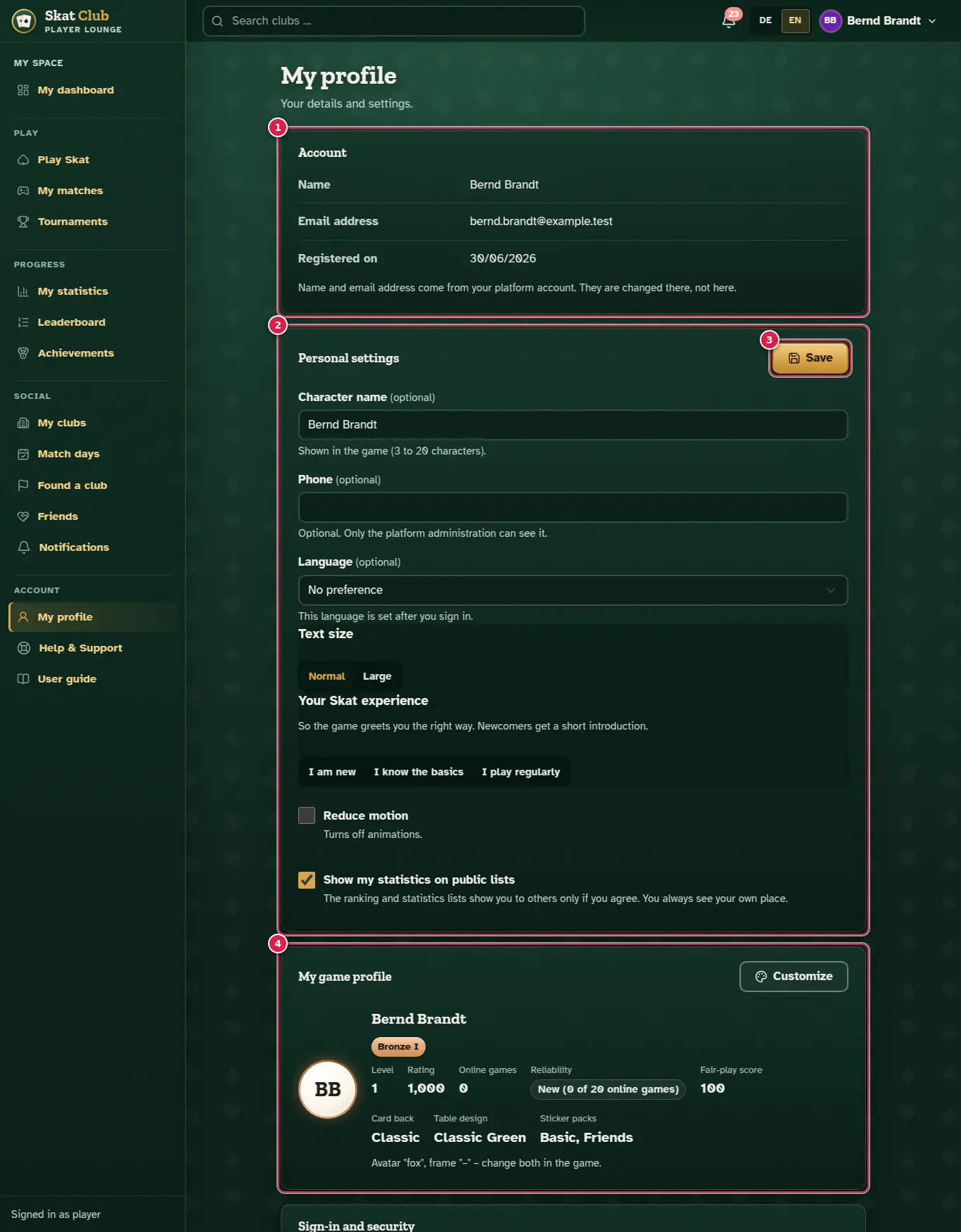
Click the picture for full size.
- 1. Account: name, email address and player name.
- 2. Personal settings: display name, language, text size and privacy.
- 3. "Save" stores the changes.
- 4. Your game profile: level, rating, fair play. "Customize" for card back and table.
How to change your settings
- Open "My profile".
- Under "Personal settings" change e.g. character name, language, text size, "Reduce motion" or "Show my statistics on public lists".
- Tap "Save".
Buttons and statuses
- My game profile
- Level, rating, games, fair-play score and reliability.
- Customize
- Choose card back, table design and sticker packs.
- Sign-in and security
- Set a new password with "Forgot password?" on the sign-in page.
16 Help & Support
Your requests to support, and this guide.
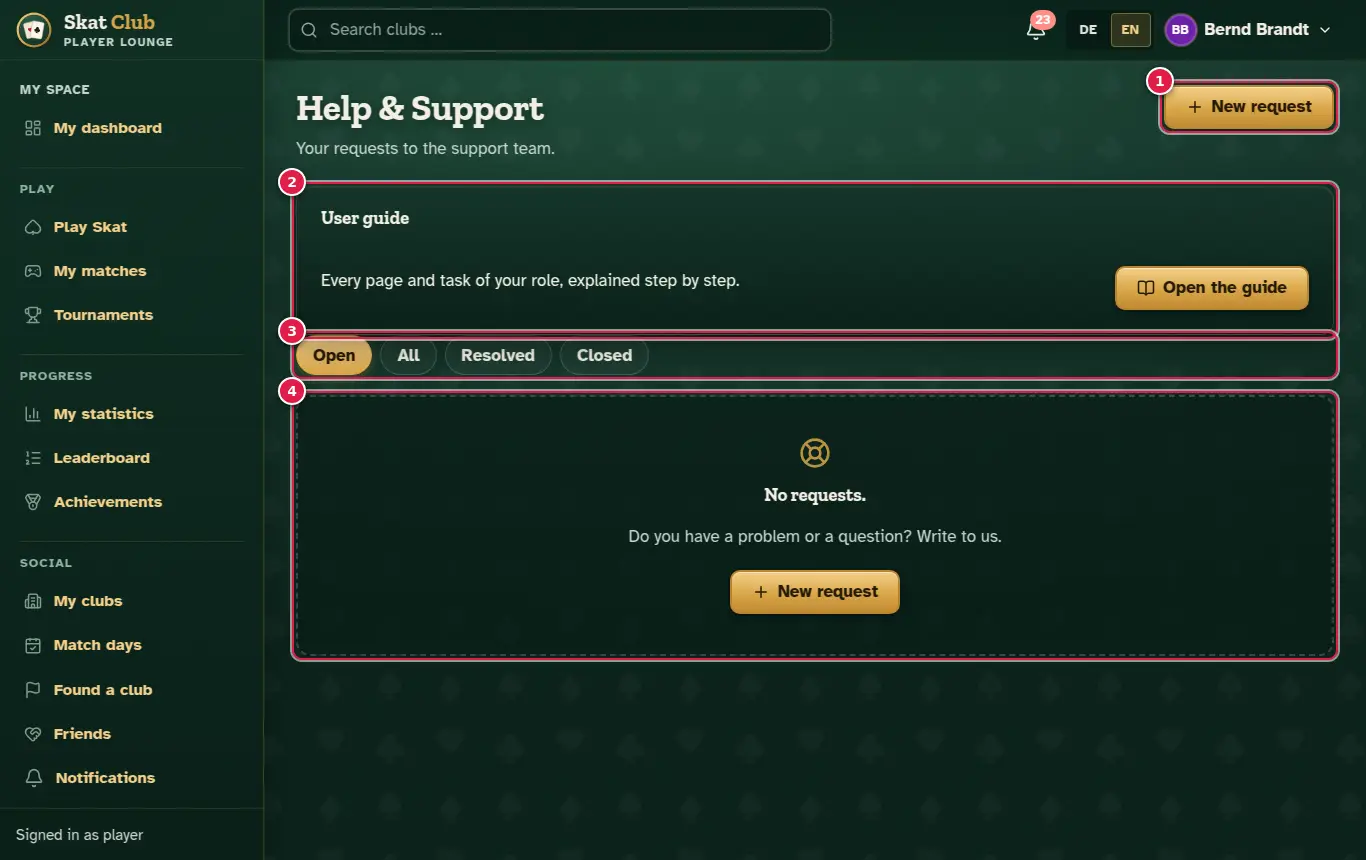
Click the picture for full size.
- 1. "New request" writes to Support.
- 2. Open this guide.
- 3. Filter: open, all, resolved or closed requests.
- 4. Your requests. Tap one to read the answers and reply.
How to send a request
- Tap "New request".
- Enter subject, topic and a description (at least 10 characters). Attach files if needed.
- Tap "Send request".
- Support answers inside the request. Reply there with "Send".
Buttons and statuses
- Open / In progress / Waiting for reply / Resolved / Closed
- State of your request. With "Waiting for reply" support needs your answer.
- Reopen
- Opens a resolved request again. When it is "Closed", send a new request.
17 Delete account
Deletes your account, profile and game account. Played games stay without your name. This cannot be undone.
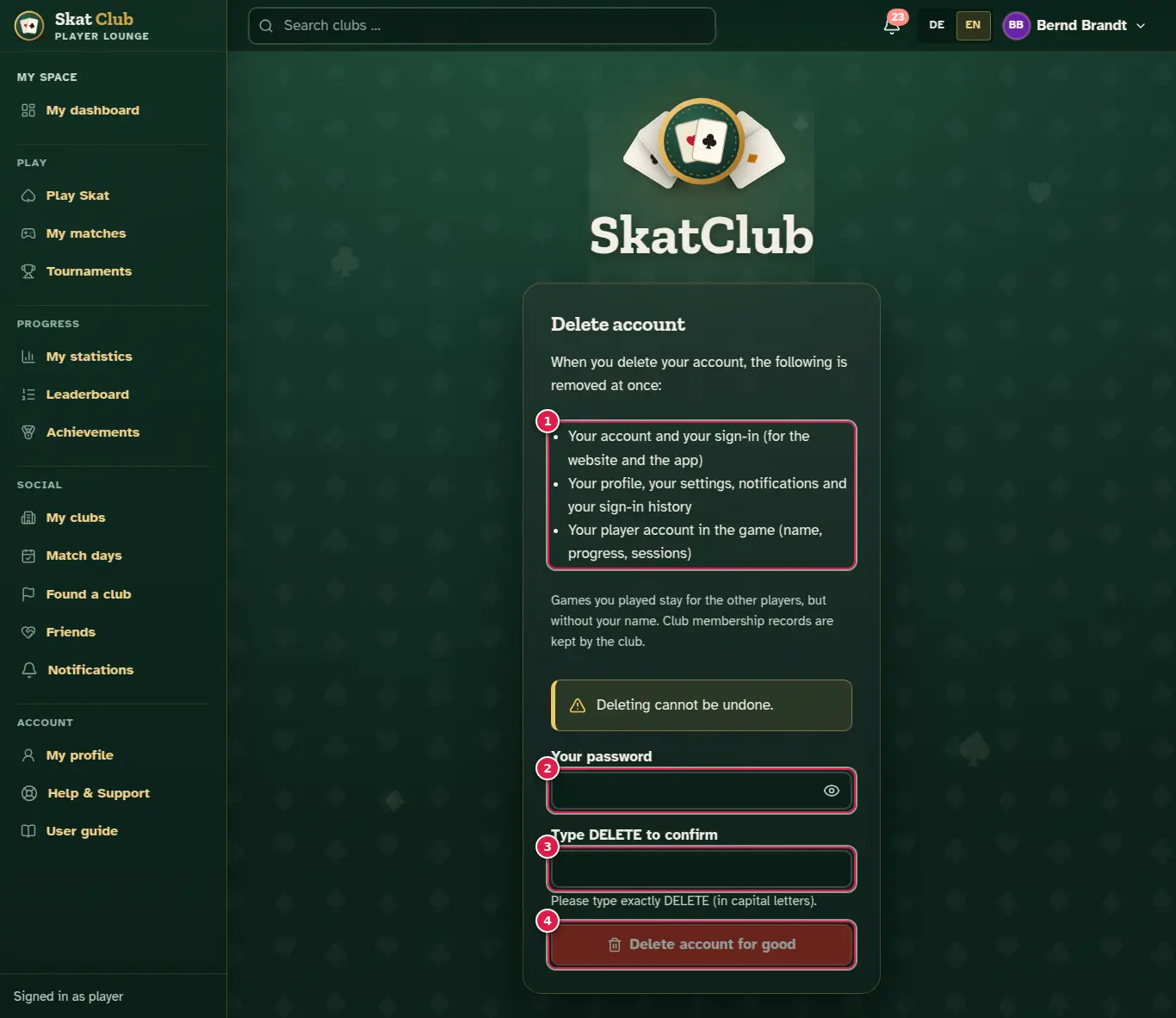
Click the picture for full size.
- 1. What deleting does. Please read it carefully.
- 2. Your password to confirm.
- 3. Type the confirmation word exactly as shown.
- 4. "Delete account for good" – this cannot be undone.
How to delete your account
- Open "My profile" and tap the button under "Delete account".
- Enter your password.
- Type DELETE in capitals to confirm.
- Tap "Delete account for good".
If something goes wrong
- "The password is wrong."
- Check your password or reset it first.