Help and user guide
Support
As Support you look after tickets, reports, club cases and games. You can suspend accounts; you can only view fair play.
1 Getting started: sign-in and administration
Staff use the same sign-in page as players. After signing in you land in the administration (/admin). Staff accounts are not player accounts.
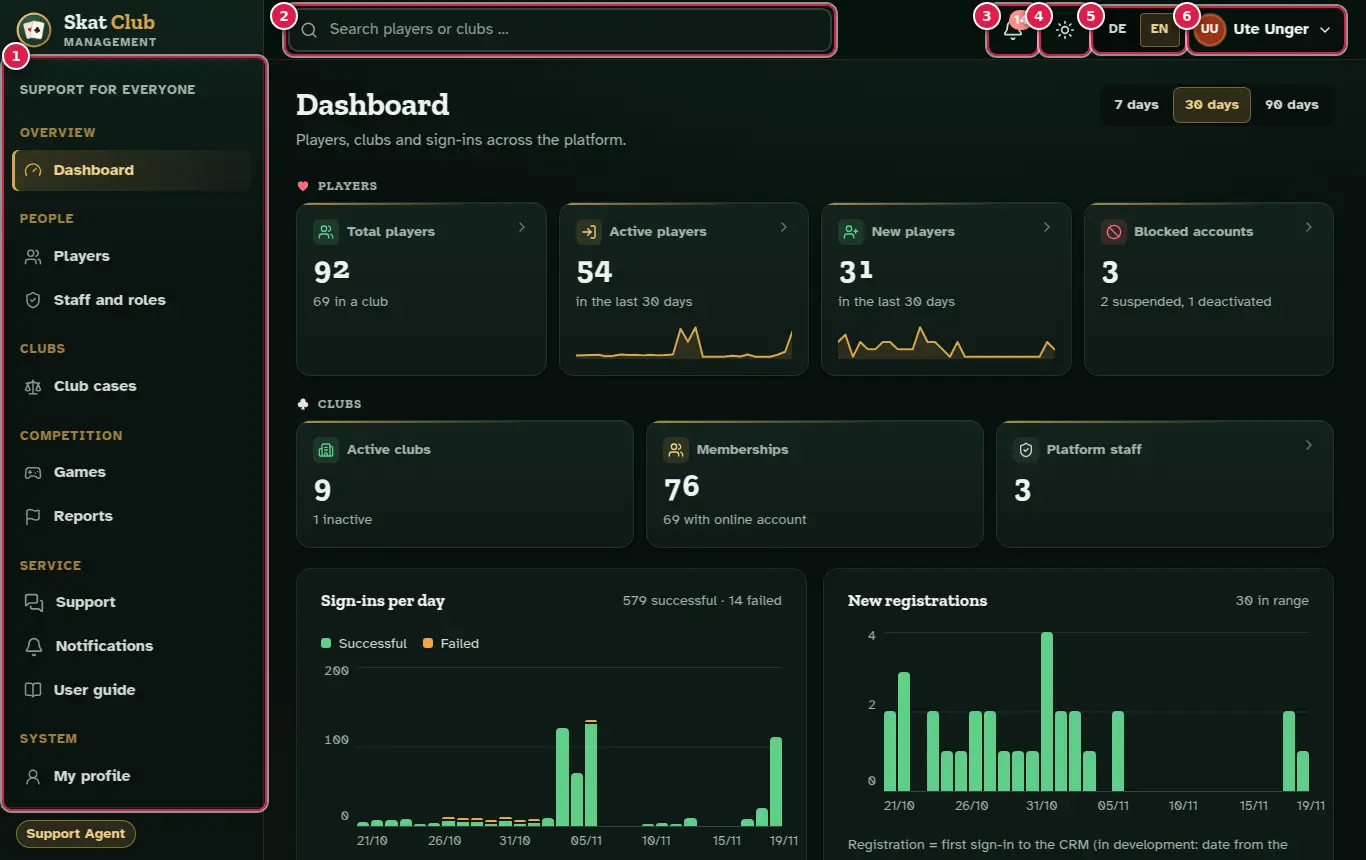
Click the picture for full size.
- 1. The menu, grouped into Overview, People, Clubs, Competition, Service, System. You only see pages you have permissions for.
- 2. Search for players and clubs.
- 3. Bell: new notifications. The number shows how many are unread; tap to open the list.
- 4. Sun/moon: light or dark view.
- 5. Switch the language: DE or EN.
- 6. Name at the top right: menu with profile and "Sign out".
How to sign in
- Enter email address and password. Tick "Remember me" if you like.
- Tap "Log in".
- You see the administration with the menu on the left (on phones at the bottom and under "More").
How to work with the interface
- The menu is grouped: "Overview", "People", "Clubs", "Competition", "Service", "System". You only see pages you have permissions for.
- Use the search at the top to find players and clubs.
- The bell shows notifications. Sun/moon switches between light and dark view. "DE"/"EN" switches the language.
- To sign out, tap your name at the top right and choose "Sign out".
Buttons and statuses
- Forgot password?
- On the sign-in page: a link by email, then set a new password.
If something goes wrong
- "No access"
- You lack a permission for this page. Ask the Super Admin.
- Delete account
- Staff accounts are deleted by an administrator, not by yourself.
2 Dashboard
The platform numbers at a glance, plus tiles that fit your role.
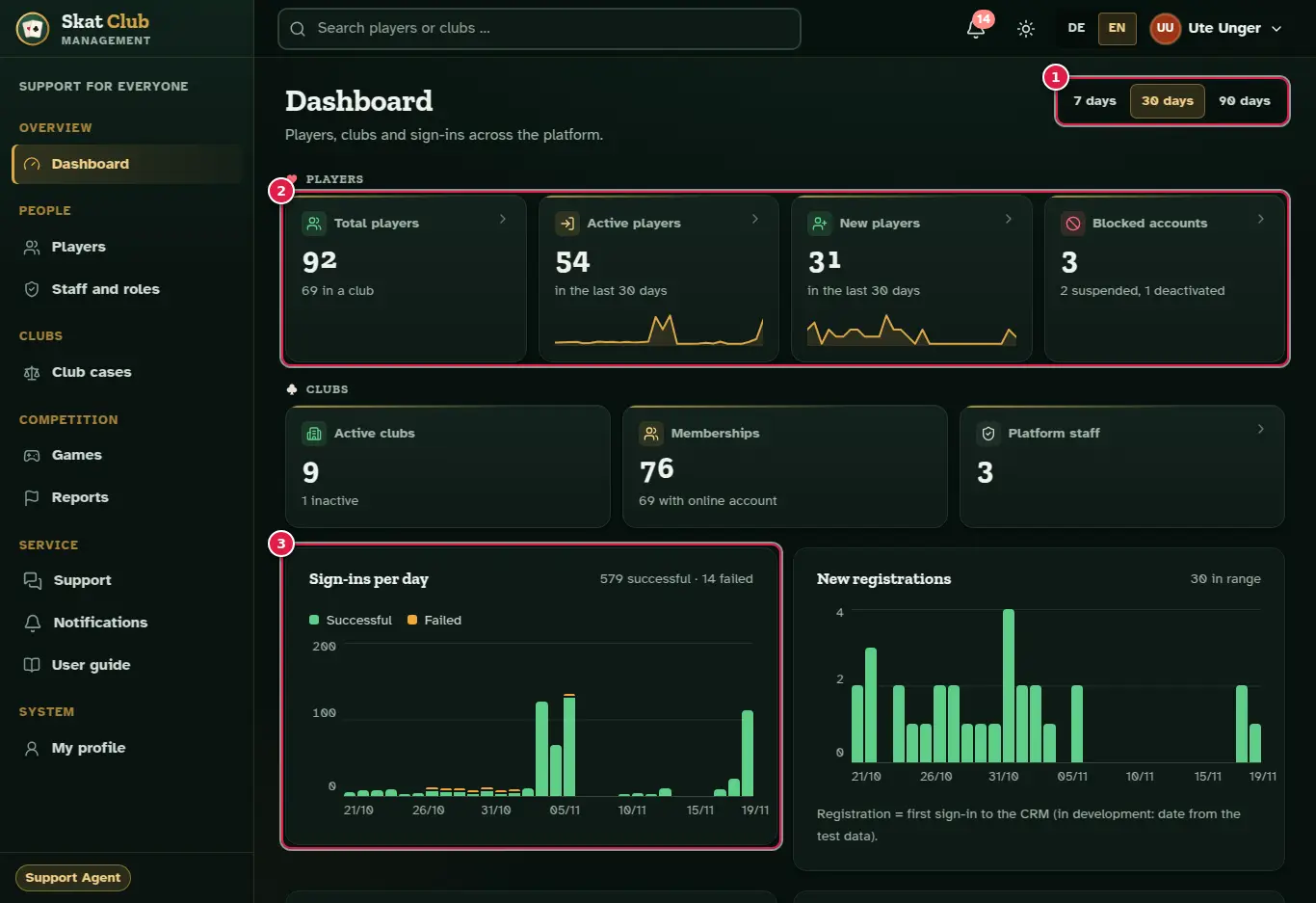
Click the picture for full size.
- 1. Period: 7, 30 or 90 days.
- 2. The key numbers. Tap one to open the filtered list.
- 3. Sign-ins per day, successful and failed.
How to use the dashboard
- Choose the period: 7, 30 or 90 days.
- Tap a number to open the filtered list.
- Under "Recent administration activity" you see the latest changes.
Buttons and statuses
- Total players / Active players / New players / Blocked accounts / Active clubs / Platform staff
- The key numbers.
3 Support tickets
All player requests, with status tabs, filters and assignment.
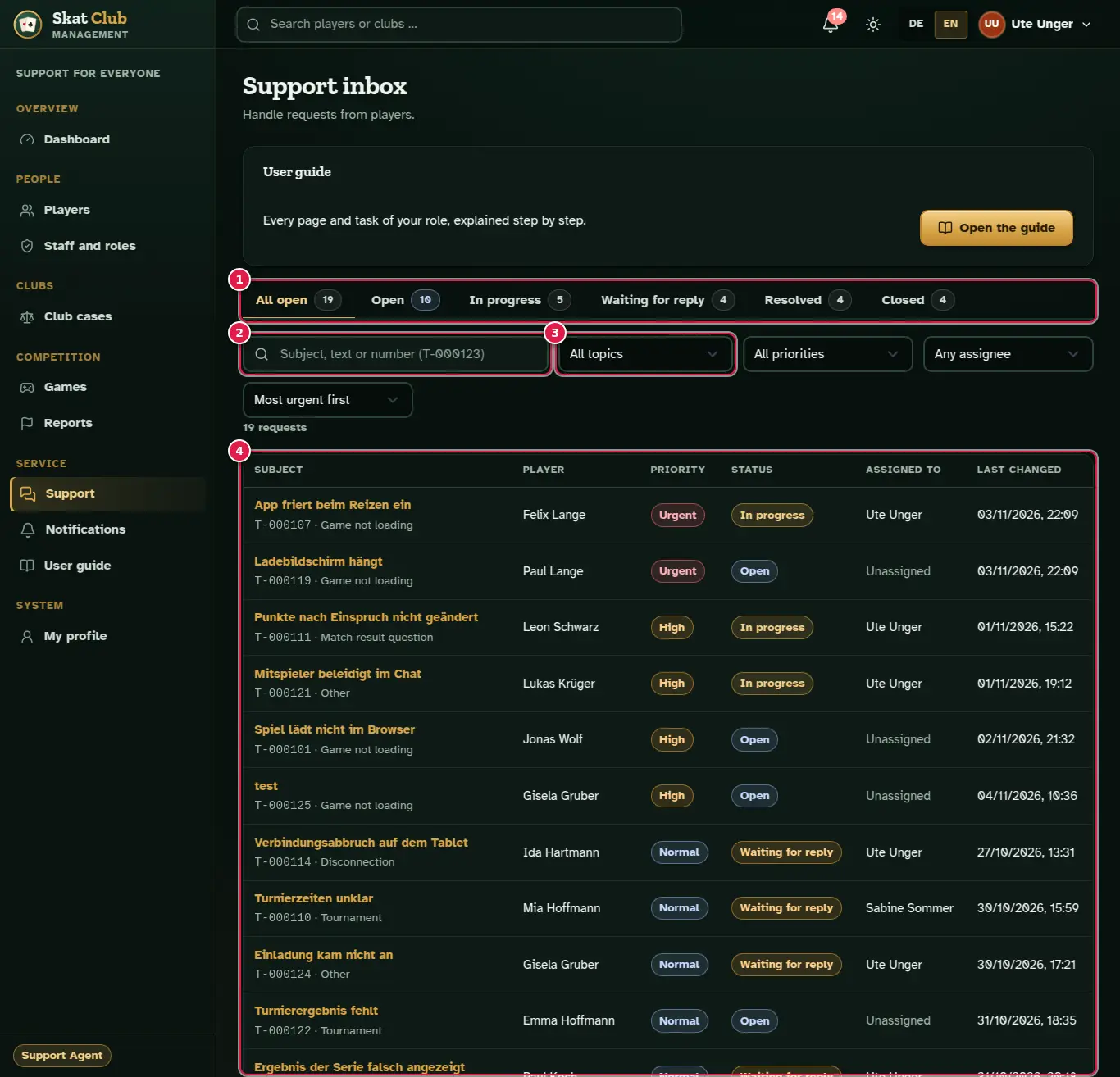
Click the picture for full size.
- 1. Tickets by status, with counts.
- 2. Search by subject, text or number (T-000123).
- 3. Filters: topic, priority, assignee, sort order.
- 4. The tickets. Tap one to reply or assign it.
How to handle a ticket
- Open "Support". Filter e.g. by "Assigned to me" or "Unassigned", or search by number (T-000123).
- Open the ticket and set assignee and priority under "Handling".
- Tap "Start working on it".
- Write a "Reply" (the player sees it) or an "Internal note" (team only).
- If you need something from the player: "Wait for player". When done: "Mark as resolved", later "Close".
Buttons and statuses
- Open / In progress / Waiting for reply / Resolved / Closed
- State. When the player replies, the ticket goes back to "In progress". The player can reopen resolved tickets.
- Low / Normal / High / Urgent
- Priority.
- Show contact data
- Needs a reason; the access is logged.
4 Players
Find and view any account: overview, clubs, activity, status, roles.
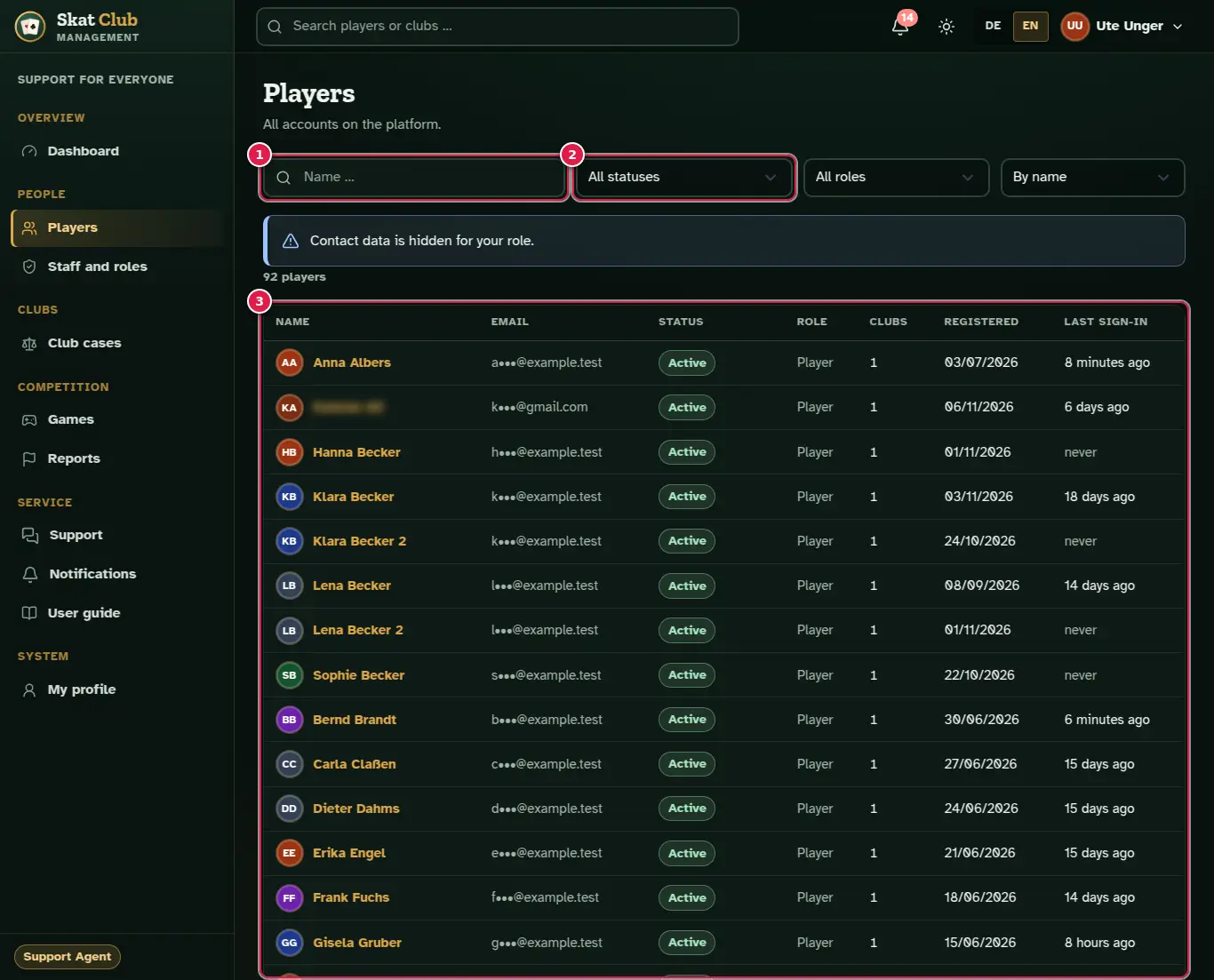
Click the picture for full size.
- 1. Search by name or email.
- 2. Filters: status, role and sort order.
- 3. The player list. Tap a name for the details.
How to find a player
- Open "Players" or use the search at the top.
- Search by name or email and filter by status or role.
- Tap the player to open the details.
How to suspend an account
- Open the player.
- Tap "Suspend" (or "Deactivate" to close the account).
- Enter a reason (at least 3 characters). It is kept in the status history and audit log.
- Confirm. Use "Reactivate" to undo it later.
Buttons and statuses
- Active / Suspended / Deactivated
- State of an account. Suspended: cannot use the platform; club memberships stay.
- Erase data (GDPR)
- Only for deactivated accounts. "Erase for good" cannot be undone.
If something goes wrong
- "Contact data is hidden for your role."
- Your role does not see contact data. This is intended.
5 Fair play and club strikes (view only)
On the player page you see reliability, fair-play score and penalties, and club strikes. Only the Super Admin can lift them.
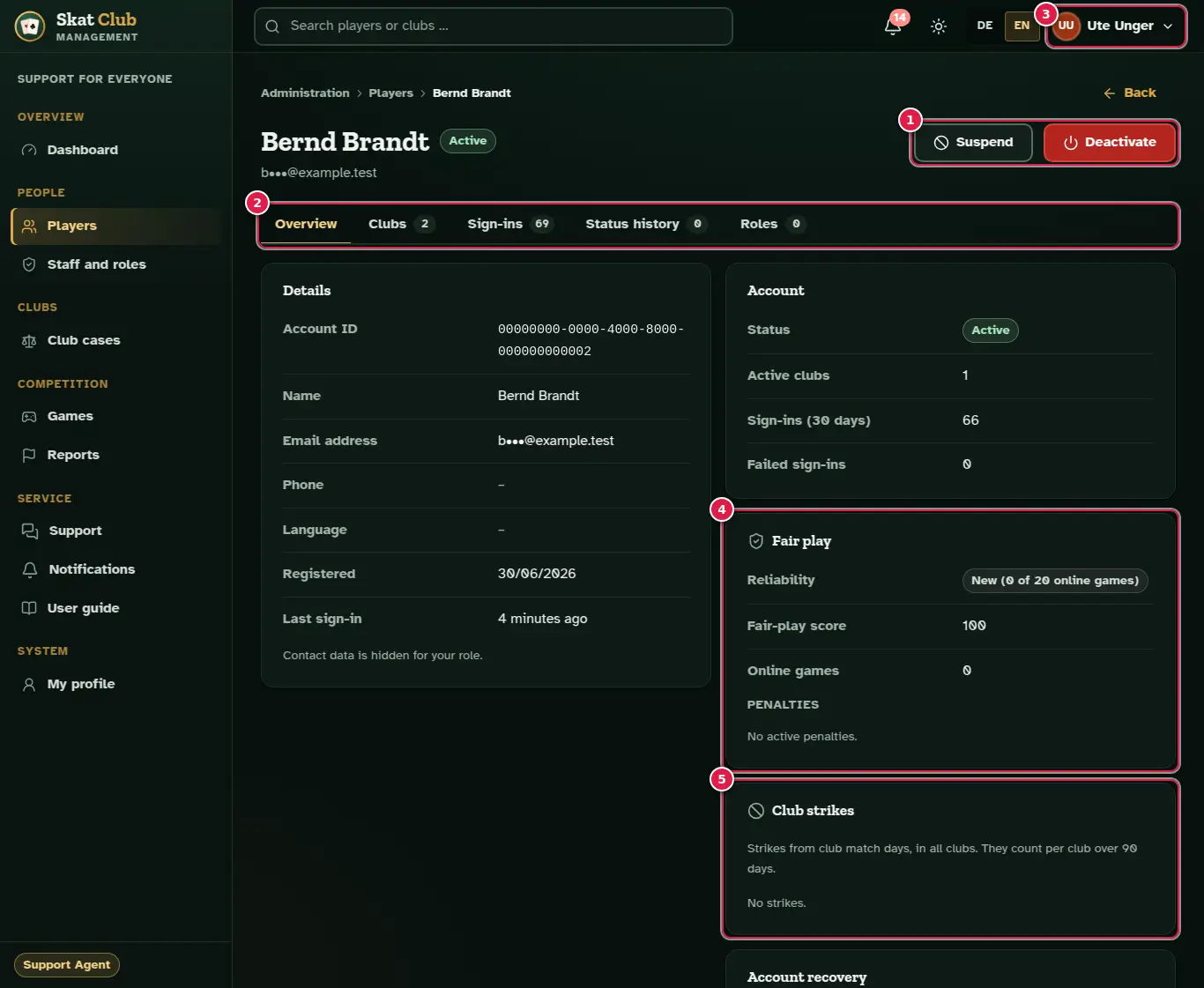
Click the picture for full size.
- 1. "Suspend" or "Deactivate" (with a reason).
- 2. Tabs: Overview, Clubs, Sign-ins, Status history, Roles.
- 3. Account status and activity.
- 4. Fair play from the game: reliability, score and penalties.
- 5. Strikes from club match days, in all clubs.
Buttons and statuses
- Warning / Mode blocked / Online block / Tournament ban / Review
- Kinds of penalties from the game.
- Active / Expired / Lifted
- State of a club strike.
If something goes wrong
- "The game cannot be reached right now …"
- Fair-play data comes from the game. Try again later.
6 Reports from the game
Players report other players: cheating, abuse, leaving the table, other.
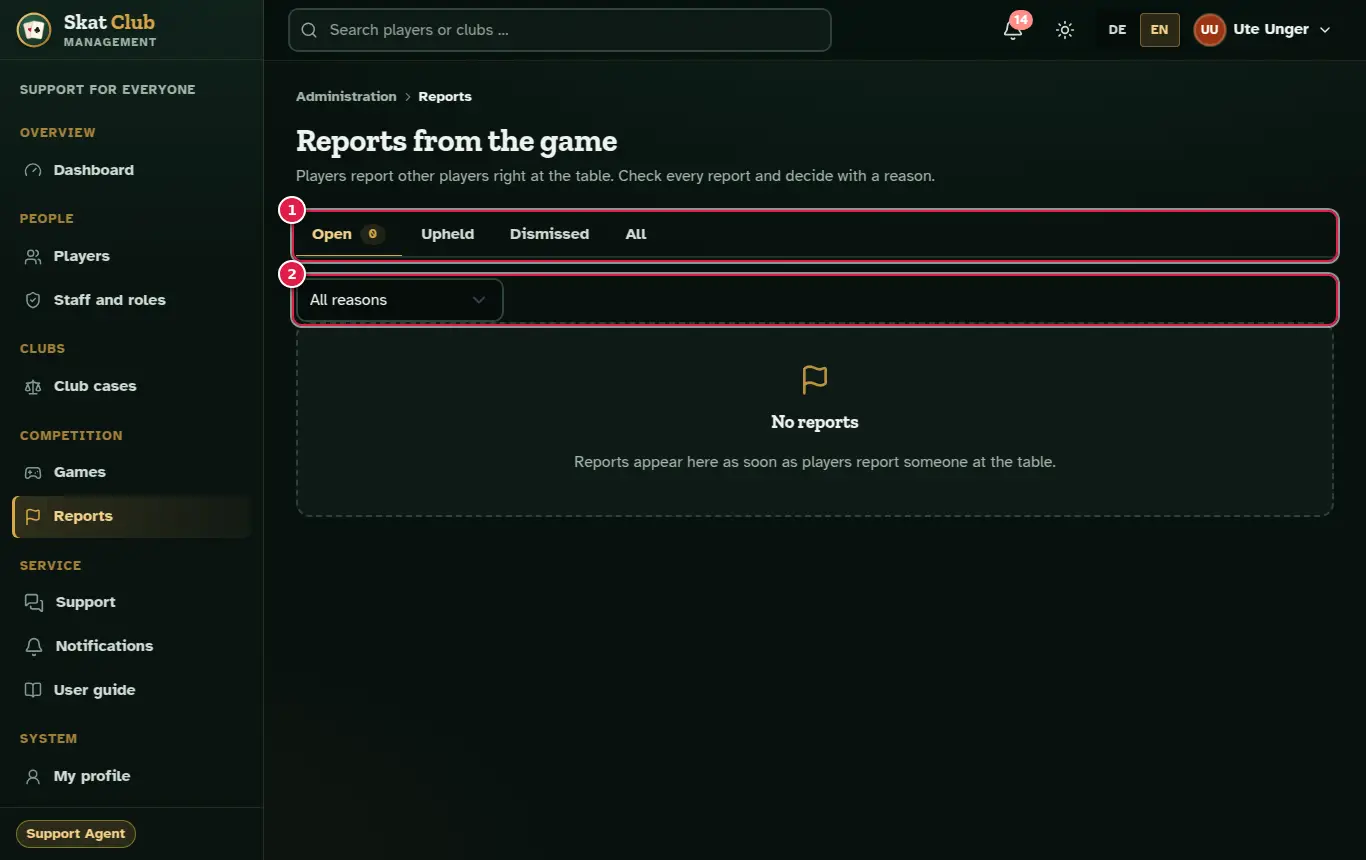
Click the picture for full size.
- 1. Reports by state: open, upheld, dismissed.
- 2. Filter by reason.
How to decide a report
- If needed, look at the game with "View the game".
- Tap "Decide".
- Choose "Uphold" or "Dismiss" and write a reason.
- Upholding does not suspend anyone. Suspend separately under "Players" if needed.
Buttons and statuses
- Open / Upheld / Dismissed
- State of a report.
7 Games and result disputes
Match records and players' disputes about results. Results are never changed here.
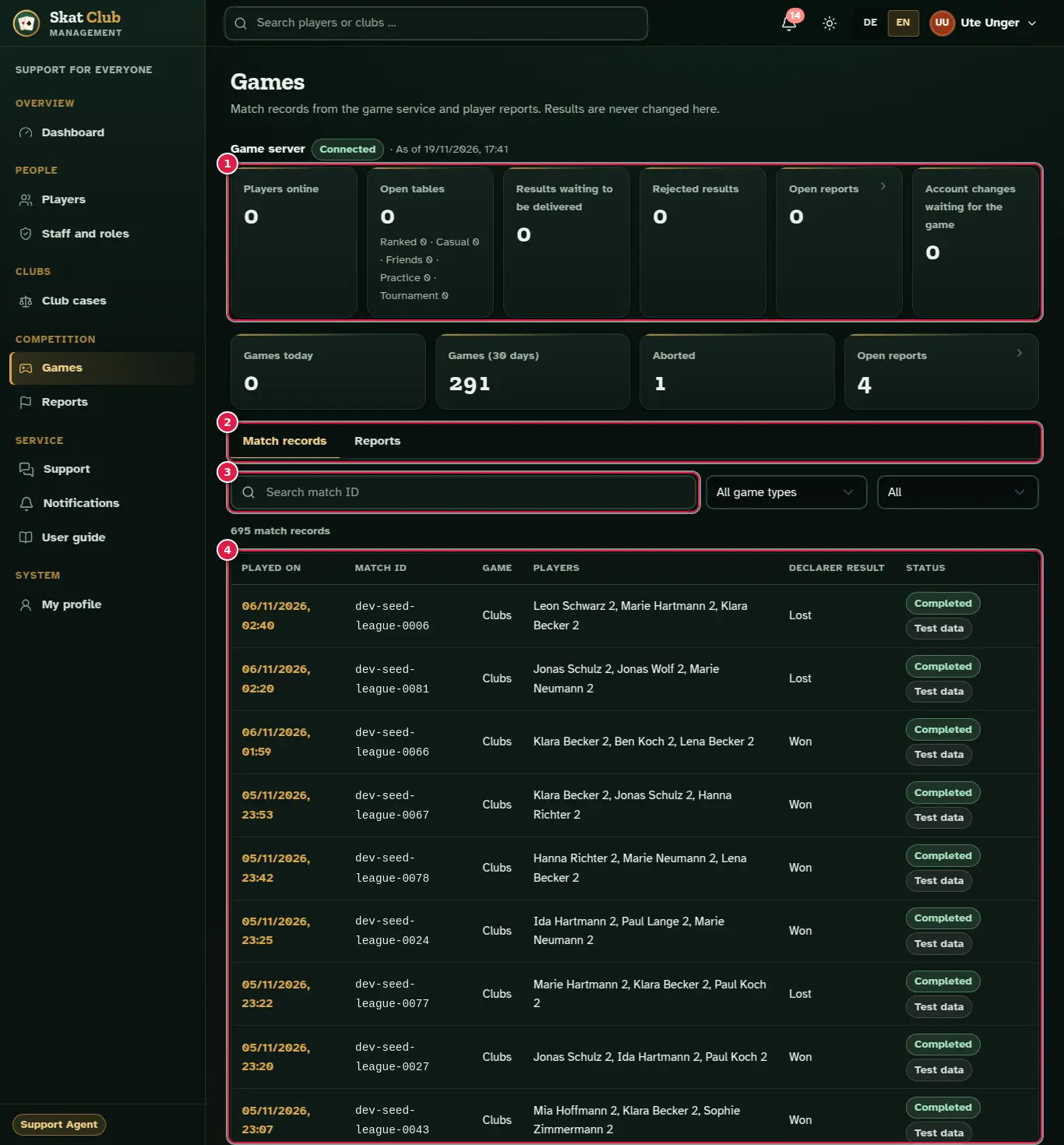
Click the picture for full size.
- 1. Games today, live tables and open disputes.
- 2. "Match records" or "Reports".
- 3. Search by match ID, filter by game type and status.
- 4. The games. Tap one for all details.
How to review a dispute
- Open "Games", tab "Reports".
- Tap "Handle", then "Start review".
- Tap "Decide": "Uphold" (the match no longer counts) or "Reject".
- Write an explanation; the player sees it.
Buttons and statuses
- Open / Under review / Upheld / Rejected
- State of a dispute.
- Completed / Aborted / Disputed
- State of a match.
8 Club cases
Appeals against declined leave requests, reports about a Club Manager and clubs without a manager. Answer within 14 days.
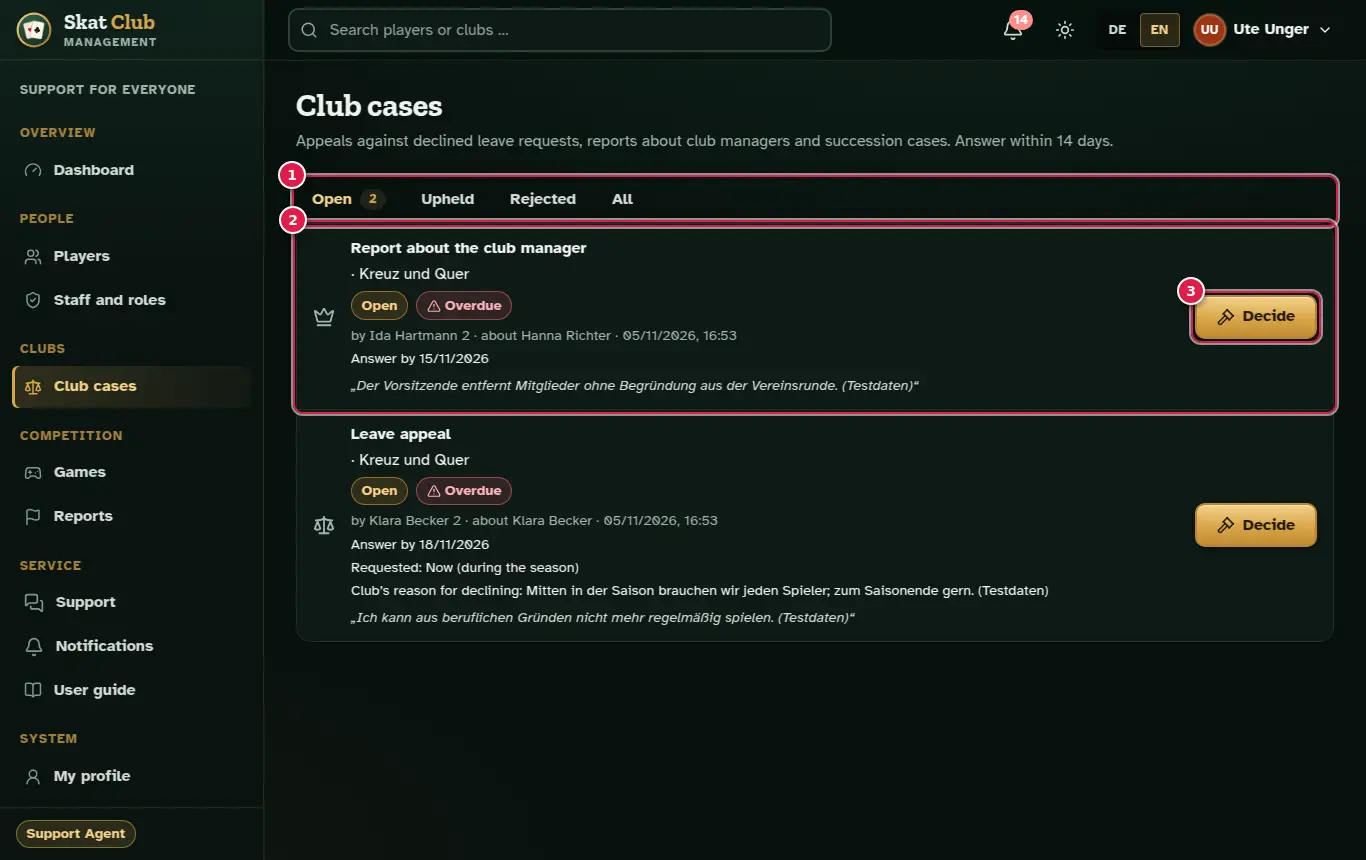
Click the picture for full size.
- 1. Cases by state: open, upheld, rejected.
- 2. A case with the report and the statement.
- 3. "Decide" opens the decision with a reason.
How to decide a case
- Open "Club cases" and tap "Decide" on the case.
- Choose "Uphold" or "Reject". The hint shows the outcome.
- Write a reason; the people involved see it.
- If a new Club Manager is needed, the Super Admin decides. Leave the case open or reject it.
Buttons and statuses
- Open / Upheld / Rejected / Overdue
- State of a case.
9 Staff and roles
Who is on the platform staff and which role they hold. The Super Admin grants roles in the player profile (tab "Roles").
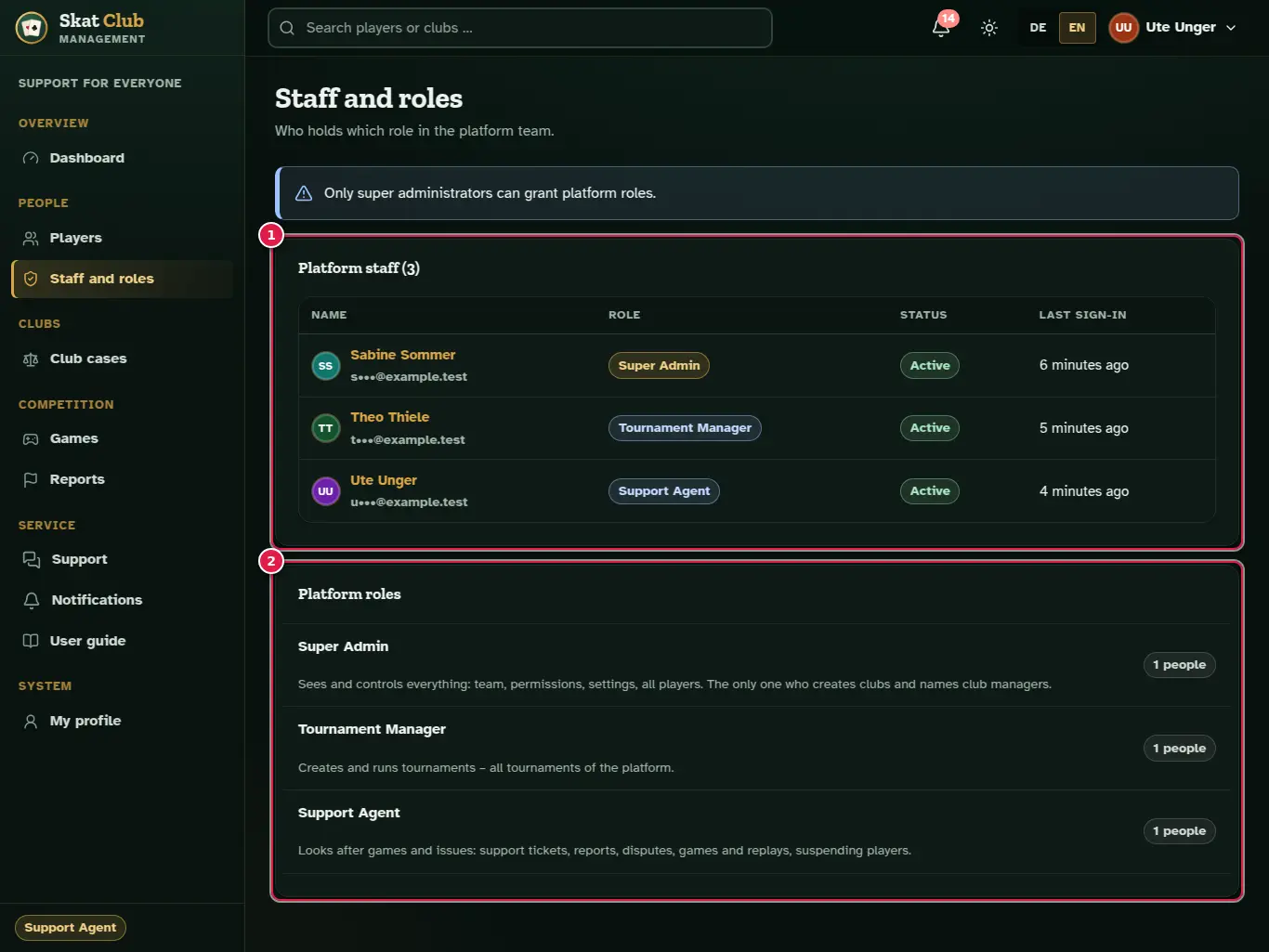
Click the picture for full size.
- 1. The platform staff with role, status and last sign-in.
- 2. What each platform role may do.
10 Notifications and My profile
Your messages and your personal settings.
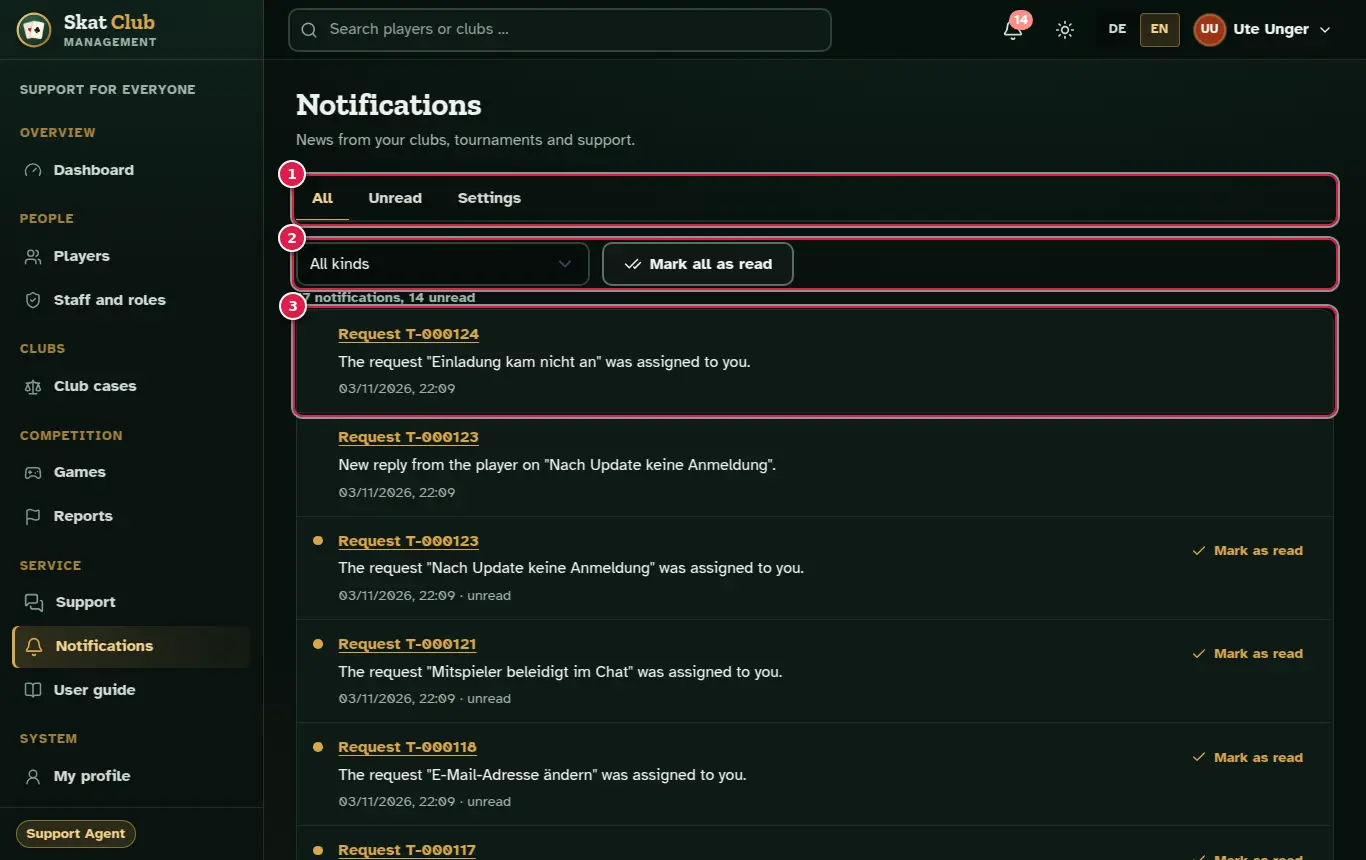
Click the picture for full size.
- 1. Tabs: "All", "Unread" and "Settings".
- 2. Filter by kind of message.
- 3. A notification. Unread ones are highlighted; tap to open the page it is about.
How to set up notifications
- Open "Notifications", tab "Settings".
- Choose "In the app" and/or "By email" per kind.
- Tap "Save".
How to change your profile
- Open "My profile" (group "System").
- Change language, text size or "Reduce motion".
- Tap "Save".
Buttons and statuses
- Mark all as read
- Marks all messages as read.