Help and user guide
Tournament Manager
As Tournament Manager you create and run all tournaments of the platform: from registration through check-in and draw to the final stage.
1 Getting started: sign-in and administration
Staff use the same sign-in page as players. After signing in you land in the administration (/admin). Staff accounts are not player accounts.
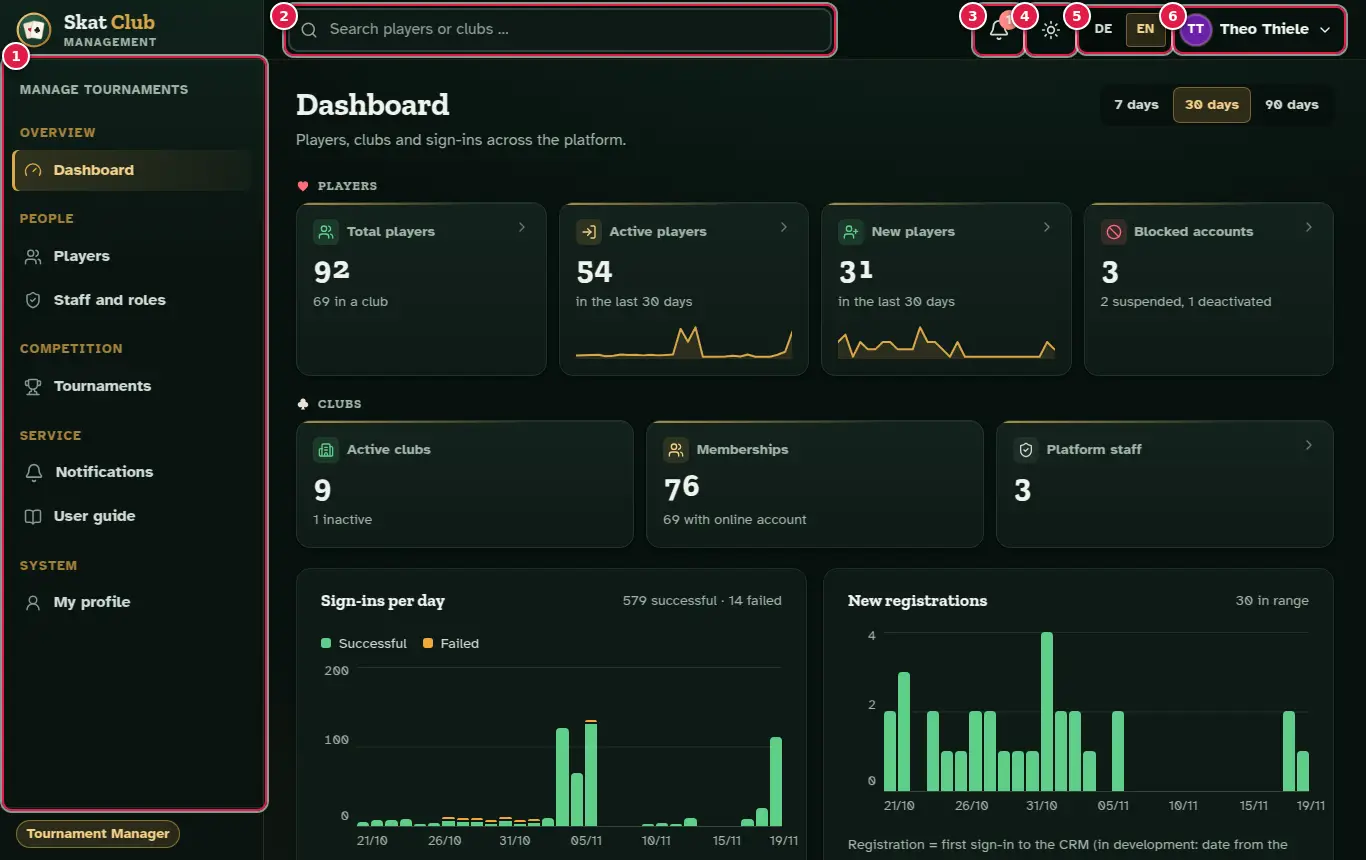
Click the picture for full size.
- 1. The menu, grouped into Overview, People, Clubs, Competition, Service, System. You only see pages you have permissions for.
- 2. Search for players and clubs.
- 3. Bell: new notifications. The number shows how many are unread; tap to open the list.
- 4. Sun/moon: light or dark view.
- 5. Switch the language: DE or EN.
- 6. Name at the top right: menu with profile and "Sign out".
How to sign in
- Enter email address and password. Tick "Remember me" if you like.
- Tap "Log in".
- You see the administration with the menu on the left (on phones at the bottom and under "More").
How to work with the interface
- The menu is grouped: "Overview", "People", "Clubs", "Competition", "Service", "System". You only see pages you have permissions for.
- Use the search at the top to find players and clubs.
- The bell shows notifications. Sun/moon switches between light and dark view. "DE"/"EN" switches the language.
- To sign out, tap your name at the top right and choose "Sign out".
Buttons and statuses
- Forgot password?
- On the sign-in page: a link by email, then set a new password.
If something goes wrong
- "No access"
- You lack a permission for this page. Ask the Super Admin.
- Delete account
- Staff accounts are deleted by an administrator, not by yourself.
2 Dashboard
The platform numbers at a glance, plus tiles that fit your role.
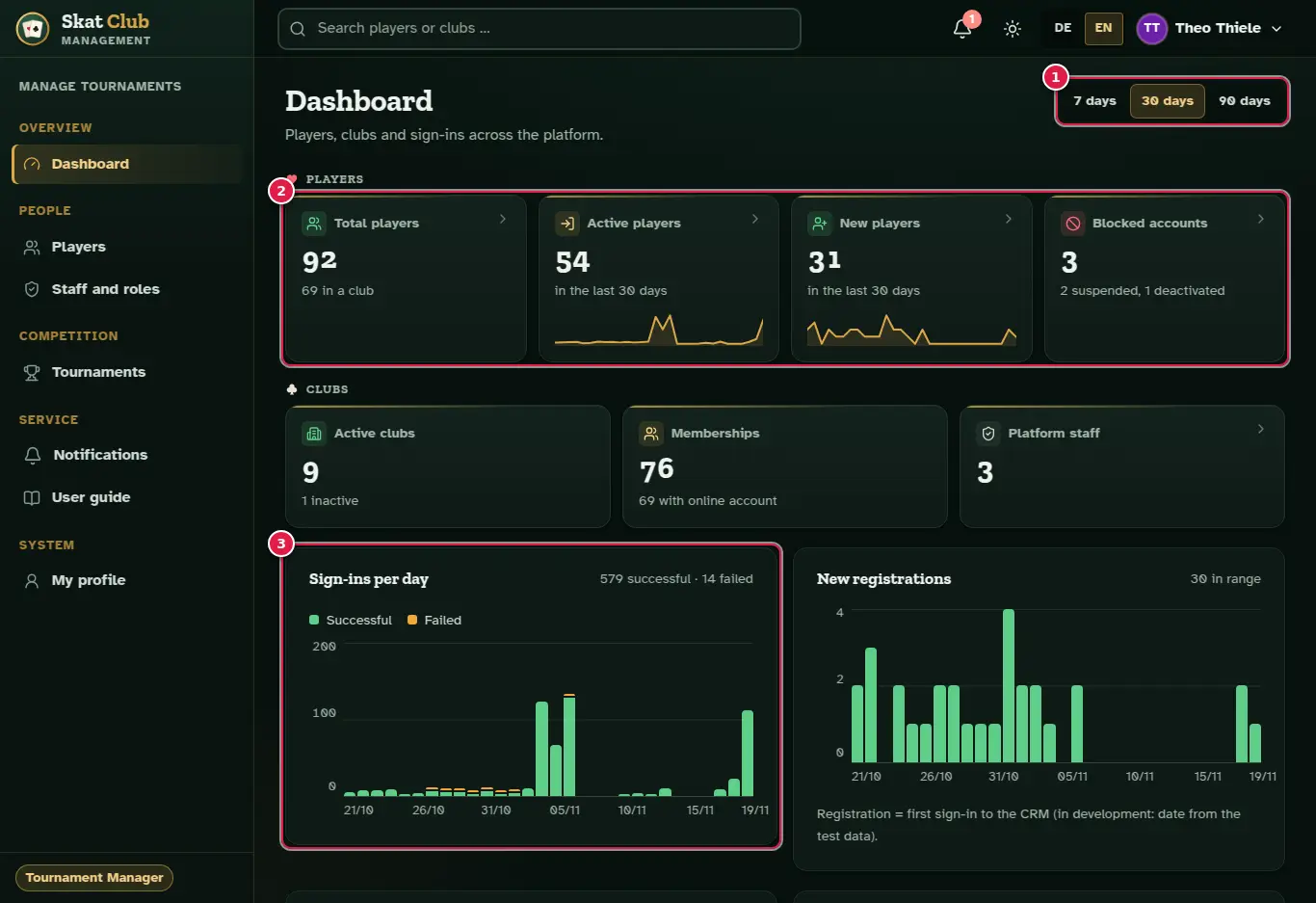
Click the picture for full size.
- 1. Period: 7, 30 or 90 days.
- 2. The key numbers. Tap one to open the filtered list.
- 3. Sign-ins per day, successful and failed.
How to use the dashboard
- Choose the period: 7, 30 or 90 days.
- Tap a number to open the filtered list.
- Under "Recent administration activity" you see the latest changes.
Buttons and statuses
- Total players / Active players / New players / Blocked accounts / Active clubs / Platform staff
- The key numbers.
3 Create a tournament
New tournaments use the format "top 9 + final": qualifying at tables of 4 (tables of 3 only to fill), then the best 9 play semifinals at three tables of 3, and the three table winners play the final.
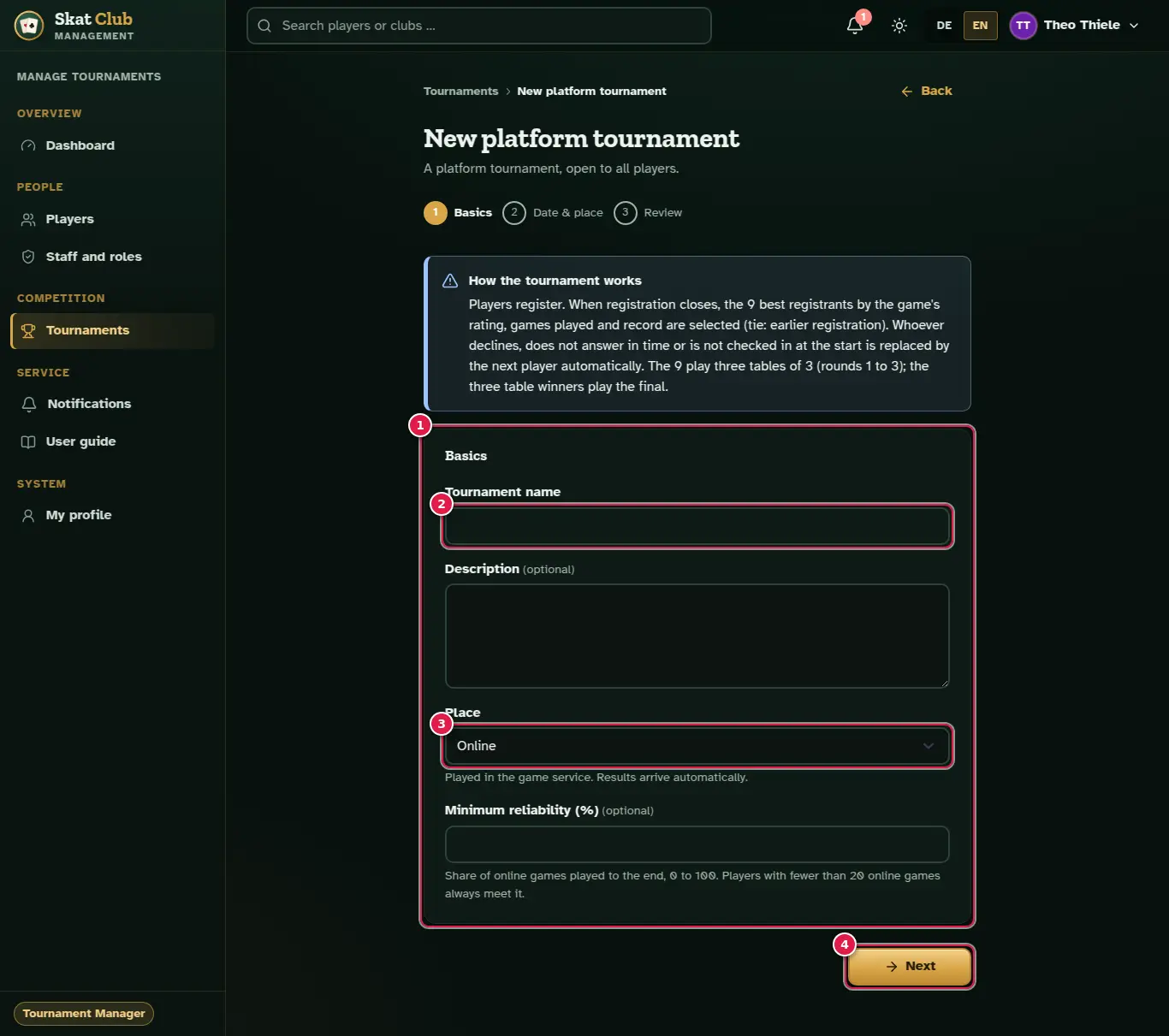
Click the picture for full size.
- 1. Step 1 "Basics": name, description, online or on site.
- 2. Tournament name.
- 3. Online or on site (then with address).
- 4. "Next" to the next step.
How to create a tournament
- Open "Tournaments" and tap "New platform tournament".
- "Basics": name, description, mode "Online" or "On site", "Minimum reliability (%)" if needed.
- "Date & place": registration window and registration deadline; on site also the address.
- "Review" and "Create tournament". The tournament is now a "Draft".
- Open "Edit" and set the start time. Only then are there check-in and draw.
If something goes wrong
- "Please set the start time (Edit)."
- Without a start time there is no check-in. Tap "Edit".
4 Run a tournament: registration to results
The course of a tournament through the card "Change status" and the tab "Live". Every change is logged.
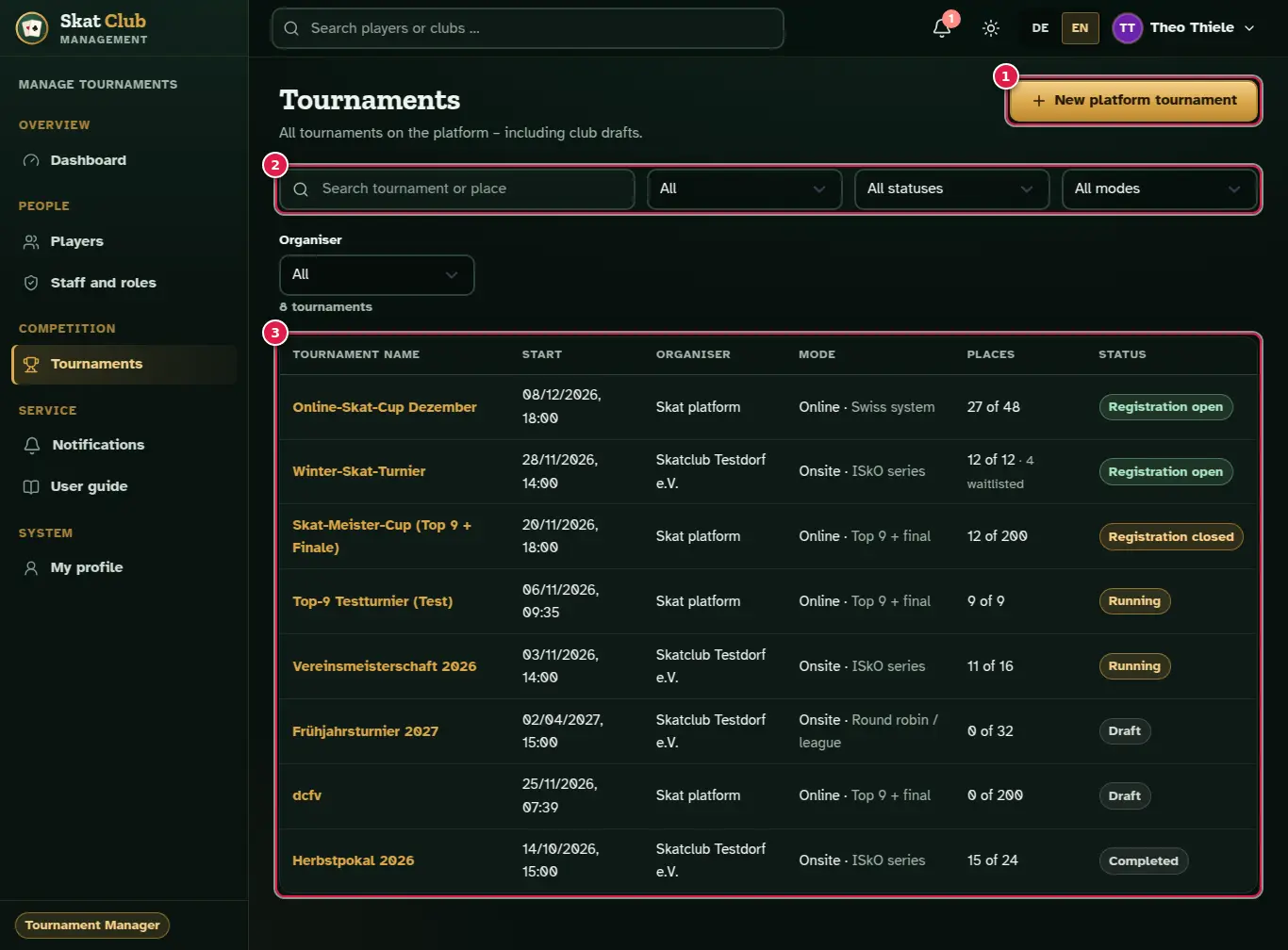
Click the picture for full size.
- 1. "New platform tournament".
- 2. Search and filters: period, status, mode, organiser.
- 3. The tournaments. Tap one to run it.
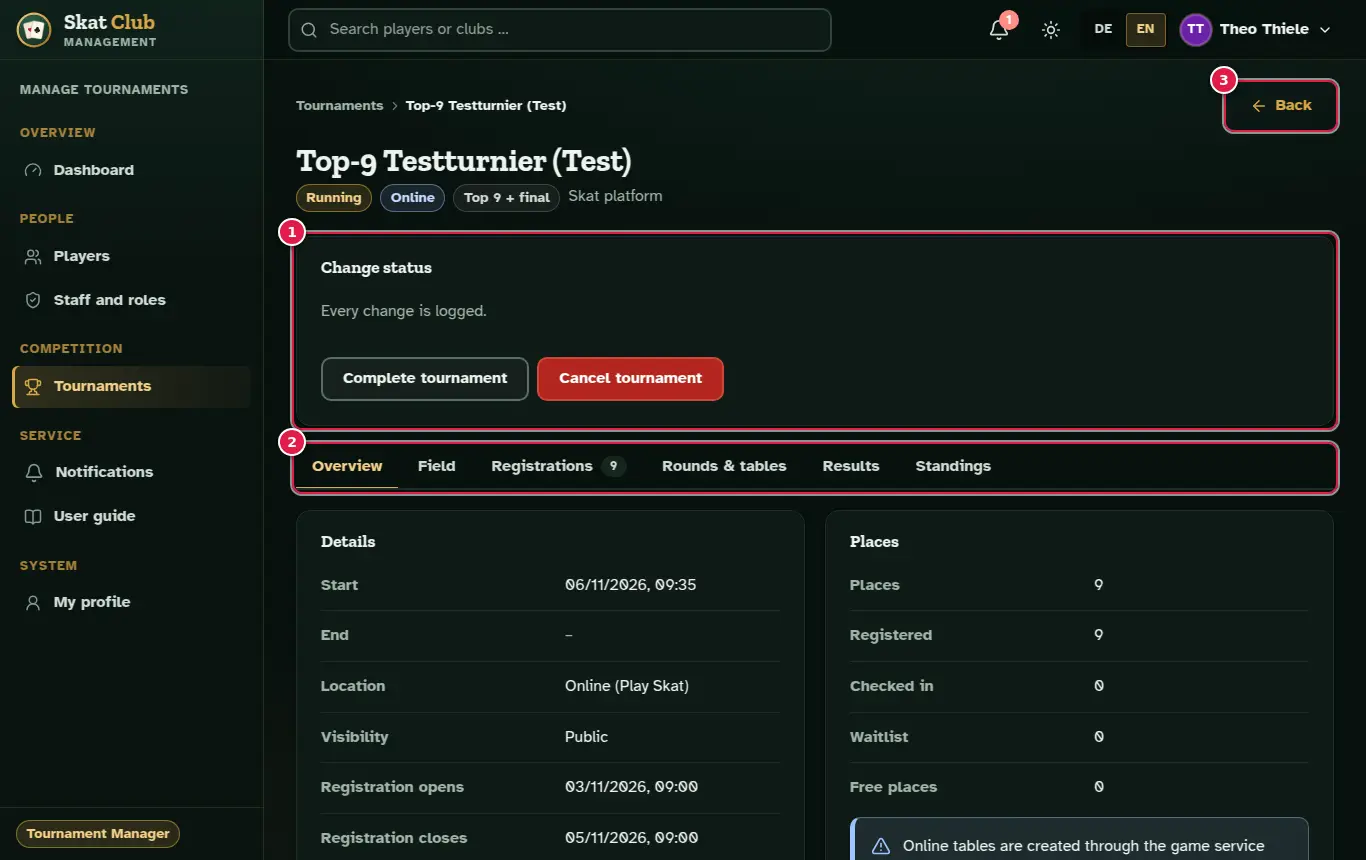
Click the picture for full size.
- 1. Card "Change status": publish, open/close registration, complete or cancel.
- 2. Tabs: Overview, Field, Registrations, Rounds & tables, Results, Standings.
- 3. "Back" returns to the previous page.
How to open and close registration
- Open the tournament.
- Tap "Publish", then "Open registration".
- Under "Registrations" you see who is registered or on the waitlist.
- At the deadline tap "Close registration".
How check-in and the draw work
- Check-in is open from 30 to 10 minutes before the start. In the tab "Live", card "Tournament control", you see "… of … checked in".
- If needed, check in a player with "Check in …" or undo the check-in.
- 5 minutes before the start the system draws automatically. "Draw now" does it earlier.
- With fewer than 3 checked in, the tournament is cancelled automatically.
How to follow the tables
- The live tables show "Live points (provisional)". A table of 4 that loses a player "plays as 3".
- If tables are missing on the game server: "Send to the game again", or "Cancel table" and draw again.
- When all tables are finished, tap "Move on (send missing tables again)". If a stage is stuck, close it with "Close this stage now".
How to handle no-shows and disqualifications
- Open the card "No-shows and disqualifications" (only while the tournament is running).
- Tap "Disqualify", choose the player and enter a reason.
- The player is no longer ranked. A finalist is replaced by the next player.
How the final stage and the end work
- The best 9 are invited in the card "Final stage" and confirm themselves.
- If someone declines or misses the deadline, the next player moves up.
- Semifinal and final run like the qualifying.
- Finally tap "Complete tournament". On-site tournaments enter the series lists in the tab "Results".
Buttons and statuses
- Draft / Published / Registration open / Registration closed / Running / Completed / Cancelled
- State of a tournament. Completed and Cancelled are final.
- Cancel tournament
- Needs a reason and cannot be undone.
- Qualifying / Selection for the final stage / Semifinal / Final / Finished
- The stages.
- Invited / Confirmed / Reserve / Declined / Deadline missed / No-show
- State in the final stage.
- Finished / Did not start / Disqualified / Dropped out
- Result state. Only series played to the end count.
If something goes wrong
- "This is not possible in the tournament's current status."
- Check the status; some steps only work in certain phases.
- "Not all tables are finished yet."
- Wait, or close the stage with "Close this stage now".
- "Game server not reachable"
- Try "Send to the game again" later.
5 Players
Find and view any account: overview, clubs, activity, status, roles.
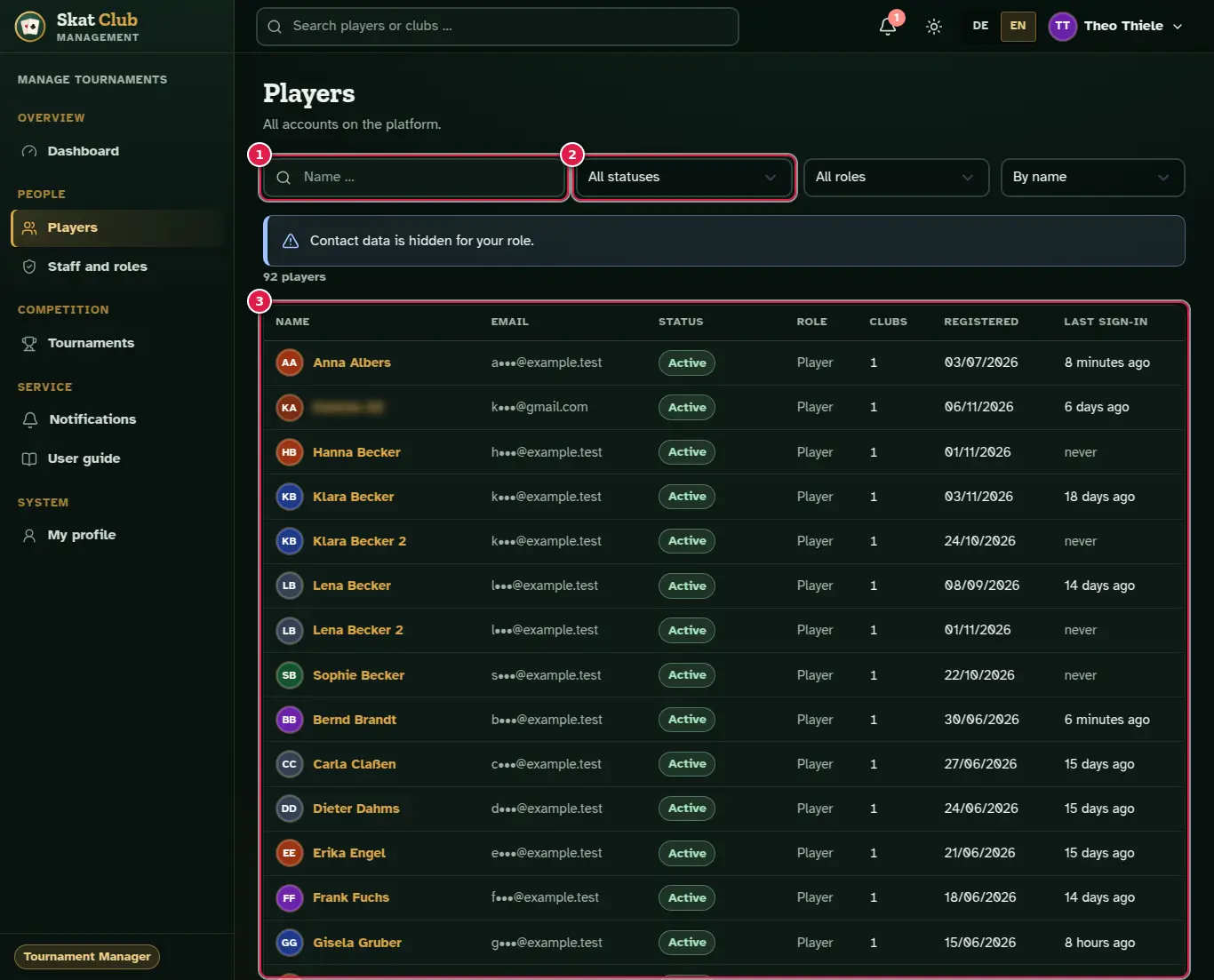
Click the picture for full size.
- 1. Search by name or email.
- 2. Filters: status, role and sort order.
- 3. The player list. Tap a name for the details.
How to find a player
- Open "Players" or use the search at the top.
- Search by name or email and filter by status or role.
- Tap the player to open the details.
Buttons and statuses
- Active / Suspended / Deactivated
- State of an account. Suspended: cannot use the platform; club memberships stay.
If something goes wrong
- "Contact data is hidden for your role."
- Your role does not see contact data. This is intended.
6 Staff and roles
Who is on the platform staff and which role they hold. The Super Admin grants roles in the player profile (tab "Roles").
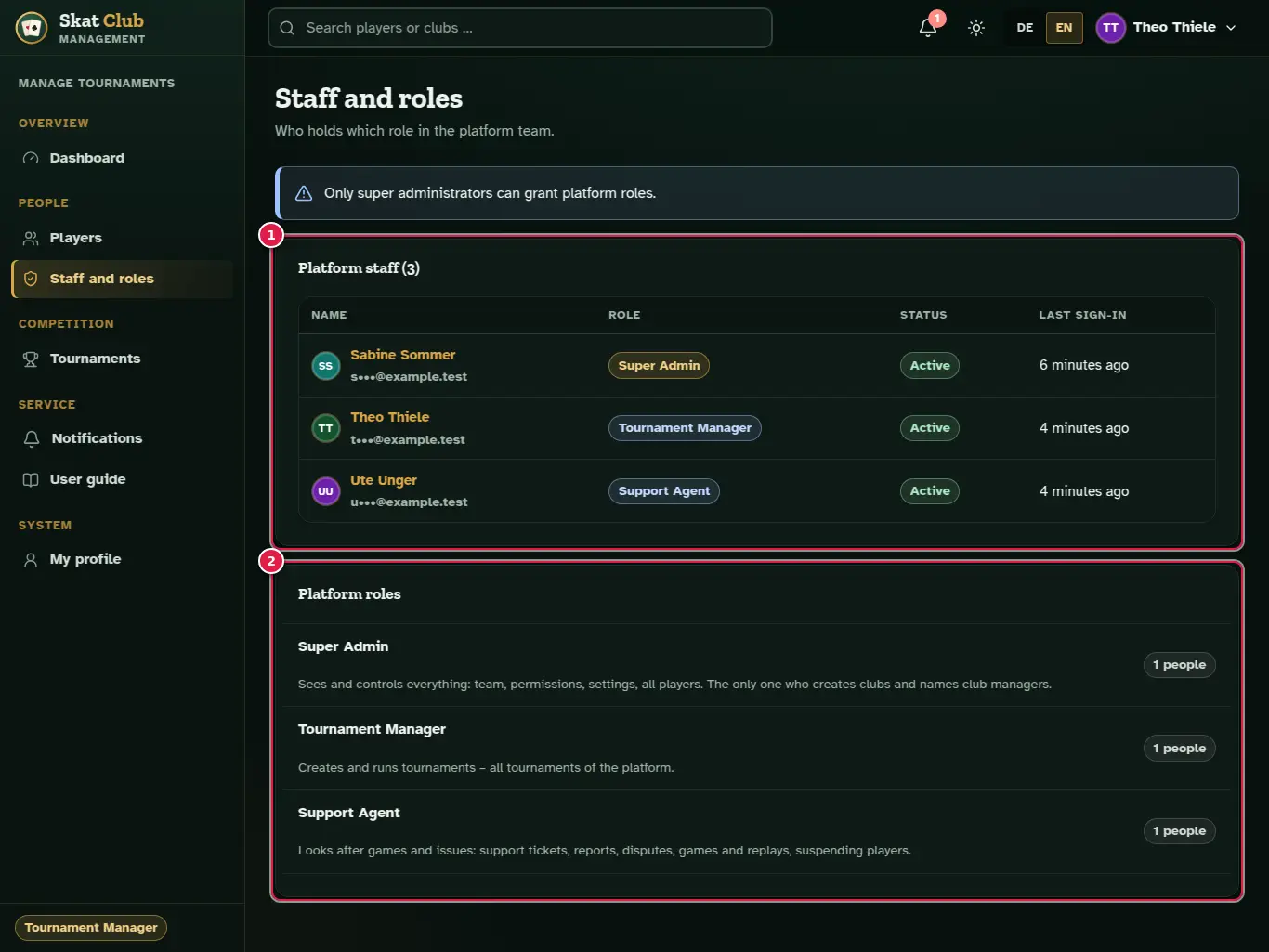
Click the picture for full size.
- 1. The platform staff with role, status and last sign-in.
- 2. What each platform role may do.
7 Notifications and My profile
Your messages and your personal settings.
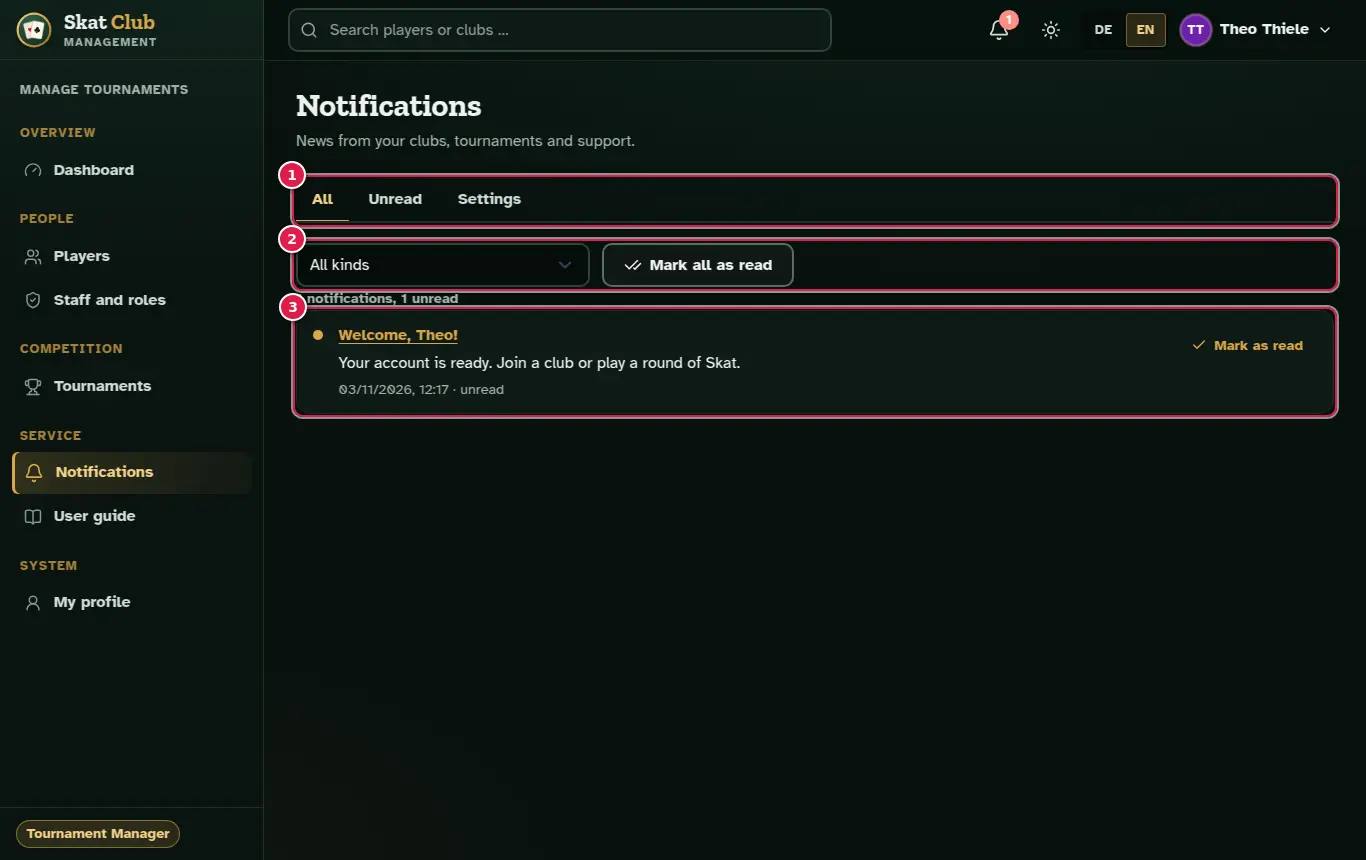
Click the picture for full size.
- 1. Tabs: "All", "Unread" and "Settings".
- 2. Filter by kind of message.
- 3. A notification. Unread ones are highlighted; tap to open the page it is about.
How to set up notifications
- Open "Notifications", tab "Settings".
- Choose "In the app" and/or "By email" per kind.
- Tap "Save".
How to change your profile
- Open "My profile" (group "System").
- Change language, text size or "Reduce motion".
- Tap "Save".
Buttons and statuses
- Mark all as read
- Marks all messages as read.